How to activate and deactivate an LVM logical volume
Taking an LVM logical volume offline for maintenance requires more than hiding a mount point. The kernel must release the device-mapper node before storage repair, snapshot merge, removal, or handoff work can proceed, and deactivating the wrong LV can interrupt applications that still hold it open.
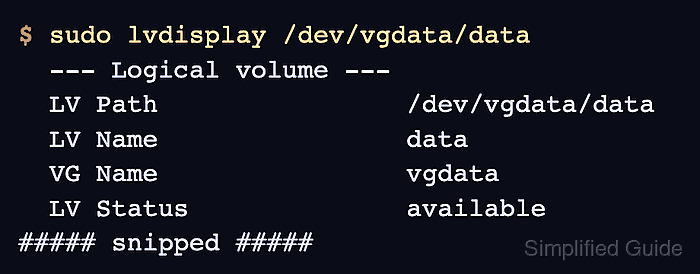
The lvchange command controls the activation state for one logical volume. Using --activate n makes the LV unavailable to the kernel, while --activate y restores the block device so filesystems or applications can use it again.
Activation does not mount a filesystem or restart an application. Confirm the target path first, stop or unmount anything using it, and follow the cluster resource policy before changing shared-storage LVM volumes.
Related: How to create an LVM logical volume
Related: How to remove an LVM logical volume
Steps to activate and deactivate an LVM logical volume:
- List the logical volume name, volume group name, and device path.
$ sudo lvs -o lv_name,vg_name,lv_path
  LV   VG     Path
  data vgdata /dev/vgdata/data
- Check whether the logical volume has a mounted filesystem.
$ findmnt -o SOURCE,TARGET /dev/vgdata/data
SOURCE           TARGET
/dev/vgdata/data /srv/data
No output means findmnt did not see that LV as a mounted filesystem. Raw consumers such as databases, virtual machines, swap, or cluster resources can still hold the device open.
- Unmount the filesystem if the previous command showed a mount point.
$ sudo umount /srv/data
Do not deactivate a mounted or in-use LV. Stop the application, unmount the filesystem, or fail over the resource first to avoid data loss or service interruption.
- Deactivate the logical volume.
$ sudo lvchange --activate n vgdata/data
- Confirm that LVM reports the logical volume as not available.
$ sudo lvdisplay vgdata/data
  --- Logical volume ---
  LV Path                /dev/vgdata/data
  LV Name                data
  VG Name                vgdata
  LV Status              NOT available
##### snipped #####
- Activate the logical volume again.
$ sudo lvchange --activate y vgdata/data
- Confirm that LVM reports the logical volume as available.
$ sudo lvdisplay vgdata/data
  --- Logical volume ---
  LV Path                /dev/vgdata/data
  LV Name                data
  VG Name                vgdata
  LV Status              available
##### snipped #####
- Mount the filesystem again when it should return to service.
$ sudo mount /srv/data
Use the mount point from findmnt or /etc/fstab. Skip this step for raw logical volumes that are opened directly by an application.