How to kill a process in Linux
A stuck or runaway process can block a terminal, hold a lock file, consume CPU, or keep a shutdown from completing. Ending it cleanly starts with selecting the exact target, sending a normal termination signal first, and confirming that the PID disappears before escalating.
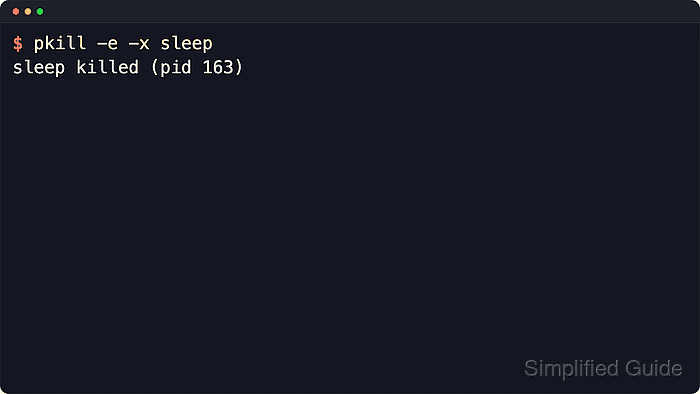
Linux process-control tools send signals to the kernel rather than deleting process files or changing service definitions. kill targets a known PID, while pgrep and pkill can select processes by attributes such as exact command name, owner, or full command line.
Use SIGTERM before SIGKILL because TERM gives the process a chance to run cleanup handlers, flush buffers, and release locks. A process in uninterruptible sleep state D may not exit until the blocked I/O returns, and a process managed by systemd or another supervisor may be replaced immediately unless the owning service is handled separately.
Steps to kill a process in Linux:
- Identify the exact process name and PID before sending a signal.
$ pgrep -a -x sleep
39 sleep 600
-x requires an exact process-name match, and -a prints the full command line beside the PID. Replace sleep with the process name being terminated.
- Send the default SIGTERM signal to the selected PID.
$ kill 39
kill sends SIGTERM when no signal is specified. No output means the signal request was accepted by the kernel.
- Confirm that the PID no longer exists.
$ ps -p 39 -o pid=,stat=,cmd=
No output means that PID is absent from the process table.
- Inspect a PID that remains after SIGTERM before escalating.
$ ps -p 44 -o pid=,stat=,cmd=
     44 S    sleep 600
A remaining row means the process is still present. The STAT column shows its current process state.
- Force only the confirmed PID when normal termination fails.
$ kill -KILL 44
SIGKILL cannot be caught or ignored, so the process cannot flush application state, release locks, or remove its own temporary files before exit.
- Use pkill only when every exact-name match should receive the signal.
$ pkill -e -x sleep
sleep killed (pid 50)
-e prints the process name and PID that pkill signaled. Keep -x unless a broader pattern match is intentional.
- Re-check the exact-name match after any forced or name-based kill.
$ pgrep -a -x sleep
No output means no exact-name sleep process is still running. If the command reappears immediately, a service manager or supervisor probably started a replacement process.
Related: How to manage a Linux service with systemctl