How to check dd progress in Linux
A raw image write can look frozen when dd has no progress output, especially during a large USB write, disk clone, or recovery copy. Checking transfer progress while the copy runs shows whether bytes are still moving before interrupting a job that may only be slow.
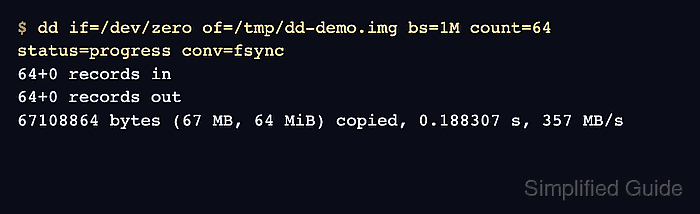
GNU dd from coreutils supports status=progress for new transfers. The option prints periodic byte counts and a final summary to standard error, so it works with ordinary file copies and block-device writes without adding another monitor command. Short test copies may finish before a visible intermediate update, but the final summary still confirms the byte count and speed.
For a dd process that is already running without status=progress, Linux systems with GNU dd can print a one-time report by sending USR1 to the selected process. The report appears in the terminal where dd is running. Progress checks do not make dd safer, so confirm both if= and of= before copying to disks, partitions, or installer media.
Steps to check dd progress in Linux:
- Run dd with status=progress for a new transfer.
$ dd if=/dev/zero of=/tmp/dd-demo.img bs=1M count=64 status=progress conv=fsync
64+0 records in
64+0 records out
67108864 bytes (67 MB, 64 MiB) copied, 0.188307 s, 357 MB/s
Replace the sample if= and of= paths with the real source and destination. Use sudo when the source or destination is a block device such as /dev/sdb.
- Confirm that the output file has the expected size.
$ ls -lh /tmp/dd-demo.img
-rw-r--r-- 1 user user 64M Jun 13 20:20 /tmp/dd-demo.img
The final dd summary and the file size should agree. For a real disk or partition target, verify the written device with the guide that matches that workflow rather than relying only on the byte count.
- Start a temporary background dd copy only when no real copy is already running.
$ dd if=/dev/zero of=/tmp/dd-fallback.img bs=1M count=1024 oflag=sync &
[1] 31244
Skip this step when monitoring an existing long-running dd process. The oflag=sync sample slows the temporary file write enough to test the signal path on many systems.
- Identify the running dd process from another terminal before sending a signal.
$ pgrep -a '^dd$'
31244 dd if=/dev/zero of=/tmp/dd-fallback.img bs=1M count=1024 oflag=sync
Select the process ID for the exact copy you intend to monitor. Use sudo pgrep -a '^dd$' when the process belongs to another user.
- Send USR1 to the selected dd process.
$ kill -USR1 31244
Use sudo kill -USR1 31244 when the process is owned by root. The progress report appears in the terminal where dd is running.
- Read the progress report in the original dd terminal.
287+0 records in
287+0 records out
300941312 bytes (301 MB, 287 MiB) copied, 1.01014 s, 298 MB/s
The copy keeps running after the signal. Send USR1 again later for another point-in-time report, or use status=progress next time when the command can be restarted safely.
- Wait for the temporary background copy in the terminal where it was started.
$ wait %1
- Remove the temporary sample files.
$ rm -f /tmp/dd-demo.img /tmp/dd-fallback.img
Do not remove a real destination file or device after a production dd run. This cleanup applies only to the temporary files created by the sample commands.