Table of Contents
How to install custom fonts in Linux
Fonts copied into a random download folder may not appear in LibreOffice, browsers, editors, or design tools because most desktop applications read available typefaces through fontconfig. Placing the files in a directory that fontconfig scans and rebuilding its cache makes the family available from normal font menus.
Fontconfig reads configured font directories and indexes files that FreeType can open. The per-user font directory is $XDG_DATA_HOME/fonts, which normally resolves to ~/.local/share/fonts, while administrator-added fonts belong under /usr/local/share/fonts. Most desktop distributions already include fontconfig; minimal server images may need the distribution's fontconfig package before fc-cache and fc-match are available.
Install fonts locally when only one account needs the typeface. Install them system-wide only when multiple local users, shared desktop sessions, or document-generation services need the same family. Applications that were already open can keep an old font list until they are restarted.
Related: Set custom fonts in Ubuntu GNOME
Related: Install proprietary media codecs and Microsoft fonts on Ubuntu
Methods to install custom fonts in Linux:
Steps to install custom fonts locally:
Installing a font locally keeps the files inside the current user's home directory. Use this method when the font should follow one desktop account and does not need administrator privileges.
- Open a terminal in the account that should use the font.
- Create the per-user font directory.
$ mkdir -p ~/.local/share/fonts
- Copy the downloaded font file into the per-user font directory.
$ install -m 0644 ~/Downloads/LiberationSans-Regular.ttf ~/.local/share/fonts/
Replace the sample file with the downloaded .ttf, .otf, or other supported font file. Copy every style file from the same family, such as regular, bold, italic, and bold italic, when applications should offer those styles.
- Rebuild the per-user fontconfig cache.
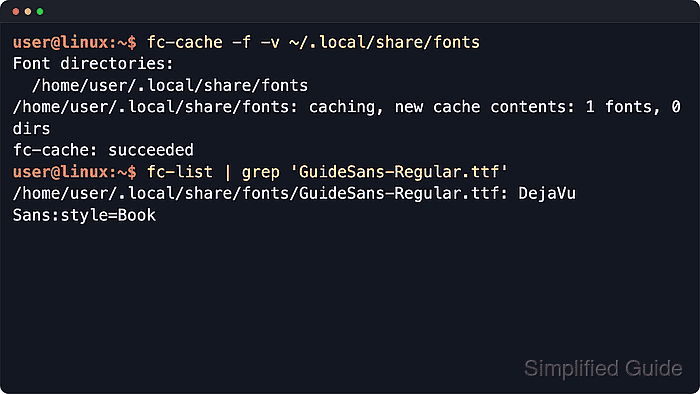
$ fc-cache --force --verbose ~/.local/share/fonts
Font directories:
	/home/user/.local/share/fonts
/home/user/.local/share/fonts: caching, new cache contents: 1 fonts, 0 dirs
##### snipped #####
fc-cache: succeeded
The command should end with fc-cache: succeeded and no read-permission errors for the copied font files.
- Confirm that fontconfig can match the installed family.
$ fc-match "Liberation Sans"
LiberationSans-Regular.ttf: "Liberation Sans" "Regular"
Use the family name advertised by the font package or shown by the application after the cache refresh. If another font is returned, check that the copied files are readable and that the family name matches the font metadata.
- Reopen the application that should use the font.
- Select the new family from the application's font list.
Steps to install custom fonts system-wide:
A system-wide font install uses a shared directory scanned by fontconfig for every local account. Use this method for shared workstations, terminal servers, or services that generate documents with a required typeface.
- Create a dedicated shared font directory.
$ sudo install -d /usr/local/share/fonts/custom
Use /usr/local/share/fonts for administrator-added fonts so package-managed files under /usr/share/fonts stay separate.
- Copy the font file into the shared directory with world-readable permissions.
$ sudo install -m 0644 ~/Downloads/LiberationSans-Bold.ttf /usr/local/share/fonts/custom/
Applications can skip shared font files that other users cannot read. Avoid restrictive modes such as 600 on system-wide font files.
- Rebuild the fontconfig cache for the shared directory.
$ sudo fc-cache --force --verbose /usr/local/share/fonts/custom
Font directories:
	/usr/local/share/fonts/custom
/usr/local/share/fonts/custom: caching, new cache contents: 1 fonts, 0 dirs
##### snipped #####
fc-cache: succeeded
- Confirm that fontconfig can match the shared family or style.
$ fc-match "Liberation Sans:style=Bold"
LiberationSans-Bold.ttf: "Liberation Sans" "Bold"
- Reopen applications that were running before the cache refresh.
- Restart the affected desktop session if another user still cannot see the new family.