How to change ownership of files and directories in Linux
Incorrect ownership can leave restored backups, shared project directories, and service data writable by the wrong account or unreadable by the account that needs them. In Linux, changing ownership assigns the user and group that control a path without changing the file contents.
The chown command changes the user owner, the group owner, or both with forms such as owner, owner:group, :group, and --reference. The chgrp command updates only the group field, while stat and find show the ownership before and after each change.
Most ownership changes require sudo or a root shell. Confirm account and group names first, aim recursive changes at the exact path, and review the resulting tree because a wide --recursive run can break application access or expose data. Some systems restrict non-root group changes and may clear set-user-ID or set-group-ID bits when ownership changes.
Steps to change ownership of files and directories in Linux:
- Confirm that the target user exists.
$ getent passwd appuser
appuser:x:2001:2001::/home/appuser:/bin/bash
The getent command checks the active account database, including local users and directory-backed identities.
- Confirm that the target group exists.
$ getent group ops
ops:x:2002:
- Check the current owner and group of the target path.
$ stat --format="%n %U:%G" /srv/app/current /srv/app/current/owned.txt
/srv/app/current root:root
/srv/app/current/owned.txt root:root
The stat format string prints each path followed by its current user:group ownership.
- Change only the file owner.
$ sudo chown appuser /srv/app/current/owned.txt
- Verify that the file owner changed and the group stayed the same.
$ stat --format="%n %U:%G" /srv/app/current/owned.txt
/srv/app/current/owned.txt appuser:root
Supplying only a user name to chown changes the owner field and leaves the existing group unchanged.
- Change only the file group.
$ sudo chgrp ops /srv/app/current/owned.txt
The equivalent chown :ops /srv/app/current/owned.txt form also changes only the group field.
- Verify that the file group changed.
$ stat --format="%n %U:%G" /srv/app/current/owned.txt
/srv/app/current/owned.txt appuser:ops
- Copy ownership from a known-good reference file.
$ sudo chown --reference=/srv/app/reference-owner.txt /srv/app/current/docs/readme.txt
The --reference option copies the owner and group from an existing path, which avoids retyping names when related files should match.
- Verify that the reference ownership was applied.
$ stat --format="%n %U:%G" /srv/app/reference-owner.txt /srv/app/current/docs/readme.txt
/srv/app/reference-owner.txt appuser:ops
/srv/app/current/docs/readme.txt appuser:ops
- Change both the owner and group of the directory itself.
$ sudo chown appuser:ops /srv/app/current
Use the user:group form to set both fields together. If the command uses appuser: with nothing after the colon, chown switches the group to that user's login group.
- Verify the directory ownership.
$ stat --format="%n %U:%G" /srv/app/current
/srv/app/current appuser:ops
- Review the full target path before applying ownership recursively.
$ sudo chown --recursive appuser:ops /srv/app/current
A recursive ownership change on the wrong directory can break services or expose data. GNU chown does not traverse symlinked directories during recursive traversal unless options such as -H or -L are used, and those options can affect targets outside the intended tree.
- Review the resulting ownership across the directory tree.
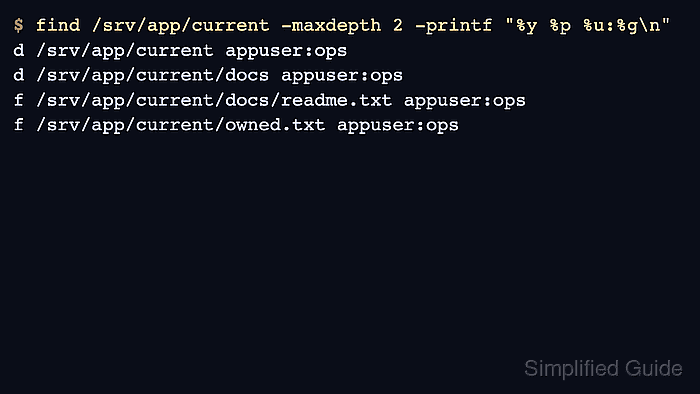
$ find /srv/app/current -maxdepth 2 -printf "%y %p %u:%g\n"
d /srv/app/current appuser:ops
d /srv/app/current/docs appuser:ops
f /srv/app/current/docs/readme.txt appuser:ops
f /srv/app/current/owned.txt appuser:ops
The final listing confirms that the directory, nested directory, and files now share the intended appuser:ops ownership.