How to extract xz files in Linux
A .xz download can be either one compressed file or a tar archive that needs directory extraction. Treating both forms the same can leave a compressed stream in place or unpack archived paths into the wrong directory, so identify the file shape before writing output.
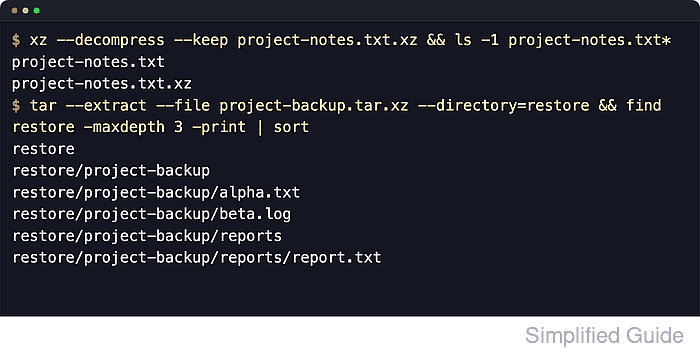
A plain .xz file contains one compressed data stream. xz --decompress recreates the original file and normally deletes the compressed input after a successful run, while --keep preserves the archive for repeatable extraction or audit trails.
A .tar.xz file stores a tar archive inside xz compression. GNU tar can list and extract normal compressed archive files without adding --xz, though --xz or -J is still useful when compressed archive data comes from a pipe. Use a dedicated restore directory when the archived paths may overlap with existing files.
Related: Extract .tar.gz files
Related: Extract tar.bz2 files
Related: Extract 7z files
Steps to extract xz files in Linux:
- Identify the archive format before extracting it.
$ file project-notes.txt.xz project-backup.tar.xz
project-notes.txt.xz:  XZ compressed data, checksum CRC64
project-backup.tar.xz: XZ compressed data, checksum CRC64
The file command confirms the compression format, but a .tar.xz archive still needs a tar listing step to show the stored file names. Files that end in .txz are the same kind of tar archive compressed with xz.
- List metadata for the plain .xz file.
$ xz --list project-notes.txt.xz
Strms  Blocks   Compressed Uncompressed  Ratio  Check   Filename
    1       1        124 B         58 B  2.138  CRC64   project-notes.txt.xz
xz --list prints size and integrity-check details without writing any output files.
- Decompress the plain .xz file while keeping the original archive.
$ xz --decompress --keep project-notes.txt.xz
No output means xz finished without reporting an error. Omit --keep only when the compressed source file should be removed after successful extraction.
- Verify the restored file and retained archive.
$ file project-notes.txt project-notes.txt.xz
project-notes.txt:    ASCII text
project-notes.txt.xz: XZ compressed data, checksum CRC64
If the target filename already exists, xz stops instead of overwriting it unless --force is added deliberately.
- Preview the .tar.xz archive before extracting it.
$ tar --list --file project-backup.tar.xz
project-backup/
project-backup/reports/
project-backup/reports/report.txt
project-backup/beta.log
project-backup/alpha.txt
Current GNU tar releases auto-detect compression when reading a normal archive file, so --xz is not required here. If the archive is being read from a pipe instead of a file, add --xz or -J to tell tar which decompressor to use.
- Create the restore directory.
$ mkdir -p restore
- Extract the .tar.xz archive into the restore directory.
$ tar --extract --verbose --file project-backup.tar.xz --directory=restore
project-backup/
project-backup/reports/
project-backup/reports/report.txt
project-backup/beta.log
project-backup/alpha.txt
Extracting into an existing directory can overwrite files that have the same archived paths and names. Listing the archive first and unpacking into an empty directory reduces that risk.
- Compare the restored tree against the archive.
$ tar --compare --file project-backup.tar.xz --directory=restore
No output means the extracted files match the archived paths and contents. If tar prints a file path, inspect that restored file before using the extracted tree.