How to extract 7z files in Linux
7z archives often arrive as backups, vendor bundles, and compressed handoffs where the stored directory layout matters. Extracting them on Linux is safest when the archive is previewed first, tested for readability, and unpacked into a dedicated directory.
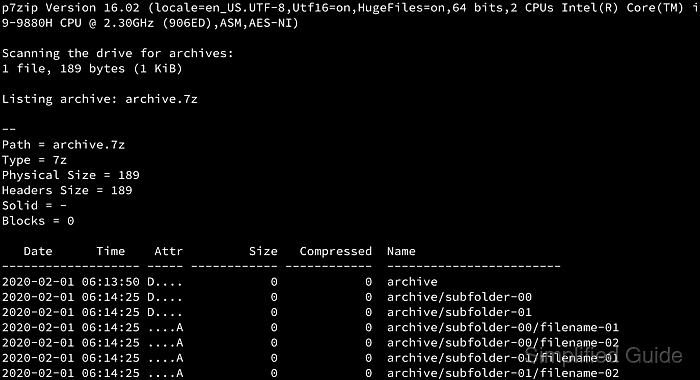
The 7z command uses short action letters for archive work. The l action lists stored paths, t tests whether the archive can be read, and x extracts files with their archived directory paths intact. The -o switch selects the destination directory and is written directly before the path, such as -o./restore.
Current Ubuntu and Debian releases provide the 7z command through the 7zip package, while older distributions may still use p7zip-full or another package name. A .7z archive may contain a top-level folder or loose files, encrypted archives prompt for a password during listing, testing, or extraction, and name collisions can prompt before existing files are overwritten.
Related: Extract ZIP files
Related: Extract RAR files
Related: Extract XZ files
Steps to extract 7z files in Linux:
- Install the package that provides 7z when the command is missing.
$ sudo apt install 7zip
Run sudo apt update first if the package index is stale. On older releases, the package may be named p7zip-full; on Fedora, install p7zip and p7zip-plugins.
- Confirm that the 7z command is available.
$ command -v 7z
/usr/bin/7z
- Change to the directory that contains the .7z archive.
$ cd /tmp/restore-demo
Replace /tmp/restore-demo with the path that contains the archive to extract.
- List the archive contents before extracting anything.
$ 7z l project-backup.7z

7-Zip 26.00 (arm64) : Copyright (c) 1999-2026 Igor Pavlov : 2026-02-12
 64-bit arm_v:8-A locale=C.UTF-8 Threads:8 OPEN_MAX:1048576, ASM

Scanning the drive for archives:
1 file, 252 bytes (1 KiB)

Listing archive: project-backup.7z

--
Path = project-backup.7z
Type = 7z
Physical Size = 252
Headers Size = 230
Method = LZMA2:12
Solid = +
Blocks = 1

   Date      Time    Attr         Size   Compressed  Name
------------------- ----- ------------ ------------  ------------------------
2026-06-13 03:27:18 D....            0            0  project-backup
2026-06-13 03:27:18 D....            0            0  project-backup/reports
2026-06-13 03:27:18 ....A            6           22  project-backup/alpha.txt
2026-06-13 03:27:18 ....A            5               project-backup/beta.log
2026-06-13 03:27:18 ....A            7               project-backup/reports/report.txt
------------------- ----- ------------ ------------  ------------------------
2026-06-13 03:27:18                 18           22  3 files, 2 folders
The l action shows whether the archive already contains a top-level directory, which helps avoid scattering restored files into the current path.
- Test the archive before writing files to disk.
$ 7z t project-backup.7z

7-Zip 26.00 (arm64) : Copyright (c) 1999-2026 Igor Pavlov : 2026-02-12
 64-bit arm_v:8-A locale=C.UTF-8 Threads:8 OPEN_MAX:1048576, ASM

Scanning the drive for archives:
1 file, 252 bytes (1 KiB)

Testing archive: project-backup.7z
--
Path = project-backup.7z
Type = 7z
Physical Size = 252
Headers Size = 230
Method = LZMA2:12
Solid = +
Blocks = 1

Everything is Ok

Folders: 2
Files: 3
Size:       18
Compressed: 252
Everything is Ok means 7z could read the archive data. Password-protected archives prompt for the password when testing encrypted contents.
- Create a clean destination directory.
$ mkdir -p restore
Extracting into a dedicated directory keeps restored files separate from unrelated files and makes overwrite prompts easier to interpret.
- Extract the archive into the destination directory while preserving stored paths.
$ 7z x project-backup.7z -o./restore

7-Zip 26.00 (arm64) : Copyright (c) 1999-2026 Igor Pavlov : 2026-02-12
 64-bit arm_v:8-A locale=C.UTF-8 Threads:8 OPEN_MAX:1048576, ASM

Scanning the drive for archives:
1 file, 252 bytes (1 KiB)

Extracting archive: project-backup.7z
--
Path = project-backup.7z
Type = 7z
Physical Size = 252
Headers Size = 230
Method = LZMA2:12
Solid = +
Blocks = 1

Everything is Ok

Folders: 2
Files: 3
Size:       18
Compressed: 252
The x action preserves archived paths. Use e only when every file should be flattened into one directory. Add -aos to skip existing files or -aoa to overwrite existing files without prompting.
- Verify that the expected files were restored.
$ find restore -maxdepth 3 -print
restore
restore/project-backup
restore/project-backup/reports
restore/project-backup/reports/report.txt
restore/project-backup/beta.log
restore/project-backup/alpha.txt
A final directory listing confirms that the extraction landed under the intended destination before the restored content is moved, edited, or deployed.