How to unmount a disk in Linux
A mounted disk that is about to be unplugged, checked, or moved should be detached from Linux before the device disappears. Unmounting the filesystem stops new access through its mount point, flushes pending metadata through the normal kernel path, and prevents later commands from writing into the wrong directory.
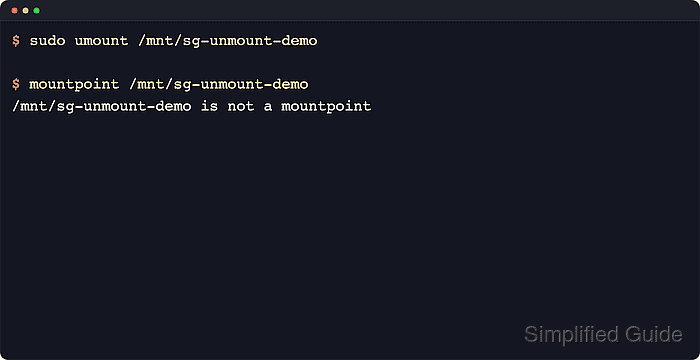
Linux records active mounts in the kernel mount table exposed through /proc/self/mountinfo. The findmnt command resolves a mount point back to its source device, filesystem type, and active options, umount removes that specific mount entry, and mountpoint confirms afterward that the directory is no longer attached to a filesystem.
Most local disk unmounts need sudo. A busy target means some process still has a current directory, mapped file, or open file on that filesystem, so release that holder before retrying instead of forcing the unmount. Move root, boot, database, or application storage to maintenance or rescue mode when the live system still depends on it.
Steps to unmount a disk in Linux:
- Inspect the active mount entry before unmounting.
$ findmnt --mountpoint /mnt/data --output TARGET,SOURCE,FSTYPE,OPTIONS
TARGET    SOURCE     FSTYPE OPTIONS
/mnt/data /dev/loop3 ext4   rw,relatime
Replace /mnt/data with the mount point that should be removed. If only the device name is known, use findmnt --source /dev/sdb1 --output TARGET,SOURCE,FSTYPE,OPTIONS first to resolve its current mount point.
- Unmount the filesystem by its mount point.
$ sudo umount /mnt/data
Use the mounted directory when possible. A single device can be mounted in more than one place, while the mount point identifies the exact active entry that should be removed.
If the target is the root filesystem, /boot, or storage still serving a running application, stop here and move the unmount to maintenance or rescue mode instead of trying to detach it live.
- Identify process holders when umount reports target is busy.
$ sudo fuser --verbose --mount --ismountpoint /mnt/data
                     USER        PID ACCESS COMMAND
/mnt/data:           root     kernel mount /mnt/data
                     root         68 ..c.. sleep
An entry with ..c.. means a process has its current directory inside the mounted filesystem. If fuser is missing on a minimal system, install the package that provides it first. That package is commonly named psmisc.
- Move any shell that is inside the mounted filesystem back outside it.
$ cd /
Run this in the terminal session that is holding the mount, or exit that shell entirely.
- Stop the specific holder only when it cannot exit normally.
$ sudo kill 68
Use the PID returned by fuser and review the command before stopping it. Exiting an interactive shell, closing a file manager, or stopping the relevant service is safer than sending a stronger signal immediately.
- Retry the unmount after the holder releases the filesystem.
$ sudo umount /mnt/data
If umount still reports target is busy, run fuser again until the remaining holders match what should stay open.
- Confirm that the mount point is no longer active.
$ mountpoint /mnt/data
/mnt/data is not a mountpoint
Confirm this before unplugging removable media or starting filesystem repair work on the unmounted device.
Use umount -l /mnt/data only as a fallback for cases such as an unreachable network share or a broken removable device that must be detached immediately. Lazy unmount removes the path from the directory tree now and cleans up remaining references later, so it should not be the default path for a healthy local disk.