How to clone a disk or partition in Linux
A disk clone is useful before hardware replacement, partition repair, or recovery work because it copies the block device instead of only visible files. On Linux, the same raw-copy operation can preserve filesystem metadata, boot records, and unused blocks, so the source device and destination path must be checked before starting dd.
The flow below copies an unmounted partition into a raw image file and verifies that image without writing to it. Use a whole-disk source such as /dev/sdb when the image must include the partition table and every partition, or a partition source such as /dev/sdb2 when only one filesystem needs to be preserved.
Take the clone from live or rescue media when the source is /, /boot, or another busy system volume. A cloned filesystem keeps the same UUID as the source, and a disk that is already logging read errors should be handled with GNU ddrescue instead of a normal dd copy so failed sectors can be retried and tracked.
Steps to clone a disk or partition with dd in Linux:
- Identify the source block device and its current mount point.
$ lsblk -o NAME,PATH,SIZE,TYPE,FSTYPE,MOUNTPOINTS /dev/sdb
NAME   PATH       SIZE TYPE FSTYPE MOUNTPOINTS
sdb    /dev/sdb    64G disk
`-sdb2 /dev/sdb2   64G part ext4   /srv/source
Use the whole disk such as /dev/sdb or /dev/nvme1n1 for a full disk image. Use the partition device such as /dev/sdb2 when only one filesystem should be cloned.
- Unmount the source filesystem before cloning it.
$ sudo umount /dev/sdb2
If the source is the running root or boot filesystem, stop here and continue from live or rescue media instead of forcing a clone from the active system.
Related: How to unmount a disk in Linux
- Check the source size before choosing the image destination.
$ lsblk -b -o PATH,SIZE /dev/sdb2
PATH           SIZE
/dev/sdb2  67108864
The destination filesystem needs free space at least equal to the source size because a raw image normally grows to the full block-device size.
- Create the directory that will hold the clone image.
$ mkdir -p /mnt/backup/disk-images
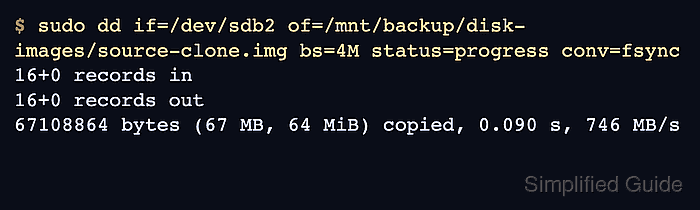
- Copy the source device into a raw image file with dd.
$ sudo dd if=/dev/sdb2 of=/mnt/backup/disk-images/source-clone.img bs=4M status=progress conv=fsync
16+0 records in
16+0 records out
67108864 bytes (67 MB, 64 MiB) copied, 0.090 s, 746 MB/s
Check both if= and of= before pressing Enter. The of= path is overwritten immediately, and an existing image file at that path is replaced.
status=progress prints transfer statistics while dd runs, and conv=fsync flushes the image before dd exits.
Related: How to check dd progress in Linux - Confirm that the image contains the expected filesystem.
$ file /mnt/backup/disk-images/source-clone.img
/mnt/backup/disk-images/source-clone.img: Linux rev 1.0 ext4 filesystem data, UUID=cf86df97-0537-4beb-b8d5-5b2f7b06fb8e, volume name "clone-src" (extents) (64bit) (large files) (huge files)
A partition image usually reports the filesystem directly. For a whole-disk image, attach it with losetup using --read-only and --partscan, then mount the generated partition device such as /dev/loop4p1.
- Create a temporary mount point for the image check.
$ sudo mkdir -p /mnt/source-clone
- Mount the cloned image read-only.
$ sudo mount -o loop,ro,noload /mnt/backup/disk-images/source-clone.img /mnt/source-clone
For ext3 and ext4 images, noload avoids journal replay during the read-only inspection. Omit noload for filesystems that do not support it and keep the mount read-only.
- Check that the clone is mounted read-only.
$ findmnt /mnt/source-clone
TARGET            SOURCE      FSTYPE OPTIONS
/mnt/source-clone /dev/loop4 ext4   ro,relatime
- List the cloned filesystem contents.
$ ls -1 /mnt/source-clone
etc
home
lost+found
var
Check for directories or files that prove the correct source was copied, such as /etc, application data, or the expected project tree from the source filesystem.
- Unmount the cloned image after inspection.
$ sudo umount /mnt/source-clone