How to check CPU speed throttling in Linux
A Linux host can look slow because the CPU is idle, thermally constrained, firmware-limited, or capped by the CPUFreq policy. Checking the policy ceiling separates a real frequency limit from normal governor behavior before changing power settings or chasing benchmark noise.
CPUFreq represents frequency control as one or more kernel policies. Each policyX directory under /sys/devices/system/cpu/cpufreq covers the CPUs listed in affected_cpus, reports the hardware range through cpuinfo_min_freq and cpuinfo_max_freq, and reports the active allowed range through scaling_min_freq and scaling_max_freq.
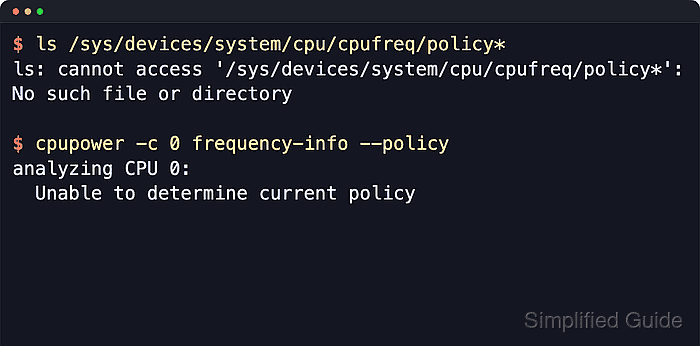
cpupower frequency-info summarizes the same policy data in readable units. Containers, cloud guests, and some virtual machines may show Unable to determine current policy or no or unknown cpufreq driver because the current environment does not expose live CPUFreq controls. That result means the policy is unavailable from that layer, not that the physical processor is unrestricted.
Steps to check CPU speed throttling in Linux:
- List the CPUFreq policy directories exported by the kernel.
$ ls -1 /sys/devices/system/cpu/cpufreq/
policy0
policy4
Continue with one policyX directory at a time. If the directory is missing or empty, the current system is not exposing live CPUFreq policy data.
- Check which logical CPUs share the selected policy.
$ cat /sys/devices/system/cpu/cpufreq/policy0/affected_cpus
0 1 2 3
A policy can cover one CPU, several sibling CPUs, or a full package, depending on the hardware and scaling driver.
- Show the current allowed frequency range for one CPU in the policy.
$ cpupower -c 0 frequency-info --policy
analyzing CPU 0:
  current policy: frequency should be within 400 MHz and 2.00 GHz.
                  The governor "powersave" may decide which speed to use
                  within this range.
The upper value in current policy is the active ceiling that the governor may request for that policy.
- Show the hardware frequency range for the same CPU.
$ cpupower -c 0 frequency-info --hwlimits
analyzing CPU 0:
  hardware limits: 400 MHz - 4.80 GHz
If the policy maximum is lower than the hardware maximum, the CPU is capped below the range the hardware reports as available.
- Read the raw hardware maximum from the policy directory when exact kHz values are needed.
$ cat /sys/devices/system/cpu/cpufreq/policy0/cpuinfo_max_freq
4800000
Raw CPUFreq files use kHz, so 4800000 means 4.80 GHz.
- Read the active policy maximum from the same policy directory.
$ cat /sys/devices/system/cpu/cpufreq/policy0/scaling_max_freq
2000000
scaling_max_freq lower than cpuinfo_max_freq confirms a CPUFreq ceiling. Matching values mean this policy is not capped through scaling_max_freq.
- Check for an optional firmware limit when the policy maximum is lower than expected.
$ cat /sys/devices/system/cpu/cpufreq/policy0/bios_limit
2000000
If bios_limit is absent, the active driver is not reporting a firmware cap through this file. Thermal and power limits can still reduce live clock speed without appearing as bios_limit.
- Recognize an environment that does not expose CPUFreq policy data.
$ cpupower -c 0 frequency-info --policy
analyzing CPU 0:
  Unable to determine current policy
Run the check on the physical host, firmware-managed guest, or hypervisor layer when a container or virtual machine cannot report a policy. An unavailable policy does not prove that the processor has no frequency limit.
- Compare the policy maximum with the hardware maximum for every exported policy.
A lower policy maximum shows an active frequency cap for the CPUs in that policy. A matching maximum rules out a CPUFreq ceiling, but live clock speed can still drop because of idle state, workload demand, thermal protection, platform power limits, or turbo controls.