How to automate Linux backups
Backups that depend on a person logging in are often missed when a host is busiest or already failing. A scheduled rsync copy over SSH keeps a second file tree on a backup host so ordinary documents, exports, or application content can be recovered without trusting the source machine at restore time.
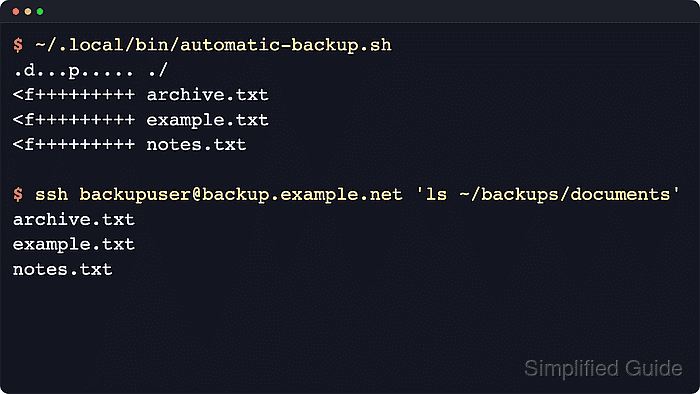
A per-user shell script, key-based SSH login, and a user crontab entry keep the scheduled copy visible and easy to test. rsync runs in archive mode, uses SSH as the transport, and mirrors removals with --delete only after a dry run and a manual transfer have shown that the source and destination paths are correct.
File-level backups fit ordinary documents, exports, and application content, not live databases or virtual machine disks that need application-aware snapshots. The source account must already have rsync, an OpenSSH client, and a working key-based login to a backup account on a host that also has rsync installed.
Steps to automate Linux backups with rsync over SSH:
- Open a terminal on the source Linux system as the account that owns the files to be backed up.
- Confirm that the source account can connect to the backup host without any prompt.
$ ssh -o BatchMode=yes backupuser@backup.example.net 'printf "backup-login-ok\n"'
backup-login-ok
BatchMode=yes makes ssh fail instead of waiting for a password, passphrase, or host-key confirmation. If the first connection still asks to trust the host key, complete that one interactive login before relying on cron.
- Create the destination directory on the backup host with private permissions.
$ ssh backupuser@backup.example.net 'install -d -m 700 ~/backups/documents'
- Check the destination directory before any file copy runs.
$ ssh backupuser@backup.example.net 'ls -ld ~/backups/documents'
drwx------ 2 backupuser backupuser 4096 Jun 13 02:04 /home/backupuser/backups/documents
- Create local directories for the reusable script and log file.
$ install -d -m 700 ~/.local/bin ~/.local/state
- Save the backup script with explicit source and destination paths.
- ~/.local/bin/automatic-backup.sh
#!/bin/sh
set -eu

PATH=/usr/local/sbin:/usr/local/bin:/usr/sbin:/usr/bin:/sbin:/bin

SOURCE_DIR="$HOME/Documents/"
REMOTE_USER="backupuser"
REMOTE_HOST="backup.example.net"
REMOTE_DIR="backups/documents/"
REMOTE_DEST="$REMOTE_USER@$REMOTE_HOST:$REMOTE_DIR"

set -- -a --delete --itemize-changes --human-readable
if [ "${DRY_RUN:-}" = "1" ]; then
  set -- "$@" --dry-run
fi

exec rsync "$@" \
  -e "ssh -o BatchMode=yes" \
  "$SOURCE_DIR" \
  "$REMOTE_DEST"
Keep the trailing slash on SOURCE_DIR when the remote directory should receive the contents of $HOME/Documents/ instead of an extra Documents directory level. The backup host also needs rsync installed because rsync starts a matching receiver process over SSH.
Check the source and destination paths carefully before running any rsync command that includes --delete, because the remote tree is pruned to match the source tree.
- Make the script executable.
$ chmod 700 ~/.local/bin/automatic-backup.sh
- Preview the transfer without writing to the backup host.
$ DRY_RUN=1 ~/.local/bin/automatic-backup.sh
<f+++++++++ archive.txt
<f+++++++++ example.txt
<f+++++++++ notes.txt
DRY_RUN=1 adds --dry-run for this run only. The listing shows what rsync would create, update, or delete without changing the destination.
- Run the script manually once before scheduling it.
$ ~/.local/bin/automatic-backup.sh
<f+++++++++ archive.txt
<f+++++++++ example.txt
<f+++++++++ notes.txt
- Check the destination on the backup host.
$ ssh backupuser@backup.example.net 'ls -lh ~/backups/documents'
total 12K
-rw-r--r-- 1 backupuser backupuser 8 Jun 13 02:04 archive.txt
-rw-r--r-- 1 backupuser backupuser 8 Jun 13 02:04 example.txt
-rw-r--r-- 1 backupuser backupuser 6 Jun 13 02:04 notes.txt
- Open the current user's crontab in the default editor.
$ crontab -e
- Add the schedule and environment lines, then save the file. The example below runs the backup every day at midnight and appends output to a dedicated log.
SHELL=/bin/sh
PATH=/usr/local/sbin:/usr/local/bin:/usr/sbin:/usr/bin:/sbin:/bin
MAILTO=""
0 0 * * * $HOME/.local/bin/automatic-backup.sh >> $HOME/.local/state/automatic-backup.log 2>&1
Explicit script and log paths keep the job working even though cron starts commands with a smaller environment than an interactive shell.
Tool: Crontab Generator - List the installed crontab to confirm that the scheduled backup is present exactly as intended.
$ crontab -l
SHELL=/bin/sh
PATH=/usr/local/sbin:/usr/local/bin:/usr/sbin:/usr/bin:/sbin:/bin
MAILTO=""
0 0 * * * $HOME/.local/bin/automatic-backup.sh >> $HOME/.local/state/automatic-backup.log 2>&1
Related: How to list cron jobs in Linux
- After the first scheduled window, inspect the log file.
$ cat ~/.local/state/automatic-backup.log
<f+++++++++ daily-proof.txt
If no source file changed, rsync may leave the log empty for that run. The example output was produced after a small file named daily-proof.txt existed in the source directory before the scheduled run.
- Check the destination again to confirm that the scheduled run copied the new file to the backup host.
$ ssh backupuser@backup.example.net 'ls -lh ~/backups/documents'
total 16K
-rw-r--r-- 1 backupuser backupuser  8 Jun 13 02:04 archive.txt
-rw-r--r-- 1 backupuser backupuser 12 Jun 13 02:04 daily-proof.txt
-rw-r--r-- 1 backupuser backupuser  8 Jun 13 02:04 example.txt
-rw-r--r-- 1 backupuser backupuser  6 Jun 13 02:04 notes.txt