How to troubleshoot a pending Kubernetes pod
A Pending Kubernetes pod has been accepted by the API server but has not reached the point where its containers are running. During a rollout, that status usually means the scheduler, storage layer, namespace policy, or admission path is blocking the pod before application logs can help.
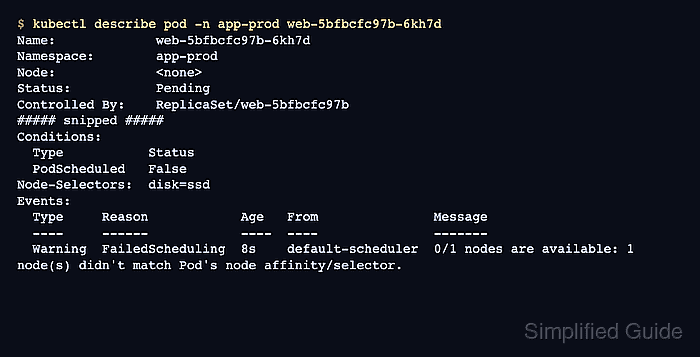
kubectl describe pod is the main diagnostic surface because it shows the pod conditions, assigned node, owner, resource requests, volume references, node selectors, tolerations, and recent events in one place. kubectl events narrows the same event stream to warning rows when the namespace is busy.
A pod with Node: <none> is still in the scheduling path. A pod with a node assigned but a waiting container has moved into node-side startup, where image pulls, mounts, sandbox creation, and kubelet errors become the next layer to inspect. Fix the owner or cluster constraint named by the event, then retest the rollout until the replacement pod reaches Running.
Steps to troubleshoot a pending Kubernetes pod:
- List pods in the affected namespace.
$ kubectl get pods -n app-prod
NAME                   READY   STATUS    RESTARTS   AGE
web-5bfbcfc97b-6kh7d   0/1     Pending   0          8s
- Check whether the pod has been assigned to a node.
$ kubectl get pod -n app-prod web-5bfbcfc97b-6kh7d -o wide
NAME                   READY   STATUS    RESTARTS   AGE   IP       NODE     NOMINATED NODE   READINESS GATES
web-5bfbcfc97b-6kh7d   0/1     Pending   0          8s    <none>   <none>   <none>           <none>
NODE <none> means the scheduler has not placed the pod. If a node is present, inspect container state, image pull, volume mount, and kubelet events for that node-side startup path.
- Describe the pod and read the owner, PodScheduled condition, node constraints, resource requests, volumes, and event section.
$ kubectl describe pod -n app-prod web-5bfbcfc97b-6kh7d
Name:             web-5bfbcfc97b-6kh7d
Namespace:        app-prod
Node:             <none>
Status:           Pending
Controlled By:    ReplicaSet/web-5bfbcfc97b
##### snipped #####
Conditions:
  Type           Status
  PodScheduled   False
Node-Selectors:              disk=ssd
Events:
  Type     Reason            Age   From               Message
  ----     ------            ----  ----               -------
  Warning  FailedScheduling  8s    default-scheduler  0/1 nodes are available: 1 node(s) didn't match Pod's node affinity/selector. no new claims to deallocate, preemption: 0/1 nodes are available: 1 Preemption is not helpful for scheduling.
The Controlled By line identifies the generated owner. For a Deployment, fix the Deployment or source manifest rather than editing the generated pod.
- Pull warning events for the same pod.
$ kubectl events -n app-prod --for pod/web-5bfbcfc97b-6kh7d --types=Warning
LAST SEEN   TYPE      REASON             OBJECT                     MESSAGE
8s          Warning   FailedScheduling   Pod/web-5bfbcfc97b-6kh7d   0/1 nodes are available: 1 node(s) didn't match Pod's node affinity/selector. no new claims to deallocate, preemption: 0/1 nodes are available: 1 Preemption is not helpful for scheduling.
- Match the warning reason to the next object to inspect.
FailedScheduling usually points to resource requests, node selectors, node affinity, taints, topology spread, host ports, or unbound persistent volume claims. Storage messages such as pod has unbound immediate PersistentVolumeClaims point to the PVC and StorageClass. Quota or admission messages point to namespace ResourceQuota, LimitRange, or webhook policy before scheduler placement can continue.
- Check the node labels when the event mentions selectors or affinity.
$ kubectl get nodes -L disk,kubernetes.io/os
NAME       STATUS   ROLES    AGE   VERSION   DISK   OS
worker-1   Ready    <none>   12d   v1.36.1          linux
- Apply the focused fix named by the event.
$ kubectl label node worker-1 disk=ssd
node/worker-1 labeled
Add or change a node label only when that node really belongs in the selected pool. If the workload selector is wrong, change the owning Deployment, StatefulSet, Job, or manifest instead. If the reason is resource pressure, adjust requests or add capacity; if the reason is storage or quota, fix the named PVC, StorageClass, ResourceQuota, or LimitRange.
- Watch the owning workload create or update the pod.
$ kubectl rollout status deployment/web -n app-prod --timeout=90s
Waiting for deployment "web" rollout to finish: 0 of 1 updated replicas are available...
deployment "web" successfully rolled out
For a standalone pod with no controller, apply the corrected manifest and recreate the pod after fixing the field that blocked scheduling.
- Confirm that the pod leaves Pending and reaches Running.
$ kubectl get pods -n app-prod -l app=web -o wide
NAME                   READY   STATUS    RESTARTS   AGE   IP           NODE       NOMINATED NODE   READINESS GATES
web-5bfbcfc97b-6kh7d   1/1     Running   0          9s    10.244.0.5   worker-1   <none>           <none>
Older warning events can remain in the event history after the pod starts. Use the current pod status and any new event timestamps to decide whether the blocker is still active.