How to convert a Jupyter Notebook to PDF
A completed Jupyter Notebook becomes easier to submit, archive, or send for review when it is exported as a fixed-layout PDF. nbconvert reads the saved .ipynb file and builds the document through LaTeX, keeping markdown, code, and saved output in one printable artifact.
The PDF exporter is the LaTeX-backed path behind --to pdf, not the browser-based WebPDF exporter. It needs Pandoc and XeLaTeX from a TeX distribution before the conversion command can produce a PDF file.
Export uses the notebook state already saved on disk. Rerun or execute the notebook first when the PDF must contain fresh output, and confirm that the generated file opens before sending it to someone without a Jupyter environment.
Steps to convert a Jupyter Notebook to PDF with nbconvert:
- Save the notebook with the outputs that should appear in the PDF file.
nbconvert exports the saved notebook state unless execution flags are used.
Related: How to execute a Jupyter Notebook from the command line - Install the LaTeX PDF dependencies on Debian or Ubuntu.
$ sudo apt install pandoc texlive-xetex texlive-fonts-recommended texlive-plain-generic
Use a full TeX distribution such as MacTeX or MiKTeX on other platforms. Missing XeLaTeX support usually stops the conversion before the PDF is written.
- Convert the notebook to PDF.
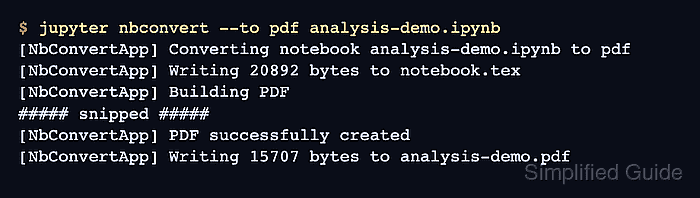
$ jupyter nbconvert --to pdf analysis-demo.ipynb
[NbConvertApp] Converting notebook analysis-demo.ipynb to pdf
[NbConvertApp] Writing 20892 bytes to notebook.tex
[NbConvertApp] Building PDF
[NbConvertApp] Running xelatex 3 times: ['xelatex', 'notebook.tex', '-quiet']
[NbConvertApp] Running bibtex 1 time: ['bibtex', 'notebook']
[NbConvertApp] WARNING | bibtex had problems, most likely because there were no citations
[NbConvertApp] PDF successfully created
[NbConvertApp] Writing 15707 bytes to analysis-demo.pdf
Replace analysis-demo.ipynb with the notebook file to export. The generated file keeps the same base name and uses .pdf. A bibtex warning can appear when the notebook has no citations; the export completed when PDF successfully created appears before the final .pdf write line.
- Check that the PDF file was written.
$ ls -lh analysis-demo.pdf
-rw-r--r-- 1 user user 16K Jul  6 12:39 analysis-demo.pdf
- Verify that the output is a PDF document.
$ file analysis-demo.pdf
analysis-demo.pdf: PDF document, version 1.7 (zip deflate encoded)
- Open analysis-demo.pdf in a PDF viewer and confirm that the notebook title, markdown cells, code cells, and saved output appear as expected.