How to parameterize a JMeter test with CSV data
Load tests often need each virtual user or loop to send a different login, path, account ID, payload value, or search term. A JMeter CSV Data Set Config reads a delimited file at runtime and turns each row into variables that samplers can use instead of hard-coded values.
Place the config element in the same scope as the samplers that should receive the variables, usually under the target Thread Group. JMeter assigns CSV values at the start of each test iteration, so a sampler can reference values such as ${username} and ${path} during that iteration.
Use a header row when the file can name the variables, keep the delimiter matched to the file, and decide what happens when the last row is reached before running a larger load test. A short smoke run with a temporary sampler or application log should show row-specific values before the plan is reused in CI or distributed mode.
Steps to configure a JMeter CSV Data Set:
- Save the CSV data file next to the .jmx test plan.
username,path
alice,/catalog
bob,/checkout
carol,/account
A header row lets Variable Names stay blank in the CSV Data Set Config.
Tool: Comma-Separated Values (CSV) Converter - Open the test plan in the JMeter GUI and select the Thread Group that should use the CSV rows.
- Add the config element from Thread Group → Add → Config Element → CSV Data Set Config.
- Name the element for the data it supplies, such as Checkout users CSV.
- Set Filename to the CSV file name.
users.csv
Relative file names are resolved from the active test plan path. In distributed mode, place the CSV file in the matching relative location on every JMeter server.
- Leave Variable Names empty when the first CSV row contains the variable names.
If the file has no header row, enter names such as username,path in Variable Names instead. If names are entered manually while the file still has a header row, enable Ignore first line so the header is not used as data.
- Set Delimiter to the character used by the file.
,
Use \t for tab-delimited data.
- Enable Allow quoted data? when values may contain the delimiter, quotes, or line breaks.
- Set Recycle on EOF? to False and Stop thread on EOF? to True for a one-pass data file.
Use recycling only when repeating rows after the last record is acceptable for the test.
- Set Sharing mode to All threads when all virtual users should draw from one shared row sequence.
Use Current thread with per-thread file names only when each thread has its own data file, such as users${__threadNum}.csv.
- Reference the CSV variables in the sampler fields that should change per iteration.
Path: ${path} Parameter name: username Parameter value: ${username} - Add a temporary JSR223 Sampler under the same Thread Group for a smoke test.
def out = new File('csv-data-set-seen.csv')
if (!out.exists()) {
    out.text = 'username,path\n'
}
out << vars.get('username') + ',' + vars.get('path') + '\n'
SampleResult.setResponseCode('200')
SampleResult.setResponseMessage('OK')
SampleResult.setResponseData(vars.get('username') + ' ' + vars.get('path'), 'UTF-8')
SampleResult.setSuccessful(true)
Use an existing application log, request capture, or Debug Sampler instead when it already shows the resolved CSV variables clearly.
- Set the Thread Group loop count to the number of CSV data rows for the smoke test.
- Save the test plan.
- Run the plan in CLI mode.
$ jmeter -n -t csv-data-set-demo.jmx -l csv-data-set-results.jtl -j jmeter.log
Creating summariser <summary>
Created the tree successfully using csv-data-set-demo.jmx
Starting standalone test @ 2026 Jun 29 22:31:43 GMT
Waiting for possible Shutdown/StopTestNow/HeapDump/ThreadDump message on port 4445
summary =      3 in 00:00:01 =    4.7/s Avg:   199 Min:     1 Max:   597 Err:     0 (0.00%)
Tidying up ...
... end of run
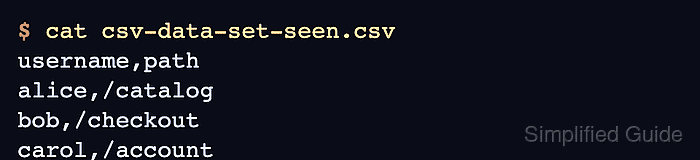
- Check the smoke-test output for one row per loop.
$ cat csv-data-set-seen.csv
username,path
alice,/catalog
bob,/checkout
carol,/account
The rows should appear in the same sequence as the CSV data file when one thread and All threads sharing are used.
- Remove the temporary JSR223 Sampler and restore the normal Thread Group loop count before the real load run.