How to build a Java project with Gradle
A Gradle build can pass on one workstation and fail in CI when the wrong project directory, Gradle runtime, or Java runtime is used. Running the project Wrapper keeps the build tied to the Gradle version declared by the repository and produces the same task sequence that the release job should run.
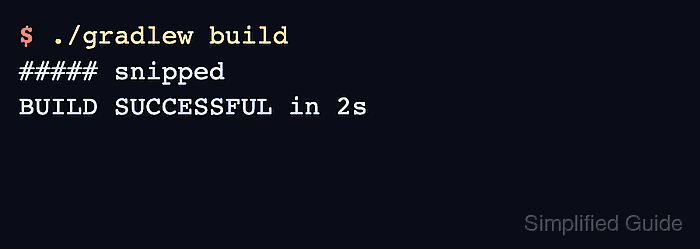
A Java project that uses Gradle normally has gradlew, gradlew.bat, settings.gradle or settings.gradle.kts, and one or more build scripts. The build task runs the lifecycle tasks provided by the applied plugins, and the Java plugin compiles sources, runs test tasks, and assembles the project JAR through jar and assemble.
The commands below assume the project already contains Wrapper files and a working JDK for the Gradle version declared by the Wrapper properties file. The final checks look in build/libs and inspect the generated JAR so a green build is tied to an artifact, not only to the last console line.
Related: How to install Gradle on Ubuntu
Related: How to install JDK on Ubuntu
Related: How to check the installed Java version on Linux
Steps to build a Java project with Gradle Wrapper:
- Open a terminal in the project root that contains the Wrapper script.
Use gradlew.bat on Windows. The Unix-style ./gradlew command below applies to Linux, macOS, and most CI shell runners.
- Run the build through the Wrapper.
$ ./gradlew build
##### snipped

BUILD SUCCESSFUL in 2s
The first run can download the Gradle distribution declared by the Wrapper. A failure before :compileJava usually points to a missing or incompatible JDK, a blocked Wrapper download, or a project directory that does not contain the expected build files.
- List the generated library artifacts.
$ ls build/libs
app.jar
The JAR name follows the project or archive configuration. Multi-module builds may place artifacts under each subproject's build/libs directory.
- Inspect the JAR contents.
$ jar tf build/libs/app.jar
META-INF/
META-INF/MANIFEST.MF
com/
com/example/
com/example/App.class
The class path in the output should match the package names compiled from src/main/java.