Gradle needs a current JVM before it can run builds, and Ubuntu's repository package can lag far behind the release used by modern Java projects. Installing the official binary distribution under /opt/gradle creates a system gradle command while leaving project-specific Wrapper files free to control individual builds.
The APT packages in this flow install a headless JDK plus the download tools needed for the official distribution. The Gradle ZIP is unpacked into /opt/gradle and exposed through a /usr/local/bin/gradle symlink so normal shells can find it without editing user profile files.
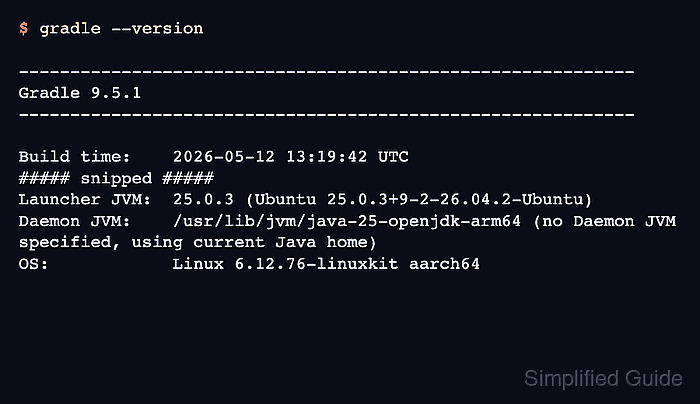
Gradle 9.5.1 requires a supported JVM runtime, and newer Ubuntu releases can select a newer default OpenJDK than older tutorials expect. The final version check must show both the Gradle release and the Launcher JVM so the install proves which Java runtime will launch builds.
Related: How to install JDK on Ubuntu
Related: How to build a Java project with Gradle
Steps to install Gradle on Ubuntu:
- Refresh the local APT package lists.
$ sudo apt update
- Install the headless JDK and download tools.
$ sudo apt install --no-install-recommends default-jdk-headless curl unzip ca-certificates
Gradle needs a JDK 17 or newer. default-jdk-headless supplies the Ubuntu default JDK without desktop Java packages.
- Confirm that Java runs before installing Gradle.
$ java -version
openjdk version "25.0.3" 2026-04-21
OpenJDK Runtime Environment (build 25.0.3+9-2-26.04.2-Ubuntu)
OpenJDK 64-Bit Server VM (build 25.0.3+9-2-26.04.2-Ubuntu, mixed mode, sharing)
The exact Ubuntu JDK version changes by release and security update. The important result is a JDK version supported by the Gradle release being installed. Related: How to check the installed Java version on Linux
- Set the Gradle version for the install session.
$ GRADLE_VERSION=9.5.1
- Download the official Gradle binary distribution.
$ curl --location --fail --silent --show-error \
  --output /tmp/gradle-${GRADLE_VERSION}-bin.zip \
  https://downloads.gradle.org/distributions/gradle-${GRADLE_VERSION}-bin.zip
The binary-only distribution is enough for running builds. Use the current release from Gradle's releases page when a newer stable version is required.
- Create the system install directory.
$ sudo mkdir -p /opt/gradle
- Unpack the Gradle distribution under /opt/gradle.
$ sudo unzip -q /tmp/gradle-${GRADLE_VERSION}-bin.zip -d /opt/gradle - Expose the selected Gradle binary on the system path.
$ sudo ln -sfn /opt/gradle/gradle-${GRADLE_VERSION}/bin/gradle /usr/local/bin/gradleThe -sfn options update the symlink when the version changes later instead of creating a second command name.
- Confirm the active Gradle command path.
$ command -v gradle
/usr/local/bin/gradle
- Confirm the Gradle release and JVM.
$ gradle --version

------------------------------------------------------------
Gradle 9.5.1
------------------------------------------------------------

Build time:    2026-05-12 13:19:42 UTC
##### snipped #####
Launcher JVM:  25.0.3 (Ubuntu 25.0.3+9-2-26.04.2-Ubuntu)
Daemon JVM:    /usr/lib/jvm/java-25-openjdk-arm64 (no Daemon JVM specified, using current Java home)
OS:            Linux 6.12.76-linuxkit aarch64
The Launcher JVM line is the decisive Java runtime check. If it points to the wrong JDK, fix the active java command or JAVA_HOME before using Gradle for builds.
- Create a temporary smoke-test directory.
$ mkdir -p /tmp/gradle-smoke
- Enter the smoke-test directory.
$ cd /tmp/gradle-smoke
- Run the Gradle help task without keeping a daemon running.
$ gradle help --no-daemon
To honour the JVM settings for this build a single-use Daemon process will be forked.
##### snipped #####
BUILD SUCCESSFUL in 3s
- Return to the home directory.
$ cd ~
- Remove the temporary download and smoke-test directory.
$ rm -r /tmp/gradle-smoke /tmp/gradle-${GRADLE_VERSION}-bin.zip

Mohd Shakir Zakaria is a cloud architect with deep roots in software development and open-source advocacy. Certified in AWS, Red Hat, VMware, ITIL, and Linux, he specializes in designing and managing robust cloud and on-premises infrastructures.


