How to convert images to WebP with ImageMagick
Converting a JPEG or PNG source to WebP is common when a website, app, or asset pipeline needs smaller browser-ready image files while keeping the original source image unchanged.
ImageMagick 7 uses the magick command for format conversion. The output filename extension selects the destination format, and the WebP encoder accepts quality and lossless options for different image types.
Use lossy WebP for photos and lossless WebP for screenshots, logos, and flat graphics where sharp edges or transparency matter. Keep the original file until the converted file opens and reports the expected format and dimensions.
Steps to convert images to WebP with ImageMagick:
- Identify the source image before converting it.
$ magick identify source.jpg
source.jpg JPEG 1200x800 1200x800+0+0 8-bit sRGB 44578B 0.000u 0:00.000
Replace source.jpg with the image that needs a WebP copy.
- Convert the source image to lossy WebP with an explicit quality setting.
$ magick source.jpg -quality 82 source.webp
ImageMagick uses WebP quality 75 by default, so set -quality when the file needs a known compression target.
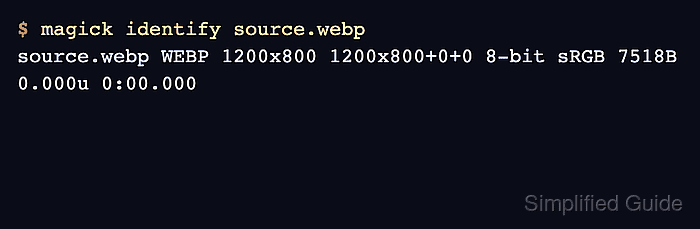
- Verify that the converted file is WebP and still has the expected dimensions.
$ magick identify source.webp
source.webp WEBP 1200x800 1200x800+0+0 8-bit sRGB 7518B 0.000u 0:00.000
The format field should show WEBP. The dimensions should match the source unless the conversion command also resized, cropped, or rotated the image.
- Use lossless WebP for screenshots, icons, and flat artwork.
$ magick flat.png -define webp:lossless=true flat-lossless.webp
Lossless WebP preserves hard edges and transparent regions better than lossy compression, but it can produce a larger file.
- Verify the lossless WebP output before replacing any source asset references.
$ magick identify flat-lossless.webp
flat-lossless.webp WEBP 640x420 640x420+0+0 8-bit sRGB 1290B 0.000u 0:00.000
If ImageMagick reports that no WebP encode delegate is available, install an ImageMagick build that includes WebP support before retrying the conversion.