How to create a transparent background with ImageMagick
Flat logos, icons, and screenshots often need one solid background color converted to transparency before the asset can sit over another page, slide, or application color. ImageMagick can turn that matched color into an alpha channel and write a new PNG while the original file remains unchanged.
The -transparent operator makes pixels matching a chosen color transparent. Add -alpha set so the output has an active alpha channel, and add a small -fuzz value only when edge pixels are close to the target color but not exact.
The example below uses ImageMagick 7 with the magick command and removes the flat background color #EF4444 from a PNG file. Save the result as PNG or another format that supports alpha transparency; JPEG output cannot preserve a transparent background.
Related: Replace a color with ImageMagick
Related: Compare images with ImageMagick
Steps to create a transparent background with ImageMagick:
- Open a terminal in the directory containing the source image.
- Check the source image colors when the exact background value is unknown.
$ magick logo.png -format %c histogram:info:-
        108000: (34,197,94) #22C55E srgb(34,197,94)
        108000: (239,68,68) #EF4444 srgb(239,68,68)
The histogram is easiest to read for flat artwork with a small palette. For photos or compressed screenshots, sample the background color in an image editor and use that value as the target.
- Write a transparent-background copy with -transparent.
$ magick logo.png -alpha set -transparent '#EF4444' logo-transparent.png
Quote hexadecimal colors so the shell does not treat # as the start of a comment. Keep the output filename different from the input while checking the result.
- Use -fuzz when antialiased or compressed edge pixels should also become transparent.
$ magick logo.png -alpha set -fuzz 3% -transparent '#EF4444' logo-transparent.png
-transparent changes every matching pixel in the image, not only the outer background. Use a low -fuzz value and inspect the output if the target color may also appear inside the subject.
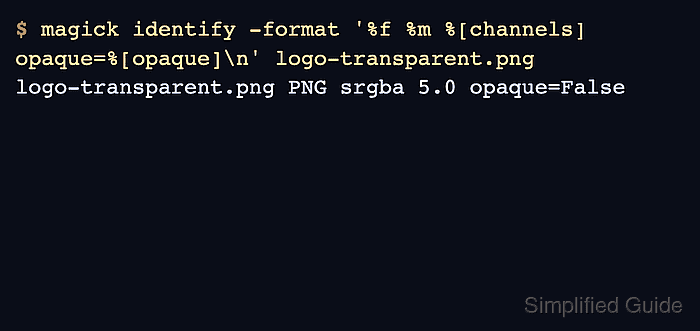
- Verify that the output file has an alpha channel and is no longer fully opaque.
$ magick identify -format '%f %m %[channels] opaque=%[opaque]\n' logo-transparent.png
logo-transparent.png PNG srgba 5.0 opaque=False
srgba shows that the output includes an alpha channel. opaque=False means at least one pixel is transparent or partially transparent.
- Confirm the target background color is now transparent.
$ magick logo-transparent.png -format %c histogram:info:-
        108000: (34,197,94,255) #22C55EFF srgba(34,197,94,1)
        108000: (239,68,68,0) #EF444400 srgba(239,68,68,0)
The final 00 alpha component in #EF444400 shows that the matched red background pixels are transparent.
- Open the output image over a checkerboard or the destination background before replacing the production asset.
If a distribution only provides ImageMagick 6 command names, use convert with the same options instead of magick.