Image comparison with ImageMagick helps confirm whether two exported, generated, or edited files are pixel-identical before a release, visual review, or regression check. The compare command can print a numeric difference metric and write a difference image that makes changed pixels visible.
In ImageMagick 7, use the magick compare form instead of relying on older compatibility command names. The examples below use AE, the absolute error metric, because it reports how many pixels differ and is easy to turn into a pass or fail check.
The comparison command writes the metric to standard error and uses its exit status to distinguish identical images from different images or command errors. Treat a status of 1 with a nonzero metric as an expected “images differ” result, not as a broken command, and reserve status 2 for read, decode, or option errors.
Steps to compare images with ImageMagick:
- Check that the two input images have the geometry and format you expect before comparing them.
$ magick identify old.png new.png
old.png PNG 640x420 640x420+0+0 16-bit sRGB 10429B 0.000u 0:00.000
new.png PNG 640x420 640x420+0+0 16-bit sRGB 9382B 0.000u 0:00.000
Matching canvas sizes make the metric easier to interpret. If the images intentionally differ in size, normalize one image first or decide whether the extra area should count as a difference.
- Compare the images with the absolute error metric and write a visual difference image.
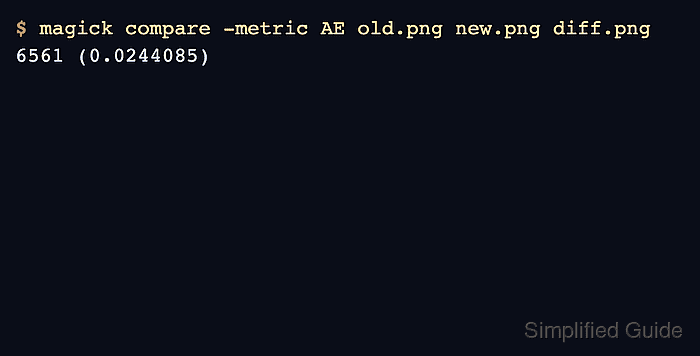
$ magick compare -metric AE old.png new.png diff.png
6561 (0.0244085)
The first value is the count of differing pixels. The value in parentheses is the normalized fraction for the image, so 0 (0) means the two inputs matched for this metric.
- Open or inspect the generated difference image when the metric is not zero.
$ magick identify diff.png
diff.png PNG 640x420 640x420+0+0 16-bit sRGB 9488B 0.000u 0:00.000
The default difference image highlights changed areas while leaving unchanged areas subdued. Use it to decide whether the change is expected, such as a deliberate edit, or unexpected, such as a rendering regression.
- Use RMSE when the amount of color change matters more than a raw changed-pixel count.
$ magick compare -metric RMSE old.png new.png diff-rmse.png
5023.12 (0.0766479)
AE is usually easier for exact-output checks. RMSE is often more useful for photographs, anti-aliased text, resized images, and other cases where many pixels can shift by small amounts.
- Handle the exit status correctly in automation.
ImageMagick returns 0 when images are similar for the selected metric, 1 when they differ, and 2 when the command itself fails. A CI or batch script should record the metric and difference image before deciding whether a difference should fail the job.

Mohd Shakir Zakaria is a cloud architect with deep roots in software development and open-source advocacy. Certified in AWS, Red Hat, VMware, ITIL, and Linux, he specializes in designing and managing robust cloud and on-premises infrastructures.


