How to crop an image with ImageMagick
Cropping an image with ImageMagick is useful when a source file contains more canvas than the final asset, thumbnail, or upload slot needs. The command-line workflow keeps the original file intact while writing a smaller copy from an exact rectangle.
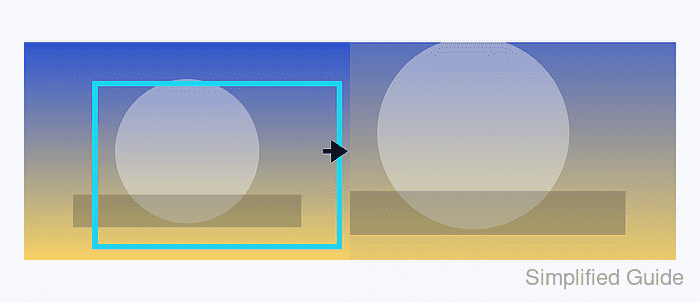
ImageMagick crop geometry uses width and height first, then x and y offsets from the source image's upper-left corner. A geometry such as 900x600+260+150 keeps a 900-pixel-wide by 600-pixel-tall region that starts 260 pixels from the left edge and 150 pixels from the top edge.
Use the ImageMagick 7 magick command when it is available. Add +repage after the crop so formats that can store virtual canvas offsets, such as PNG, do not carry the old page offset into the output file.
Related: Resize an image with ImageMagick
Related: Convert image format with ImageMagick
Steps to crop an image with ImageMagick:
- Open a terminal in the directory containing the source image.
- Check the source image dimensions before choosing the crop rectangle.
$ magick identify -format '%f %m %wx%h %[colorspace]\n' input.jpg
input.jpg JPEG 1200x800 sRGB
ImageMagick geometry uses width before height. The crop rectangle must fit inside the source unless the missed area is intentional.
- Crop the selected rectangle and write the result to a new file.
$ magick input.jpg -crop 900x600+260+150 +repage cropped.jpg

The +260+150 offset starts the crop 260 pixels from the left edge and 150 pixels from the top edge. Keep the output filename different from the input until the result has been checked.
- Confirm the cropped file reports the requested dimensions.
$ magick identify -format '%f %m %wx%h %[colorspace]\n' input.jpg cropped.jpg
input.jpg JPEG 1200x800 sRGB
cropped.jpg JPEG 900x600 sRGB
The input file should still report its original dimensions, and the cropped copy should report the crop geometry width and height.
- Open the cropped image and replace the original only after the visual result matches the intended crop.
Use magick mogrify only for overwrite workflows. A normal magick input output command is safer because it leaves the source file available for another crop.