How to replace a color with ImageMagick
Replacing a brand or palette color by eye can leave stray pixels behind, especially when the source file mixes flat areas with antialiased edges. ImageMagick can target a specific color value and write a new image so the original file stays available for comparison.
The -opaque operator changes pixels that match the source color, and the -fill setting supplies the replacement color. Place -fill before -opaque so the operator uses the intended replacement value.
The examples below use ImageMagick 7 with the magick command and hexadecimal sRGB colors. Use a lossless output format such as PNG when the replacement must remain exact, and add a small -fuzz value only when compressed or antialiased pixels are close to the target color but not identical.
Steps to replace a color with ImageMagick:
- List the colors in the source image when the exact value is unknown.
$ magick palette.png -format %c histogram:info:-
        108000: (34,197,94) #22C55E srgb(34,197,94)
        108000: (239,68,68) #EF4444 srgb(239,68,68)
The histogram output is easiest to use on logos, icons, sprites, and other images with a small palette. Large photos can contain thousands of colors.
- Replace the exact source color and write a new output file.
$ magick palette.png -fill '#2563EB' -opaque '#EF4444' palette-updated.png
In this example, #EF4444 is the color being replaced and #2563EB is the new color. Quote hexadecimal colors so the shell does not treat # as the start of a comment.
- Use -fuzz when near-matching edge pixels need to change with the same color.
$ magick palette.png -fuzz 8% -fill '#2563EB' -opaque '#EF4444' palette-updated.png
A high -fuzz value can replace colors that only look similar to the intended target. Start with a small percentage and inspect the output image before replacing a production asset.
- Confirm that the old color is gone from the output palette.
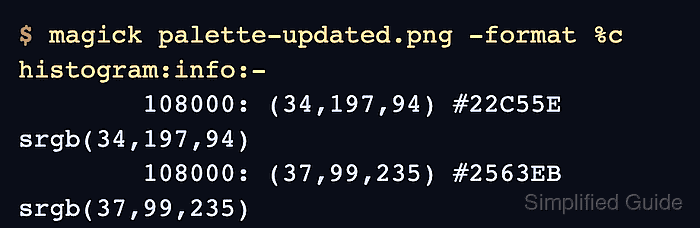
$ magick palette-updated.png -format %c histogram:info:-
        108000: (34,197,94) #22C55E srgb(34,197,94)
        108000: (37,99,235) #2563EB srgb(37,99,235)
The updated histogram should show the replacement color and no remaining row for the original target color.
- Open the updated image and compare the changed areas visually before using it in the final project.
If a distribution only provides ImageMagick 6 command names, use convert with the same options instead of magick.