How to manage the Grafana service with systemctl
Managing the Grafana service with systemctl keeps the packaged server under the same service controls used by the rest of a Linux host. Starting, restarting, enabling, and stopping grafana-server.service are routine tasks after installation, configuration changes, plugin changes, and planned maintenance windows.
The Grafana Labs Linux packages create the grafana-server unit and run the process as the grafana user. systemctl reports whether the unit is loaded, enabled for boot, active, stopped, or failing, while journalctl shows startup lines when the web UI does not bind to its configured port.
The package-managed unit uses the default local web port 3000 unless /etc/grafana/grafana.ini changes http_port or a reverse proxy fronts the service. Check the same endpoint that real operators use when HTTPS, a proxy path, or a non-default listener sits in front of Grafana.
Related: How to install Grafana on Ubuntu
Related: How to configure HTTPS for Grafana
Steps to manage the Grafana service with systemctl:
- Open a terminal with sudo privileges.
- Reload systemd unit files after installing Grafana or changing a unit override.
$ sudo systemctl daemon-reload
Ordinary /etc/grafana/grafana.ini edits do not require a daemon reload. Restart grafana-server after changing Grafana configuration so the running process reads the new settings.
- Start the Grafana service.
$ sudo systemctl start grafana-server
- Confirm that the service is active.
$ systemctl is-active grafana-server
active
- Enable Grafana to start during boot.
$ sudo systemctl enable grafana-server
- Confirm the boot startup state.
$ systemctl is-enabled grafana-server
enabled
- Restart Grafana after configuration or plugin changes.
$ sudo systemctl restart grafana-server
Use restart instead of reload for normal Grafana configuration changes because the packaged unit documents restart as the supported service-control action.
- Inspect the service status.
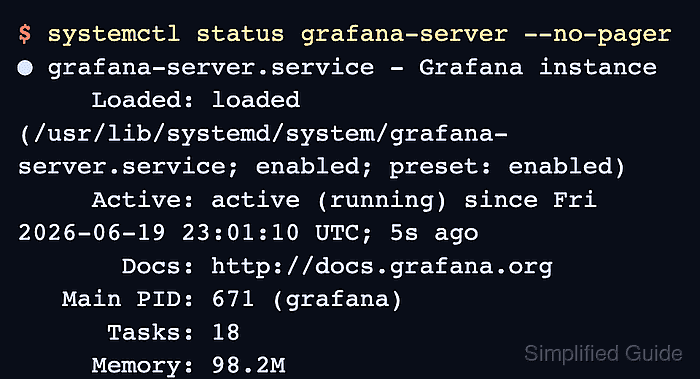
$ systemctl status grafana-server --no-pager ● grafana-server.service - Grafana instance Loaded: loaded (/usr/lib/systemd/system/grafana-server.service; enabled; preset: enabled) Active: active (running) since Fri 2026-06-19 23:01:10 UTC; 5s ago Docs: http://docs.grafana.org Main PID: 671 (grafana) Tasks: 18 Memory: 98.2M ##### snipped ##### - Check the local Grafana login page.
$ curl --head --silent http://127.0.0.1:3000/login
HTTP/1.1 200 OK
Cache-Control: no-store
Content-Type: text/html; charset=UTF-8
X-Content-Type-Options: nosniff
X-Frame-Options: deny
X-Xss-Protection: 1; mode=block
Date: Fri, 19 Jun 2026 23:01:12 GMT
If the request is refused immediately after a restart, wait a few seconds and repeat the check. systemd can mark the service active before the HTTP listener is ready.
- Review the current boot log for Grafana startup lines.
$ sudo journalctl --unit=grafana-server --boot --no-pager
Jun 19 23:01:10 server systemd[1]: Started grafana-server.service - Grafana instance.
Jun 19 23:01:10 server grafana[671]: logger=settings level=info msg="Starting Grafana" version=13.0.2
Jun 19 23:01:10 server grafana[671]: logger=settings level=info msg="Config loaded from" file=/etc/grafana/grafana.ini
##### snipped #####
The exact version, process ID, and timestamp will differ. Look for the service start line and the loaded configuration file when checking whether the packaged service started the expected process.
- Stop Grafana only when a planned outage is acceptable.
$ sudo systemctl stop grafana-server
Stopping grafana-server makes dashboards, alerts, and admin pages unavailable until the service is started again.
- Confirm that the stopped service is inactive.
$ systemctl is-active grafana-server
inactive
inactive is expected after a deliberate stop, and systemctl returns a nonzero exit status for that state.
- Start Grafana again after maintenance.
$ sudo systemctl start grafana-server
- Confirm that Grafana is active again.
$ systemctl is-active grafana-server
active