How to install a Grafana plugin
Grafana plugins add data sources, panels, applications, and backend integrations to a self-hosted Grafana instance. Installing a plugin from the server CLI fits Linux servers where the administrator has shell access and wants the plugin placed in Grafana's managed plugin directory.
The Grafana server CLI uses grafana cli for plugin operations such as install, list, update, and remove. Older plugin catalog pages may still mention grafana-cli, but packaged Grafana installs that provide the grafana binary can run the grafana cli plugins install form.
The install must run on the Grafana server and must use the exact plugin ID from the Grafana plugin catalog. Grafana writes plugin files under /var/lib/grafana/plugins by default, then requires a grafana-server restart before the web application loads the new plugin.
Related: How to install Grafana on Ubuntu
Steps to install a Grafana plugin from the server CLI:
- Confirm the plugin ID in the Grafana plugin catalog, such as grafana-clock-panel for the Clock panel.
Use the plugin ID, not the display name. Replace grafana-clock-panel with the ID for the plugin being installed.
- Install the plugin with the Grafana server CLI.
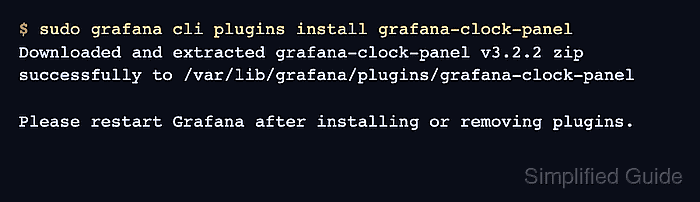
$ sudo grafana cli plugins install grafana-clock-panel
Downloaded and extracted grafana-clock-panel v3.2.2 zip successfully to /var/lib/grafana/plugins/grafana-clock-panel

Please restart Grafana after installing or removing plugins.
- Restart the Grafana service to load the plugin.
$ sudo systemctl restart grafana-server
- Confirm that the Grafana service is active after the restart.
$ systemctl is-active grafana-server
active
- List installed plugins from the server.
$ sudo grafana cli plugins ls
installed plugins:

grafana-clock-panel @ 3.2.2
The exact version changes as plugin releases are published. Look for the target plugin ID in the installed plugins list.
- Open Grafana in a browser and confirm the plugin appears under Administration → Plugins and data → Plugins.
Server administrator access is required to install, update, or uninstall plugins from the UI. Organization administrator access may be enough to configure some app plugins after installation.