How to create a table panel in Grafana
Creating a table panel in Grafana turns query results with rows and columns into a dashboard view that can be sorted, scanned, and shared. Use it for inventories, recent events, status lists, or any dataset where exact field values matter more than a chart shape.
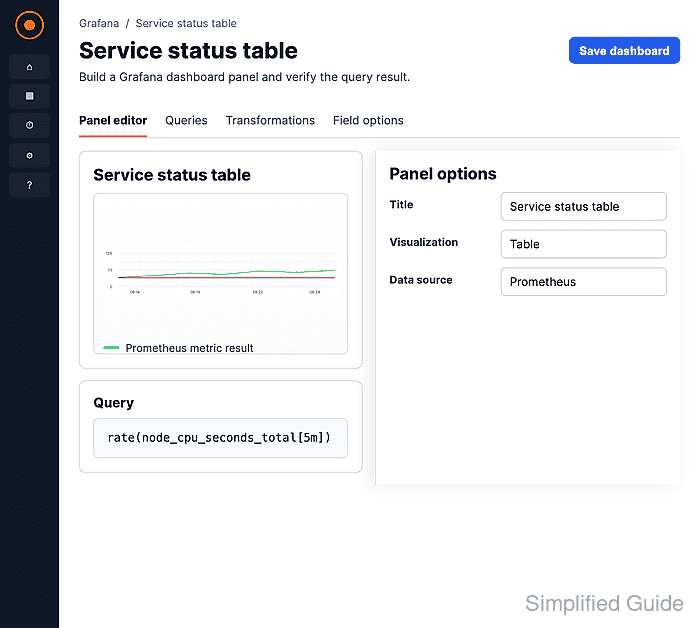
The panel editor controls both the query and the visualization. TestData DB with the Table Static scenario is a neutral lab source because it returns table-ready rows without an external metrics system. The same flow works with Prometheus, InfluxDB, SQL, and other data sources when the query returns fields that fit a column-row table.
The dashboard editor must be in edit mode, and the account needs permission to edit the dashboard. Saving the dashboard after the panel is configured keeps the table panel visible after reloads and makes the panel available to viewers with dashboard access.
Steps to create a Grafana table panel:
- Open or create the dashboard that should contain the table.
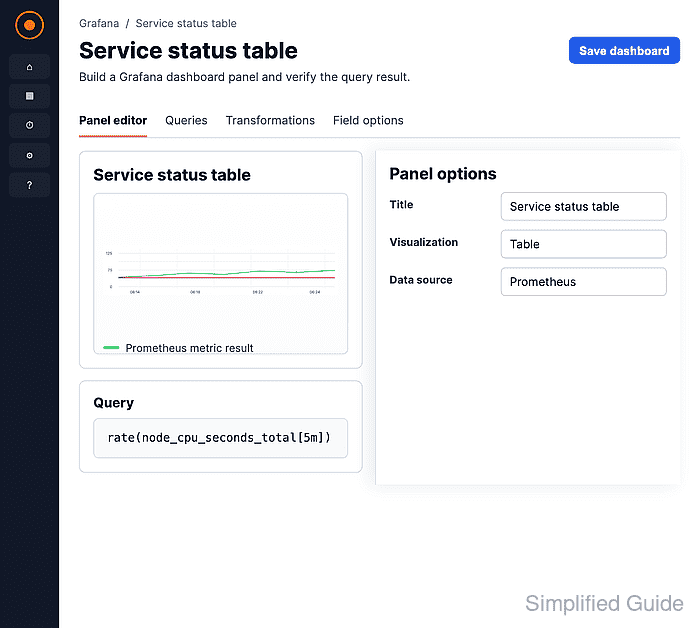
Use Dashboards → New → New dashboard for a new dashboard, or open an existing dashboard and click Edit before adding the panel.
- Click Panel in the dashboard add sidebar.
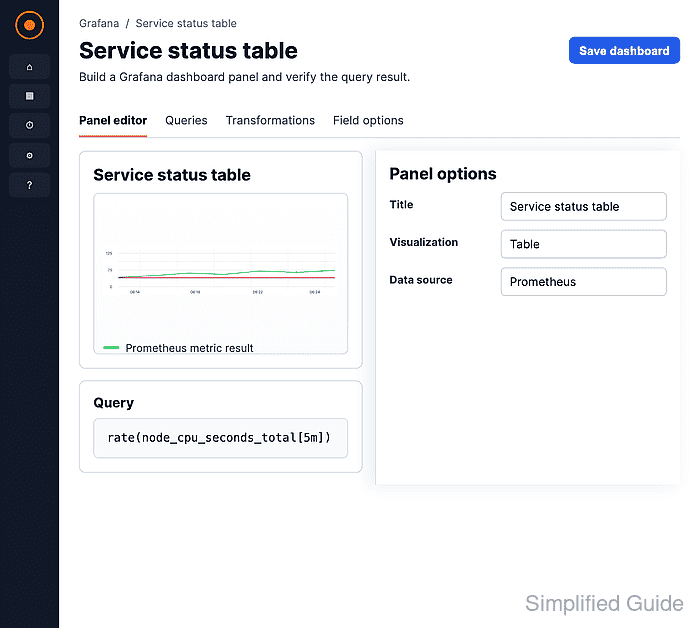
- Click Configure visualization on the new panel.
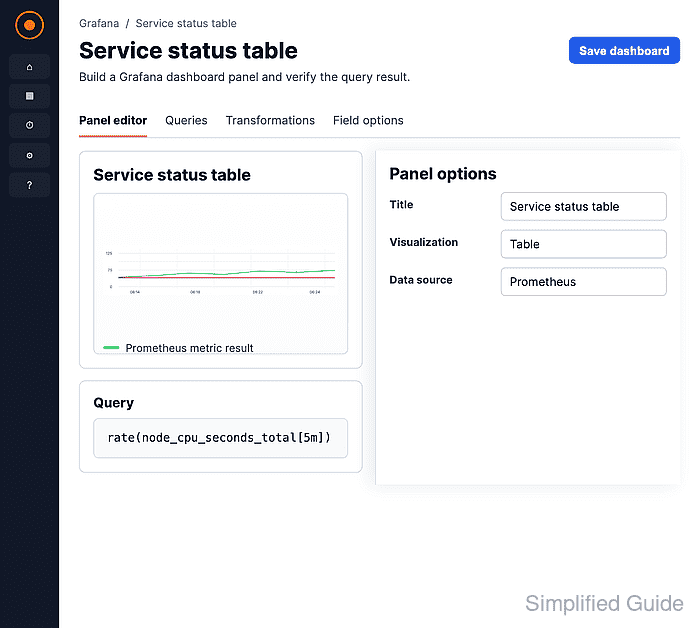
- Select the data source for the panel query.
- Choose a query that returns table rows.
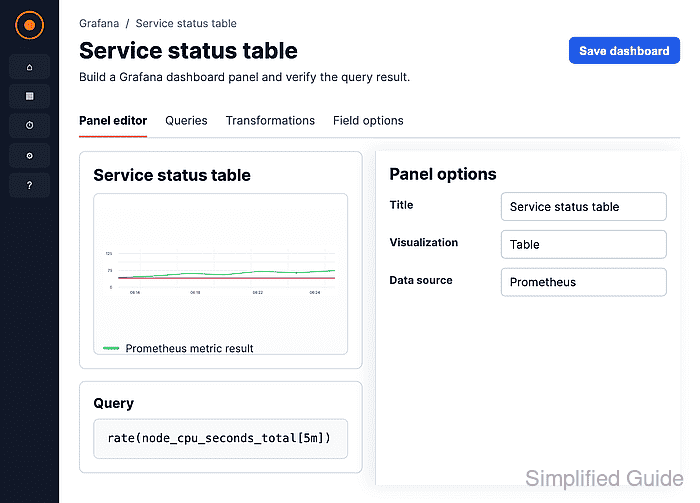
For a lab panel, choose TestData DB → Table Static. For a production panel, use a query that returns fields such as time, host, status, owner, value, or message as separate columns.
- Select Table from the visualization suggestions or from All visualizations.
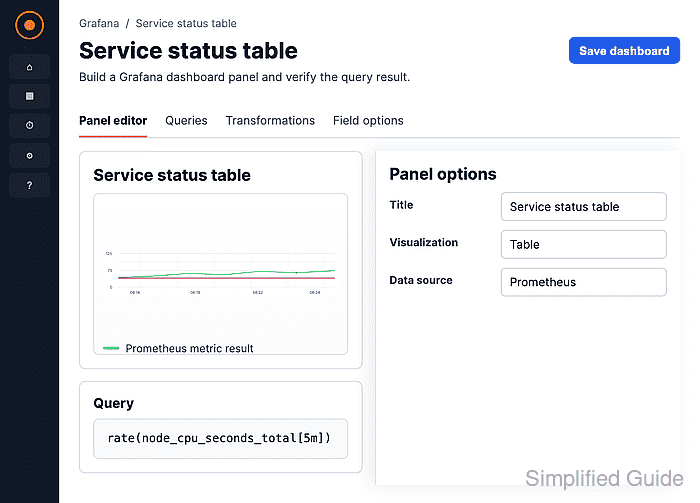
Do not confuse the Table view toggle with the Table visualization. Table view shows raw query data while editing; the Table visualization is the saved panel type.
- Enter a panel title under Panel options.
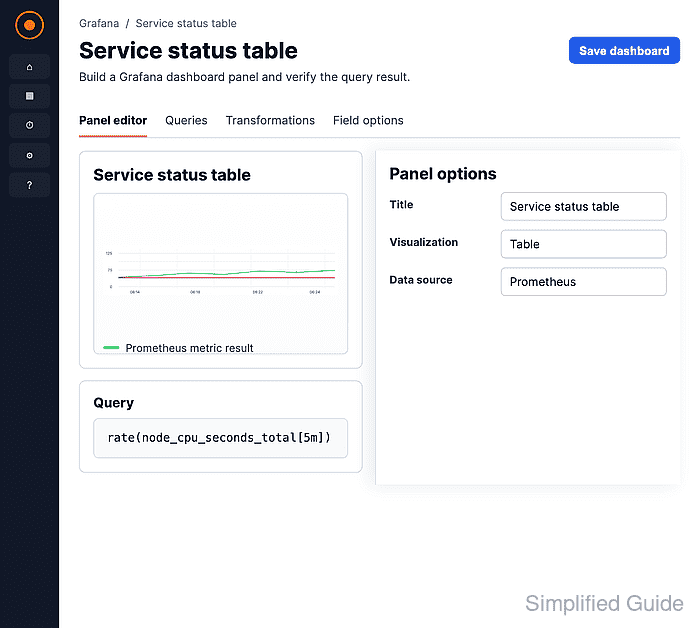
Use a title that names the rows, such as Service status table, so dashboard readers know what the columns describe.
- Click Save in the panel editor to open the dashboard save drawer.
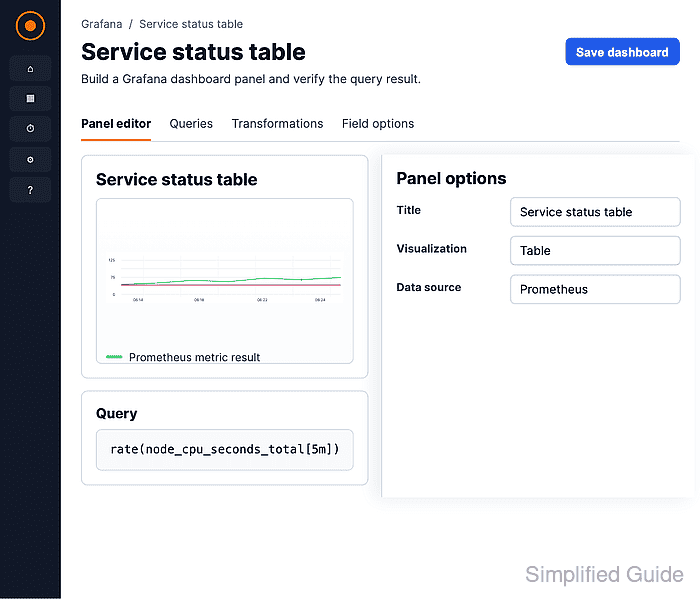
- Enter the dashboard title and click Save in the drawer.
- Confirm the dashboard shows the saved table panel with column headers and rows.