How to test a Grafana data source
Testing a Grafana data source confirms that Grafana can reach the backend behind a saved connection before dashboards, Explore queries, or alert rules depend on it. Use the data source settings page after creating a connection, changing credentials, moving an endpoint, or investigating a dashboard that stopped returning data.
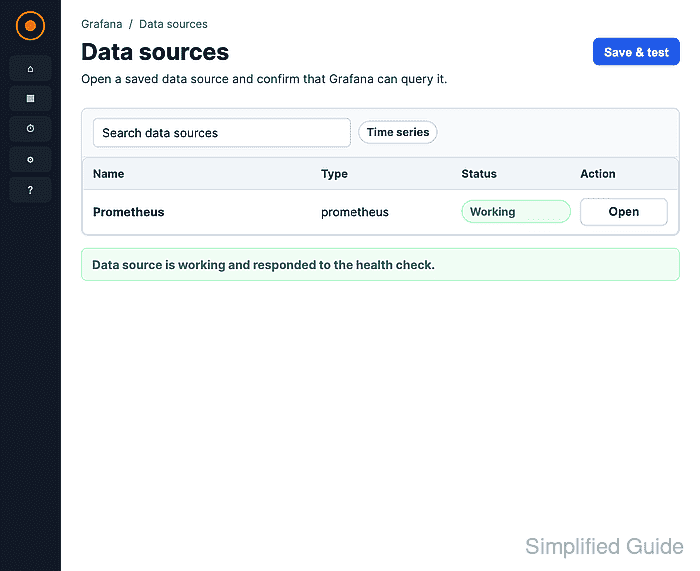
The Settings tab runs the plugin's health check through Grafana. For a Prometheus data source, Save & test queries the Prometheus API and returns a success message when the URL, authentication settings, and network path from the Grafana server are usable.
The user testing the connection needs permission to edit or administer the data source. A successful data source test proves the connection health check, not every dashboard query; use Explore or the query inspector when the next question is whether a specific query, time range, or panel transformation works.
Steps to test a Grafana data source:
- Open Connections → Data sources in Grafana.
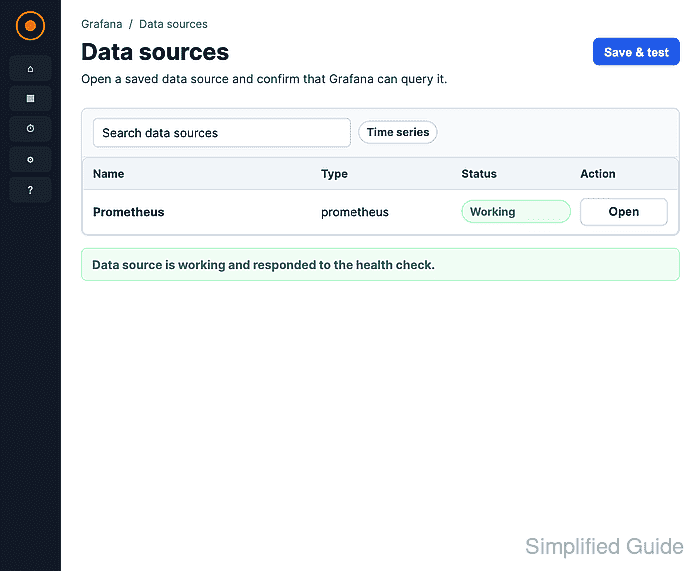
The data source list shows the saved name, plugin type, connection URL, and default marker when one data source is selected as the organization default.
- Select the data source that needs a connection test.
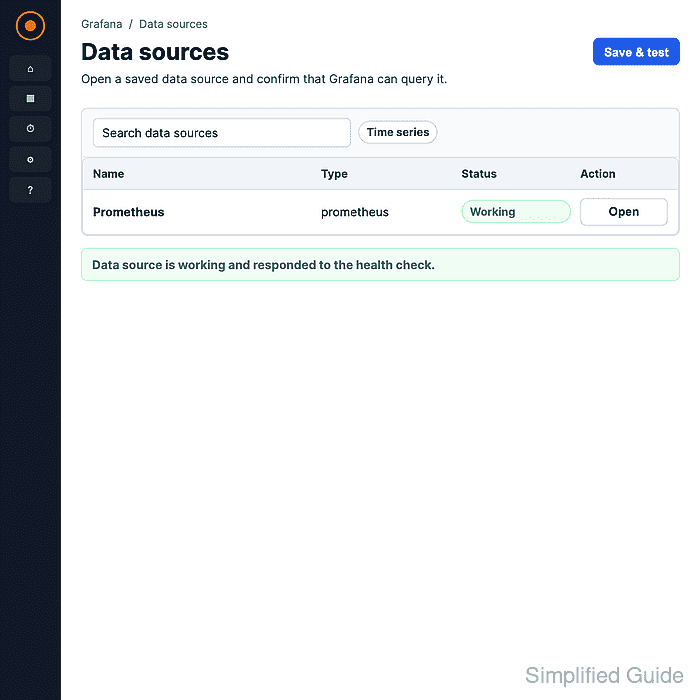
Use an address that the Grafana server can reach. In separate containers, localhost points inside the Grafana container, so a Docker service name or host-reachable address is usually required.
- Check the Settings tab values and scroll to the bottom of the page.
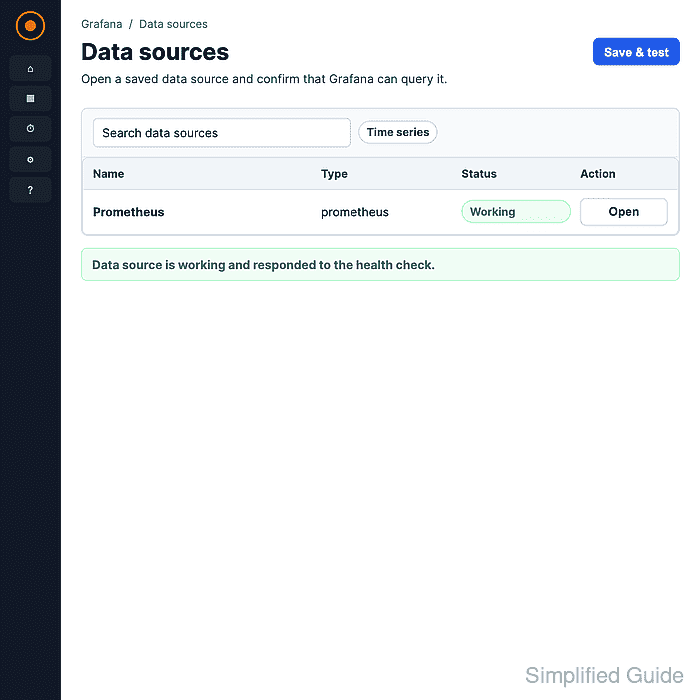
Leave the saved values unchanged when only retesting an existing connection.
- Click Save & test and confirm that Grafana shows a green success message for the data source.
Save & test saves any changed settings before running the plugin health check. A Prometheus data source reports Successfully queried the Prometheus API. Other plugins can return plugin-specific success text, but failed tests should be fixed before relying on dashboards, Explore, or alert rules that use the source.