How to provision Grafana alerting resources from files
Provisioning Grafana Alerting resources from files lets an administrator keep notification and rule definitions in version-controlled configuration instead of creating each object by hand in the web UI. File provisioning fits self-hosted Grafana servers where alerting state must be rebuilt consistently after a container, host, or environment is recreated.
Grafana reads alerting provisioning files from the provisioning/alerting directory during startup or an Admin API reload. Packaged Linux installs normally use /etc/grafana/provisioning/alerting, while containers use that path inside the container when a host directory or image layer is mounted there.
File provisioning is for self-hosted Grafana; Grafana Cloud does not load local provisioning files. File-managed alerting resources are changed from the file and then reloaded or restarted, so a webhook contact point keeps the first file small while exposing the managed state through the API. Provision notification policies only from a complete exported policy tree because Grafana treats the tree as one resource.
Steps to provision Grafana alerting resources from files:
- Create the alerting provisioning directory.
$ sudo install -d -m 0755 /etc/grafana/provisioning/alerting
For containers, mount the host directory to /etc/grafana/provisioning/alerting inside the Grafana container.
- Open a contact point provisioning file.
$ sudoedit /etc/grafana/provisioning/alerting/contact-points.yaml
- Add the contact point definition.
apiVersion: 1

contactPoints:
  - orgId: 1
    name: On-call webhook
    receivers:
      - uid: ops_webhook
        type: webhook
        settings:
          url: http://alerts.example.internal/webhook
          httpMethod: POST
Keep receiver uid values short and stable because Grafana uses them as resource identifiers. Replace the webhook URL with the endpoint that Grafana can reach from the server or container network.
Tool: YAML Validator - Reload alerting provisioning with a Grafana server administrator account.
$ curl --silent --show-error --request POST --user "$GRAFANA_ADMIN_USER:$GRAFANA_ADMIN_PASSWORD" http://grafana.example.internal:3000/api/admin/provisioning/alerting/reload
{"message":"Alerting config reloaded"}
The Admin API reload endpoint requires Basic Auth with a Grafana server administrator account. Service account tokens do not work for Admin API endpoints. Restart grafana-server instead when the Admin API is not reachable.
Related: How to manage the Grafana service with systemctl - Export the provisioned contact point in file format.
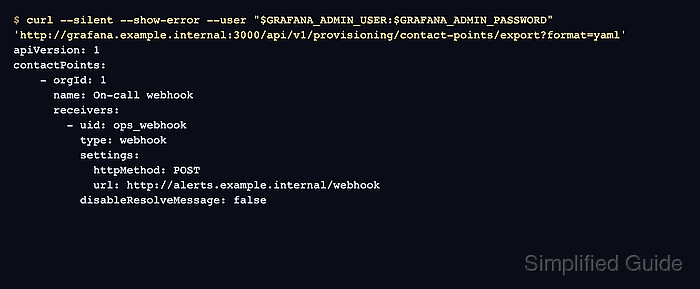
$ curl --silent --show-error --user "$GRAFANA_ADMIN_USER:$GRAFANA_ADMIN_PASSWORD" 'http://grafana.example.internal:3000/api/v1/provisioning/contact-points/export?format=yaml' apiVersion: 1 contactPoints: - orgId: 1 name: On-call webhook receivers: - uid: ops_webhook type: webhook settings: httpMethod: POST url: http://alerts.example.internal/webhook disableResolveMessage: false - Confirm Grafana stored the resource with file provenance.
$ curl --silent --show-error --user "$GRAFANA_ADMIN_USER:$GRAFANA_ADMIN_PASSWORD" http://grafana.example.internal:3000/api/v1/provisioning/contact-points
[
  {
    "uid": "ops_webhook",
    "name": "On-call webhook",
    "type": "webhook",
    "settings": {
      "httpMethod": "POST",
      "url": "http://alerts.example.internal/webhook"
    },
    "disableResolveMessage": false,
    "provenance": "file"
  }
]
provenance set to file means Grafana loaded the contact point from provisioning files. Change the YAML file and reload or restart Grafana when the contact point needs to change.
- Review the Grafana log if the resource does not appear.
$ sudo journalctl -u grafana-server -b
##### snipped #####
logger=provisioning.alerting level=info msg="starting to provision alerting"
logger=provisioning.alerting level=info msg="finished to provision alerting"
##### snipped #####
A malformed YAML file or a conflict with an existing alerting resource prevents that file from loading as intended. Fix the file, remove or export conflicting resources first, and reload provisioning again.