How to configure Git user name and email
Git commits carry the author and committer name and email that reviewers, hosting platforms, and audit trails use to identify who made a change. A missing or reused identity can put personal addresses into work repositories or make project history harder to attribute.
Git stores the identity in configuration keys named user.name and user.email. A global value in ~/.gitconfig applies to repositories for the current user, while a repository-local value in .git/config overrides it inside one checkout.
Use a global identity for the account's default commits and a local identity when one repository must use a different organization address or author name. These values do not authenticate pushes or pulls; credentials and SSH keys are handled separately. Current Git documentation uses git config set and git config get subcommands, while older Git versions can use the legacy syntax shown in the compatibility note.
Related: List effective Git configuration
Related: Create a local Git repository
Related: Install Git on Ubuntu
Steps to configure Git user name and email:
- Open a terminal as the operating system user who will create the commits.
Git's global scope belongs to the current HOME. Running these commands with sudo writes the identity for root instead of the normal user account.
- Set the global author name for the current user.
$ git config set --global user.name "Example User"
- Set the global author email for the current user.
$ git config set --global user.email "user@example.net"
Use the email address your Git hosting account expects when commits should link to that account. Older Git versions that do not support subcommands can use git config --global user.name "Example User" and git config --global user.email "user@example.net".
- Confirm the global author name.
$ git config get --global user.name
Example User
- Confirm the global author email.
$ git config get --global user.email
user@example.net
- Open a repository that needs a different identity.
$ cd project-alpha
Skip the local-scope steps when the global name and email should apply to this repository.
- Set the repository-local author name.
$ git config set --local user.name "Example User"
- Set the repository-local author email.
$ git config set --local user.email "repo@example.net"
The local values are stored in .git/config and override the global values only inside this repository.
- Confirm which config file supplies the effective name.
$ git config get --show-origin --show-scope user.name
local	file:.git/config	Example User
- Confirm which config file supplies the effective email.
$ git config get --show-origin --show-scope user.email
local	file:.git/config	repo@example.net
Related: List effective Git configuration
- Create a disposable empty commit when testing identity in a throwaway repository.
$ git commit --allow-empty -m "Check Git identity"
[main (root-commit) 84a9cb7] Check Git identity
Use this verification commit only in a disposable repository, or remove it from a real project before sharing history. A normal project commit records the same identity fields.
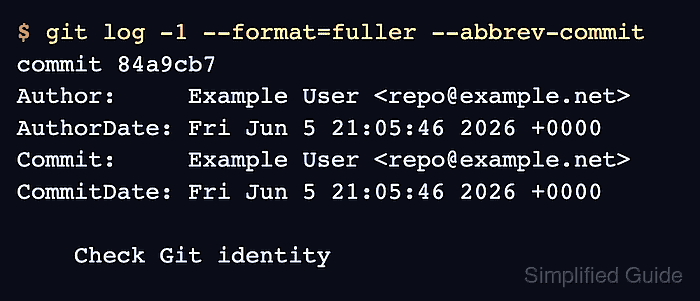
- Inspect the latest commit identity.
$ git log -1 --format=fuller --abbrev-commit commit 84a9cb7 Author: Example User <repo@example.net> AuthorDate: Fri Jun 5 21:05:46 2026 +0000 Commit: Example User <repo@example.net> CommitDate: Fri Jun 5 21:05:46 2026 +0000 Check Git identity - Remove a repository-local override when the repository should use the global identity again.
$ git config unset --local user.email
Run the same command for user.name when the repository-local name should be removed too. Set user.useConfigOnly to true if Git should fail commits instead of guessing missing identity values.