How to switch a Gentoo profile
Switching a Gentoo profile changes the defaults that Portage uses for USE flags, package masks, system and profile sets, toolchain policy, and binary package matching. Use a normal profile switch when the system is staying on the same profile generation but needs a different role, such as moving from a base profile to a desktop subprofile.
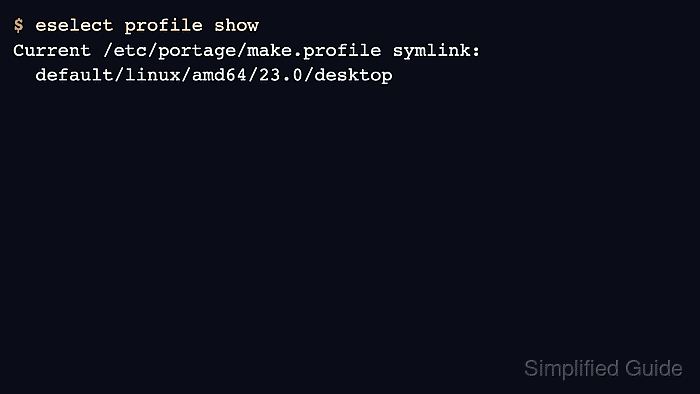
The active profile is the /etc/portage/make.profile symlink, and eselect profile lists valid targets from the synced Gentoo ebuild repository. The list marks the current target with *, while emerge --info shows the profile that Portage uses for dependency calculations.
Stay on the same profile generation unless a Gentoo news item says to perform a profile update. Switching to a newer generation, changing split-usr versus merged-usr, moving between OpenRC and systemd, or changing ABI families can require extra migration steps beyond a simple profile selection.
Related: How to sync the Gentoo repository
Related: How to read Gentoo news items
Related: How to update the Gentoo system profile
Related: How to update a Gentoo world set
Steps to switch a Gentoo profile:
- Sync the Gentoo repository before checking profile targets.
$ sudo emaint --auto sync
>>> Syncing repository 'gentoo' ...
>>> Sync completed for gentoo
Profile targets come from the local ebuild repository under /var/db/repos/gentoo/profiles, so a stale repository can hide new profiles or keep removed profiles visible.
Related: How to sync the Gentoo repository
- Read any Gentoo news item that mentions profile changes before selecting a target.
$ sudo eselect news list
News items:
  [1]   N  2024-03-22  Profile upgrade to version 23.0 available
If the news item announces a new profile generation or split-usr/merged-usr migration, follow the migration instructions instead of treating it as a normal same-generation switch. Related: How to update the Gentoo system profile
- Record the current profile before changing it.
$ eselect profile show
Current /etc/portage/make.profile symlink:
  default/linux/amd64/23.0
Keep the old profile path until the rebuild is complete so a bad selection can be corrected without guessing the previous target.
- Bring the system current under the existing profile.
$ sudo emerge --ask --verbose --update --deep --newuse @world
These are the packages that would be merged, in order:

Calculating dependencies... done!
##### snipped #####
Resolve blockers while the old profile is still active. A normal profile switch should start from a system that already updates cleanly.
Related: How to update a Gentoo world set
- Review unused packages before the profile change.
$ sudo emerge --ask --depclean
Calculating dependencies... done!
>>> No packages selected for removal by depclean
Do not proceed if depclean proposes removing packages that still provide boot, login, network, compiler, or desktop functionality you depend on.
- List the available profiles and choose the target from the current output.
$ eselect profile list
Available profile symlink targets:
  [1]   default/linux/amd64/23.0 *
  [2]   default/linux/amd64/23.0/desktop
  [3]   default/linux/amd64/23.0/desktop/gnome
  [4]   default/linux/amd64/23.0/desktop/plasma
  [5]   default/linux/amd64/23.0/systemd
##### snipped #####
Use the number shown by the command you just ran. Profile numbers can change when the repository profile list changes.
- Set the selected profile.
$ sudo eselect profile set 2
The example selects the same-generation desktop profile from the list above. Choose the target that matches the system role, architecture, libc, init system, and usr layout.
- Confirm that the profile symlink now points at the selected target.
$ eselect profile show
Current /etc/portage/make.profile symlink:
  default/linux/amd64/23.0/desktop
If the path is wrong, run sudo eselect profile set <number> again before rebuilding packages.
- Rebuild packages affected by the new profile defaults.
$ sudo emerge --ask --verbose --update --deep --newuse @world
These are the packages that would be merged, in order:

Calculating dependencies... done!
##### snipped #####
Stop and follow the relevant Gentoo documentation if the target profile changes toolchain family, libc, ABI, init system, hardened policy, SELinux policy, or profile generation. Those transitions can need extra package rebuilds and configuration cleanup.
- Remove packages that became unused only after reviewing the proposal.
$ sudo emerge --ask --depclean
Calculating dependencies... done!
>>> No packages selected for removal by depclean
depclean recalculates against the new system, world, and profile sets, so the removal list may differ from the pre-switch check.
- Regenerate the environment cache after the package changes.
$ sudo env-update
>>> Regenerating /etc/ld.so.cache...
- Reload the shell environment or open a new login shell.
$ source /etc/profile
Opening a new terminal or logging in again has the same practical effect for normal shell sessions.
- Verify that Portage reports the new profile after the rebuild.
$ emerge --info
Portage 3.0.79 (default/linux/amd64/23.0/desktop, gcc-15, glibc-2.42-r7, 6.12.76-gentoo x86_64)
=================================================================
##### snipped #####
USE="X acl alsa cups dbus gtk ipv6 qt6 udev wayland"
##### snipped #####
The profile path in emerge --info should match the profile selected with eselect.