How to check active firewalld zones
firewalld applies rules through zones, and the active zone for an interface or source decides which services, ports, rich rules, and forwarding settings handle that traffic. Check the active-zone map before editing rules on a host with more than one interface, source-based zone, or NetworkManager-managed connection.
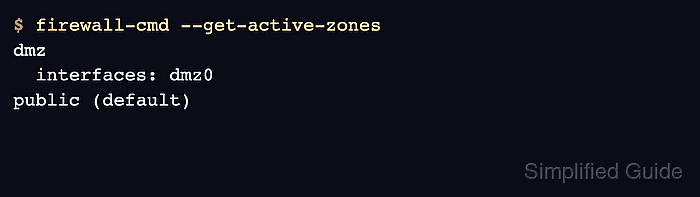
firewall-cmd --get-active-zones prints the zone bindings that firewalld is applying in the runtime configuration. Interface and source lines show explicit bindings, while the default zone is the fallback for traffic that has no more specific match.
If the output shows a zone name with (default) but no interface or source line, confirm the fallback with firewall-cmd --get-default-zone before choosing the zone for a rule change. On NetworkManager hosts, also check the connection profile because connection.zone can reapply a zone after a reconnect or reboot.
Related: Assign a network interface to a firewalld zone
Related: Change the default firewalld zone
Related: Allow a service in firewalld
Steps to check active firewalld zones:
- Confirm that firewalld is running before reading runtime zone state.
$ firewall-cmd --state
running
- List the active zones and their runtime bindings.
$ firewall-cmd --get-active-zones
dmz
  interfaces: dmz0
public (default)
The zone name starts each block. Lines below it show the interfaces or source networks bound to that zone. A zone shown only as (default) is the fallback for unclassified traffic, not proof that a specific interface is explicitly assigned to it.
- Confirm the default zone used when no interface or source-specific binding matches.
$ firewall-cmd --get-default-zone
public
Do not assume the default zone is the zone handling a specific interface. An explicit interface or source binding takes precedence over the default zone.
Related: Change the default firewalld zone
- Query the zone for the interface that carries the traffic being checked.
$ firewall-cmd --get-zone-of-interface=dmz0
dmz
If the command prints no zone, the interface has no explicit firewalld zone binding. Check the default zone and the NetworkManager connection profile before adding rules.
- Query the zone for a source network when the active-zone output or local policy uses source bindings.
$ firewall-cmd --get-zone-of-source=192.0.2.0/24
internal
Use the same source format shown by firewalld, such as an address, CIDR range, MAC address, or ipset:<name>. A mismatched source value can return no zone even when another source binding exists.
- Inspect the rule inventory for the zone that actually handles the traffic.
$ firewall-cmd --zone=dmz --list-all
dmz (active)
  target: default
  ingress-priority: 0
  egress-priority: 0
  icmp-block-inversion: no
  interfaces: dmz0
  sources:
  services: ssh
  ports:
  protocols:
  forward: yes
  masquerade: no
  forward-ports:
  source-ports:
  icmp-blocks:
  rich rules:
Older firewalld releases can omit fields such as ingress-priority and egress-priority. The zone name, active marker, interfaces, sources, services, ports, and rich rules are the fields needed for this check.
- On NetworkManager-managed hosts, find the connection profile that owns the interface.
$ nmcli -f GENERAL.CONNECTION device show dmz0
GENERAL.CONNECTION:                     Wired DMZ
- Check the zone stored on that NetworkManager connection profile.
$ nmcli -f connection.zone connection show "Wired DMZ"
connection.zone:                        dmz
If the NetworkManager profile shows a different zone or an empty value, a reconnect can move the interface back to the profile's stored zone or the default zone. Update the connection profile during the same change window as any firewalld zone reassignment.
- Use the identified zone name for the next firewalld rule check or change.
$ firewall-cmd --zone=dmz --list-services
ssh
Do not add or remove a service, port, or rich rule in public only because it is the default zone. Use the zone that owns the interface or source path being changed.