How to troubleshoot a blocked connection in firewalld
A service can look healthy on the server and still fail from a client when firewalld is filtering the inbound path. Troubleshooting should prove the same symptom the user sees, confirm that the application is listening on a reachable address, identify the zone that receives the traffic, and then test the smallest rule change before making it permanent.
firewalld applies rules through zones, and the zone attached to the receiving interface or source address is the one that matters for the connection. A rule added to public does not help if the packet enters through another active zone, and a port that is only open in permanent configuration does not affect the running firewall until reload.
The examples below use app.example.net, TCP port 8080, and the public zone. Replace those values with the host, port, protocol, and zone from the failing service, and keep the final test on the original client path instead of relying only on local server checks.
Steps to troubleshoot a blocked connection in firewalld:
- Reproduce the failure from a client host before changing firewall rules.
$ curl --connect-timeout 5 http://app.example.net:8080/
curl: (28) Failed to connect to app.example.net port 8080 after 5000 ms: Connection timed out
Use the same client command, port, protocol, and network path that failed for the user. A local test from the server itself does not prove that inbound firewall policy allows remote clients.
- Confirm that the service is listening on the server and not bound only to loopback.
$ sudo ss -ltnp 'sport = :8080'
State  Recv-Q Send-Q Local Address:Port Peer Address:Port Process
LISTEN 0      4096         0.0.0.0:8080      0.0.0.0:*     users:(("python3",pid=842,fd=3))
If the listener shows only 127.0.0.1:8080 or [::1]:8080, fix the application bind address first; firewalld cannot expose a service that is listening only on loopback.
- Check that firewalld is the active firewall manager.
$ sudo firewall-cmd --state
running
If this reports not running, the blocked path is probably controlled by another firewall layer, a cloud security group, a router ACL, or the application itself.
- Identify the active zone that owns the receiving interface or source.
$ sudo firewall-cmd --get-active-zones
public
  interfaces: enp1s0
Source bindings can be more specific than interface bindings. If the client source appears under a different active zone, inspect and change that zone instead of the interface zone.
Related: How to check active firewalld zones
- Inspect the active zone rule inventory for the service or port.
$ sudo firewall-cmd --zone=public --list-all
public (active)
  target: default
  interfaces: enp1s0
  sources:
  services: dhcpv6-client ssh
  ports:
  protocols:
  forward: yes
  masquerade: no
  forward-ports:
  source-ports:
  icmp-blocks:
  rich rules:
An empty ports: line and no matching predefined service mean this zone is not allowing TCP 8080.
- Add a runtime-only rule in the same zone to test the suspected firewalld block.
$ sudo firewall-cmd --zone=public --add-port=8080/tcp
success
Use --add-service instead when firewalld already has a predefined service for the application, such as http or https. Use a source-specific rich rule instead of a broad port rule when only one client network should be allowed.
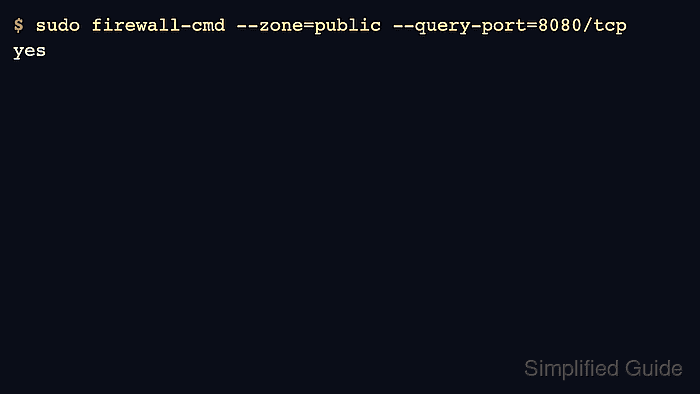
- Query the runtime rule to confirm that the test change landed in the intended zone.
$ sudo firewall-cmd --zone=public --query-port=8080/tcp
yes
- Retry the original client test after the runtime change.
$ curl --connect-timeout 5 http://app.example.net:8080/
firewalld test
If the same client path still fails, remove the test rule with sudo firewall-cmd --zone=public --remove-port=8080/tcp and continue with routing, cloud firewall, SELinux, application log, or upstream proxy checks before adding permanent firewalld policy.
- Add the same rule to permanent configuration only after the client test succeeds.
$ sudo firewall-cmd --permanent --zone=public --add-port=8080/tcp
success
The --permanent rule survives reboot and reload, but it does not change the running firewall until firewalld reloads.
- Reload firewalld so permanent configuration replaces the current runtime rules.
$ sudo firewall-cmd --reload
success
Reloading drops runtime-only firewalld changes that were not also saved permanently. Confirm any other temporary rules before reloading on a shared server.
- Confirm that the allowed port is still present after reload.
$ sudo firewall-cmd --zone=public --query-port=8080/tcp
yes
- Retest the original client symptom one final time.
$ curl --connect-timeout 5 http://app.example.net:8080/
firewalld test