How to wait for UI elements in Espresso
Espresso synchronizes with the main thread and registered idling resources before it interacts with a view, but a test can still reach an assertion before a rendered view changes to the state the assertion needs. A bounded view-state wait gives the screen a short window to show a known element without adding a fixed sleep to every run.
The helper uses a small ViewAction from onView(isRoot()). It keeps the Espresso main-thread loop moving, scans the current view tree for a matcher, and fails with a timeout message when the requested view state never appears.
Use this pattern only for UI state that should appear in the current view hierarchy, such as text changing from Loading to Ready. If a network request, coroutine, database query, or other app-owned background job controls the state, expose that work through an IdlingResource so Espresso can synchronize with the dependency instead of polling the screen.
Steps to wait for UI elements in Espresso:
- Add a bounded wait action to the androidTest source set.
- WaitUntil.kt
package com.example.test

import android.os.SystemClock
import android.view.View
import android.view.ViewGroup
import androidx.test.espresso.PerformException
import androidx.test.espresso.UiController
import androidx.test.espresso.ViewAction
import androidx.test.espresso.matcher.ViewMatchers.isRoot
import org.hamcrest.Matcher
import java.util.ArrayDeque
import java.util.concurrent.TimeoutException

fun waitUntil(matcher: Matcher<View>, timeoutMs: Long = 5_000): ViewAction =
    WaitUntil(matcher, timeoutMs)

private class WaitUntil(
    private val matcher: Matcher<View>,
    private val timeoutMs: Long
) : ViewAction {
    override fun getConstraints(): Matcher<View> = isRoot()

    override fun getDescription(): String = "wait up to $timeoutMs ms for: $matcher"

    override fun perform(uiController: UiController, view: View) {
        val endTime = SystemClock.uptimeMillis() + timeoutMs

        do {
            if (findMatchingView(view, matcher) != null) {
                return
            }

            uiController.loopMainThreadForAtLeast(50)
        } while (SystemClock.uptimeMillis() < endTime)

        throw PerformException.Builder()
            .withActionDescription(getDescription())
            .withViewDescription(view.toString())
            .withCause(
                TimeoutException(
                    "No matching view appeared within $timeoutMs ms"
                )
            )
            .build()
    }

    private fun findMatchingView(root: View, matcher: Matcher<View>): View? {
        val queue = ArrayDeque<View>()
        queue.add(root)

        while (!queue.isEmpty()) {
            val current = queue.removeFirst()

            if (matcher.matches(current)) {
                return current
            }

            if (current is ViewGroup) {
                for (index in 0 until current.childCount) {
                    queue.add(current.getChildAt(index))
                }
            }
        }

        return null
    }
}
Call this helper from onView(isRoot()) because the target view may not exist or may not match yet.
- Replace the fixed sleep with the wait action before the assertion that needs the delayed view state.
- OrderStatusTest.kt
package com.example.orders

import androidx.test.espresso.Espresso.onView
import androidx.test.espresso.action.ViewActions.click
import androidx.test.espresso.assertion.ViewAssertions.matches
import androidx.test.espresso.matcher.ViewMatchers.*
import com.example.test.waitUntil
import org.hamcrest.Matchers.allOf
import org.junit.Test

class OrderStatusTest {
    @Test
    fun waitsForReadyStatus() {
        onView(withId(R.id.refreshButton)).perform(click())

        onView(isRoot()).perform(
            waitUntil(
                allOf(
                    withId(R.id.status),
                    withText("Ready"),
                    isDisplayed()
                )
            )
        )

        onView(withId(R.id.status)).check(matches(withText("Ready")))
    }
}
Keep the matcher as specific as the assertion state. Waiting for a broad container can hide the fact that the child text or visibility never changed.
- Keep the timeout close to the expected UI delay.
onView(isRoot()).perform(
    waitUntil(
        allOf(withId(R.id.status), withText("Ready"), isDisplayed()),
        timeoutMs = 3_000
    )
)
A large timeout can turn a real synchronization bug into a slow flaky test. Move app-owned asynchronous work to an IdlingResource when the view depends on work outside the main thread.
- Delete the old fixed sleep from the test.
// Remove this after the bounded wait is in place.
Thread.sleep(5_000)
Leaving the sleep in place makes the new wait difficult to evaluate because the test still pauses even when the view becomes ready sooner.
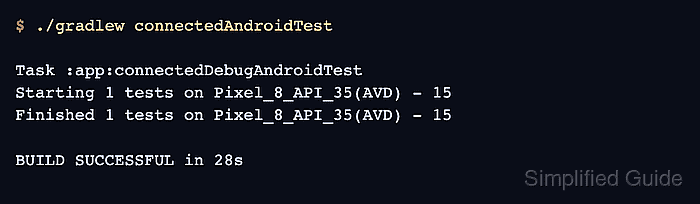
- Run the connected Espresso test task on a device or emulator.
$ ./gradlew connectedAndroidTest

Task :app:connectedDebugAndroidTest
Starting 1 tests on Pixel_8_API_35(AVD) - 15
Finished 1 tests on Pixel_8_API_35(AVD) - 15

BUILD SUCCESSFUL in 28s
Use the module and variant names from the project when the project does not expose the aggregate connected test task. Android's command-line test workflow writes the connected test report under the module build reports directory.