How to view device logs for Espresso tests
Device logs often contain the missing context behind an Espresso failure, especially when the Gradle summary only reports a failed assertion or an instrumentation crash. Capturing logcat around the failing run ties Android framework messages, app logs, and test runner output to the same device timeline.
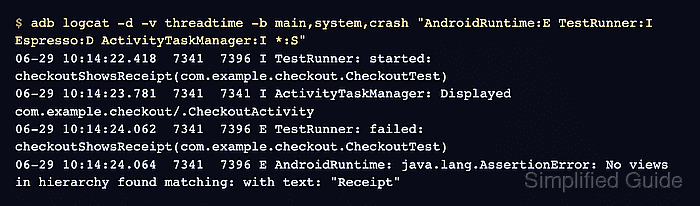
logcat reads Android's circular log buffers through adb. The main, system, and crash buffers cover most app messages, operating system messages, and crash reports, while threadtime output keeps the timestamp, process ID, thread ID, priority, and tag visible enough to match a test failure.
Start from a connected emulator or physical device and the same Gradle task that reproduces the failure. Clear the buffer before the run, keep the failing scope as small as the project allows, and save the filtered output before other activity overwrites the circular buffer.
Steps to view Espresso device logs with logcat:
- Confirm that adb sees the emulator or device that will run the test.
$ adb devices
List of devices attached
emulator-5554    device
- Clear the current device log buffer.
$ adb logcat -c
logcat buffers are circular. Clearing the buffer keeps the saved file focused on the run being reproduced.
- Run the failing Espresso task from the project.
$ ./gradlew :app:connectedDebugAndroidTest
> Task :app:connectedDebugAndroidTest

com.example.checkout.CheckoutTest > checkoutShowsReceipt[emulator-5554] FAILED
    androidx.test.espresso.NoMatchingViewException: No views in hierarchy found matching: with text: "Receipt"

FAILURE: Build failed with an exception.
##### snipped #####
Replace :app and Debug with the module and build variant used by the project. Android's command-line test runner can also isolate an installed test class with adb shell am instrument -w -e class when Gradle filtering is not the active path.
- Preview the filtered device log.
$ adb logcat -d -v threadtime -b main,system,crash "AndroidRuntime:E TestRunner:I Espresso:D ActivityTaskManager:I *:S"
06-29 10:14:22.418  7341  7396 I TestRunner: started: checkoutShowsReceipt(com.example.checkout.CheckoutTest)
06-29 10:14:23.781  7341  7341 I ActivityTaskManager: Displayed com.example.checkout/.CheckoutActivity
06-29 10:14:24.062  7341  7396 E TestRunner: failed: checkoutShowsReceipt(com.example.checkout.CheckoutTest)
06-29 10:14:24.064  7341  7396 E AndroidRuntime: java.lang.AssertionError: No views in hierarchy found matching: with text: "Receipt"
The final *:S silences tags that are not named earlier in the filter. Add the app's own log tag when the failure depends on app logging.
- Save the filtered device log to a file.
$ adb logcat -d -v threadtime -b main,system,crash "AndroidRuntime:E TestRunner:I Espresso:D ActivityTaskManager:I *:S" > espresso-device-log.txt
For long or noisy tests, start the same filter without -d in a second terminal before running the test, then stop it with Ctrl+C after the Gradle result appears.
- Match the saved log to the failing test name.
$ grep -F "checkoutShowsReceipt" espresso-device-log.txt
06-29 10:14:22.418  7341  7396 I TestRunner: started: checkoutShowsReceipt(com.example.checkout.CheckoutTest)
06-29 10:14:24.062  7341  7396 E TestRunner: failed: checkoutShowsReceipt(com.example.checkout.CheckoutTest)
The matching rows should show the same class or method that failed in the instrumentation output. The saved file is ready to attach to the failure record, compare with a passing run, or inspect for repeated app-log patterns.
Tool: Application Log Pattern Analyzer