How to import Kibana saved objects
Importing Kibana saved objects moves dashboards, data views, saved searches, maps, and other Kibana content from an exported .ndjson file into another space or deployment. That import path lets the same dashboard set move from development to staging, from staging to production, or into a recovery environment after a cleanup mistake.
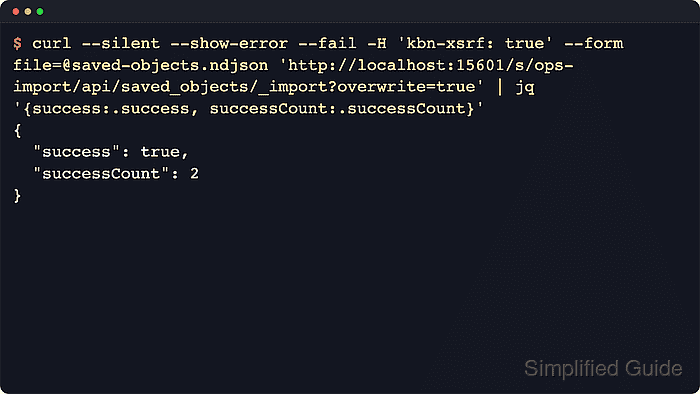
Kibana imports saved objects from files created by the Saved Objects export API or the Saved Objects page in Stack Management. The API endpoint accepts the file as multipart form data, runs the saved-object migrations required by the target version, and reports conflicts, missing references, and imported object ids in the JSON response.
Current Kibana releases import saved objects only into the same version, a newer minor on the same major, or the next major. The account or API key needs the Saved Objects Management Kibana privilege, import requests must include the kbn-xsrf header, and large files are still limited by savedObjects.maxImportExportSize and savedObjects.maxImportPayloadBytes. When objects are imported into another space or created as new copies, Kibana can assign different IDs, which can break weak links such as Markdown dashboard links that still point to old URLs.
Related: How to export Kibana saved objects
Related: How to create a Kibana space
Tool: API Testing Tool
Steps to import saved objects with the Kibana API:
- Check the target Kibana endpoint before importing.
$ curl --silent --show-error --fail \
  --user 'kibana_import:password' \
  'https://kibana.example.net:5601/api/status' | jq '{version: .version.number, status: .status.overall.level}'
{
  "version": "9.1.4",
  "status": "available"
}
Importing works only into the same Kibana version, a newer minor on the same major, or the next major. Add the configured base path before /api/ when Kibana is published behind a reverse proxy, such as https://kibana.example.net:5601/kibana/api/status.
Related: How to check Kibana status
- Inspect the exported file without editing it.
$ jq -R 'fromjson? | {type, id, title: (.attributes.title // .attributes.name)}' saved-objects.ndjson
{
  "type": "dashboard",
  "id": "ops-overview",
  "title": "Ops overview"
}
{
  "type": "index-pattern",
  "id": "388b3515-36a8-4d0d-84a6-ca7785b3499e",
  "title": "ops-import-*"
}
Use a file exported from Kibana rather than hand-editing the NDJSON. Exported files include migration metadata such as coreMigrationVersion and typeMigrationVersion, and the saved object type for data views remains index-pattern in export and import payloads.
- Import the file into the target space.
$ curl --silent --show-error --fail \
  --user 'kibana_import:password' \
  --header 'kbn-xsrf: true' \
  --form file=@saved-objects.ndjson \
  'https://kibana.example.net:5601/s/ops/api/saved_objects/_import?overwrite=true' | jq
{
  "errors": [],
  "success": true,
  "successCount": 2,
  "successResults": [
    {
      "id": "ops-overview",
      "type": "dashboard",
      "managed": false
    },
    {
      "id": "388b3515-36a8-4d0d-84a6-ca7785b3499e",
      "type": "index-pattern",
      "managed": false
    }
  ]
}
Using overwrite=true replaces matching objects in the target space. Use createNewCopies=true only when side-by-side copies with regenerated IDs are required, and do not combine it with overwrite or compatibilityMode.
Use compatibilityMode=true only when Kibana reports import compatibility problems, and replace --user with an Authorization: ApiKey header when automation already uses API key authentication.
- Query the imported dashboard in the same space.
$ curl --silent --show-error --fail \
  --user 'kibana_import:password' \
  'https://kibana.example.net:5601/s/ops/api/saved_objects/_find?type=dashboard&search_fields=title&search=Ops%20overview&per_page=1' | jq '{total, saved_objects: [.saved_objects[] | {type, id, title: .attributes.title}]}'
{
  "total": 1,
  "saved_objects": [
    {
      "type": "dashboard",
      "id": "ops-overview",
      "title": "Ops overview"
    }
  ]
}
If the import response reports success: false, inspect the errors array for conflict or missing_references details. Objects are created only after Kibana can resolve every import error for that object set.
- Open Stack Management → Saved Objects in the target space and confirm the imported dashboard or related objects appear with the expected names.
Current Kibana imports overwrite matching objects by default in the web UI. Use Create new objects with random IDs only when copies with new IDs are required, and check dashboard links afterward because ID changes can break weak links.