How to create a Kibana Lens visualization
Creating a Kibana Lens visualization turns fields from an existing data view into a saved chart that can be reused from the Visualize Library or added to dashboards. It fits operational questions such as which service produced the most events, which status codes are increasing, or how records changed during a time window.
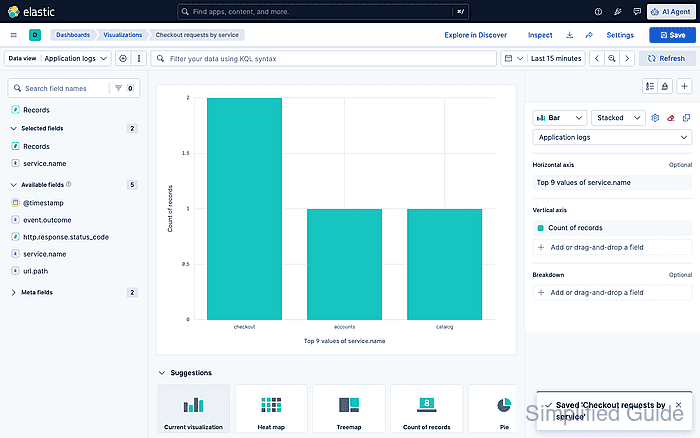
Lens reads from the selected Kibana data view, time picker, query bar, and filter pills. The field list on the left supplies available fields, the center workspace previews the chart, and the right configuration panel controls the chart type, axes, metrics, and breakdowns.
The Visualize Library path creates a reusable saved visualization without attaching it to a dashboard during the first save. The account needs permission to read the backing Elasticsearch data and create saved objects in the current Kibana space; if Save is disabled or fields are missing, check the data view, time range, and role privileges before changing the chart.
Steps to create a Kibana Lens visualization:
- Open Visualize Library from the Kibana navigation menu or global search.
- Click Create visualization and choose Lens if Kibana asks for an editor.
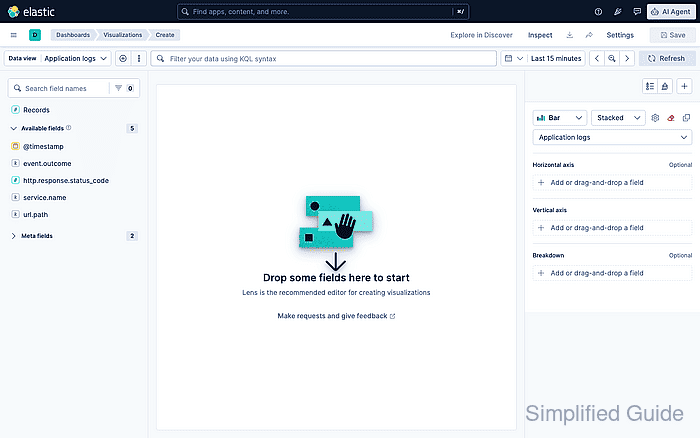
The same editor can also open from a dashboard, but dashboard-created panels use Save and return unless they are saved to the library.
Related: How to create a Kibana dashboard with Lens panels - Select the Data view that contains the fields for the chart.
Use a data view with a time field when the chart should follow the global time picker.
Related: How to create a Kibana data view - Set the time picker to a range that contains the documents to visualize.
A time range outside the indexed documents can leave Lens fields available while the chart preview stays empty.
- Add a field to the workspace or to a dimension slot.
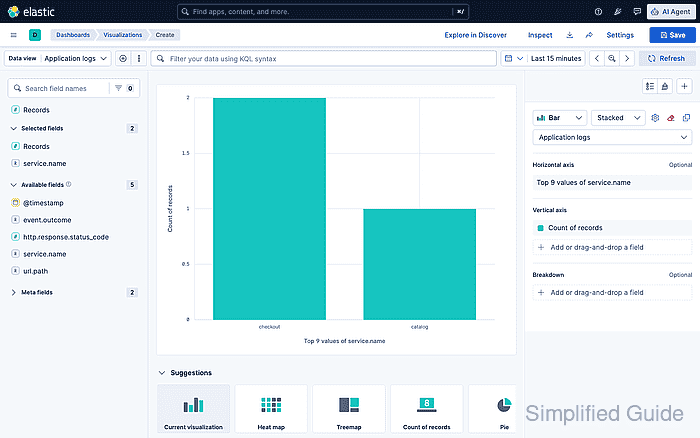
Click the add icon beside a field or drag the field into the workspace. For a service-count chart, adding service.name creates a terms breakdown with Count of records as the metric.
- Change the Chart type when the default suggestion does not match the question.
Use Bar for category comparisons, Line or Area for time series, Metric for one number, and Table when individual grouped values matter more than a plotted shape.
- Adjust the dimension labels, metric aggregation, or Breakdown field until the preview answers one question clearly.
- Click Save in the Lens toolbar.
- Enter a Title for the visualization.
- Choose None under Add to dashboard when the visualization should be saved only to the Visualize Library.
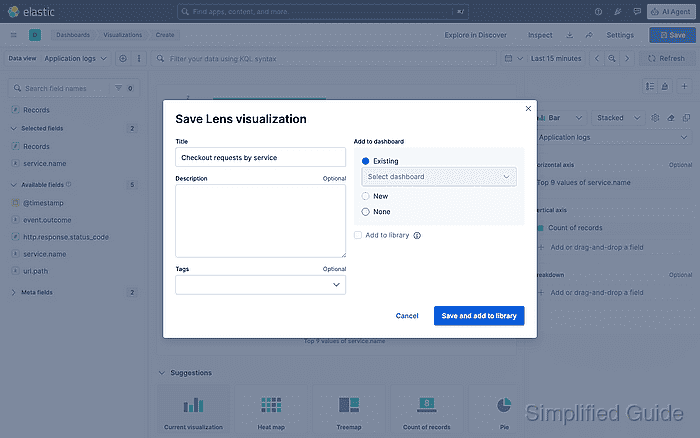
- Enable Add to library when the visualization should be reusable from other dashboards.
- Click Save and add to library.
- Confirm the saved title appears in the editor and the saved notification is shown.