How to filter data in Kibana Discover
Filtering data in Kibana Discover narrows an existing data view to the documents that match an investigation. It is useful when a broad log, event, or metric stream needs to be reduced to a service, status, host, user, or time window before opening individual documents.
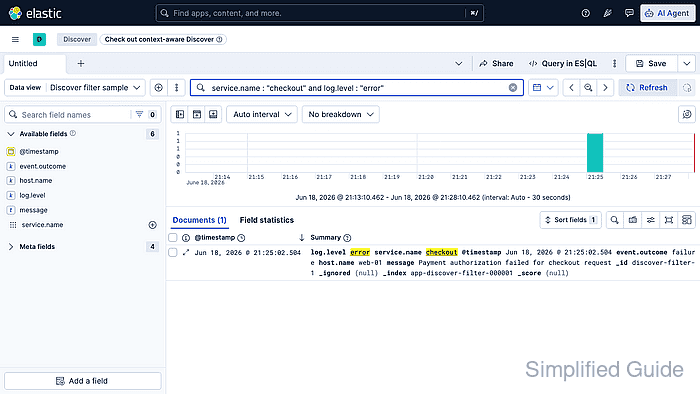
The default Discover mode uses a selected data view, the global time picker, a KQL query bar, and optional filter pills. KQL filters documents by field values and ranges; it does not aggregate or sort results, so the document table and histogram remain the place to inspect what matched.
Discover can also switch to ES|QL for pipeline-style queries, but the classic data-view workflow keeps filters visible as query text or pills. If Discover shows no rows, check the selected data view and time range before changing the query language.
Steps to filter data in Kibana Discover:
- Open Discover from the Kibana navigation menu or global search.
- Select the data view that contains the documents to inspect.
Use a data view with the right time field so the global time picker filters by event time instead of hiding recent documents.
Related: How to create a Kibana data view - Set the time picker to a range that includes the documents.
A narrow time range is a common reason a valid KQL query returns no rows.
- Enter a KQL field query in the query bar.
service.name : "checkout" and log.level : "error"
Use field suggestions from the query bar to choose mapped field names. Keyword, numeric, date, and boolean values need exact matches.
- Press Enter or click Refresh to run the query.
The Documents count, histogram, and result table update from the selected data view and time range.
- Add fields that prove the match to the document table.
Hover a field in the sidebar and select the add icon, or expand a document row and review the field values in the flyout.
- Build a filter pill when the condition should stay visible outside the query text.
Click the Add filter icon next to the query bar, choose a field such as event.outcome, set the operator such as is, enter a value such as failure, and click Add filter.
- Adjust the filter pill from its menu when testing combinations.
Use Edit filter to change the value, Exclude results to invert it, Temporarily disable to compare the result set, or Pin across all apps when the same filter should follow dashboards and Lens.
- Confirm the filtered table contains only the intended documents.
The query bar or filter pill list should show the active condition, and visible rows should contain matching values such as service.name checkout and log.level error.