How to create a Kibana dashboard with Lens panels
A Kibana dashboard with Lens panels collects charts from the same data view so analysts can monitor a service, index, or log stream without rebuilding searches. Building the panel from the dashboard keeps the visualization attached to that dashboard and leaves the saved result ready to reopen from Dashboards.
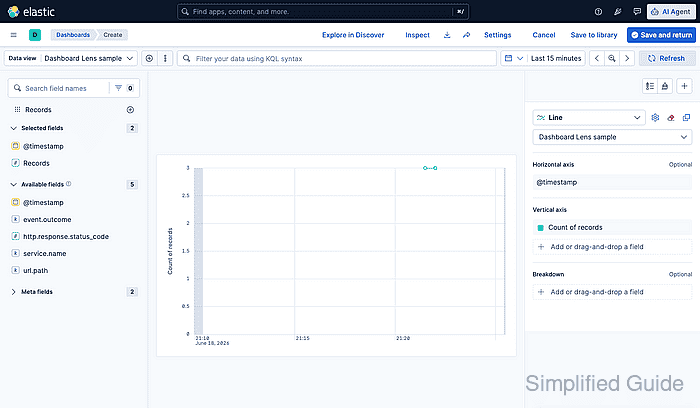
Lens reads fields from a Kibana data view and uses the dashboard time picker, query bar, and filter pills while the panel is being edited. A field list with available fields means the selected data view and time range contain matching documents; an empty field list usually means the wrong data view or a time range outside the indexed data.
Creating and saving dashboards requires All privilege for the Dashboard feature and a data view that points at indexed data. Save and return adds the Lens panel to the dashboard draft, but the dashboard itself still needs its own Save action before it appears in the dashboard list.
Related: How to create a Kibana data view
Related: How to create a Kibana Lens visualization
Related: How to filter data in Kibana Discover
Steps to create a Kibana dashboard with Lens panels:
- Open the Dashboards page in Kibana.
- Select Create dashboard.
- Click Create visualization on the empty dashboard canvas.
On a dashboard that already contains panels, use Add panel and choose a new Visualization panel instead.
- Select the intended Data view in Lens.
- Set the dashboard time picker to a range that contains the documents for the panel.
- Drag Records, a numeric field, or another aggregatable field from Available fields into the workspace.
- Adjust the Chart type and dimensions in the configuration panel.
For a time-series panel, use Line or Area, keep @timestamp on the Horizontal axis, and use Count of records or another metric on the Vertical axis.
- Click Save and return to place the Lens panel on the dashboard.
- Add another Lens panel for a different dashboard question.
Examples include a top-service breakdown, a status-code bar chart, or an outcome split. Keep each panel tied to one question so dashboard filters remain easy to interpret.
- Move and resize the panels until the most important chart is easiest to scan.
- Click Save in the dashboard toolbar.
- Enter a dashboard Title and optional Description.
- Choose whether to enable Store time with dashboard.
- Click Save in the save dialog.
- Reopen the dashboard from Dashboards and confirm the Lens panels appear.
- Change the time range or add a filter pill, then click Refresh to confirm the panels update together.