How to configure Filebeat output to Logstash
Sending Filebeat events to Logstash routes harvested logs through a central processing pipeline before they reach Elasticsearch or another destination. Use this output when Logstash needs to parse, enrich, redact, or route events instead of leaving every shipper host to carry that logic.
The output.logstash block in /etc/filebeat/filebeat.yml opens a Beats protocol connection to a Logstash beats input, commonly on TCP port 5044. The hosts list names one or more Logstash endpoints, and the same output block carries TLS settings when the listener expects encrypted transport.
Only one Filebeat output can be enabled at a time. Disable output.elasticsearch before enabling output.logstash, and load templates, ingest pipelines, or dashboards through direct Elasticsearch and Kibana setup paths because Filebeat cannot install those assets through Logstash.
Steps to configure Filebeat output to Logstash:
- Confirm the Logstash beats input is listening on TCP port 5044.
$ sudo ss -ltnp 'sport = :5044'
State  Recv-Q Send-Q Local Address:Port Peer Address:Port Process
LISTEN 0      4096         0.0.0.0:5044      0.0.0.0:*    users:(("java",pid=21844,fd=239))
Run this check on the Logstash host. If ss shows a specific listen address instead of 0.0.0.0, point Filebeat at an address reachable from the shipper host.
Related: How to configure a Logstash Beats input - Open the main Filebeat configuration file.
$ sudoedit /etc/filebeat/filebeat.yml
Package installs normally keep the active configuration in /etc/filebeat/filebeat.yml.
- Configure output.logstash and comment out output.elasticsearch.
#output.elasticsearch:
#  hosts: ["https://elasticsearch.example.net:9200"]

output.logstash:
  hosts: ["logstash-1.example.net:5044"]
Keep only one output.* block enabled. Add ssl.certificate_authorities, ssl.certificate, and ssl.key under output.logstash only when the Logstash listener uses TLS or mutual TLS.
Related: How to configure Filebeat for TLS
Related: How to enable Filebeat load balancing for Logstash output - Test the Filebeat configuration syntax before applying the output change.
$ sudo filebeat test config -c /etc/filebeat/filebeat.yml
Config OK
Related: How to test a Filebeat configuration
- Test the active Logstash output from the Filebeat host.
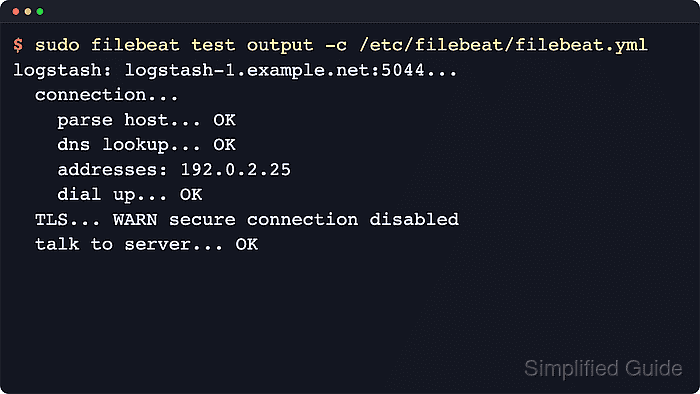
$ sudo filebeat test output -c /etc/filebeat/filebeat.yml
logstash: logstash-1.example.net:5044...
  connection...
    parse host... OK
    dns lookup... OK
    addresses: 192.0.2.25
    dial up... OK
  TLS... WARN secure connection disabled
  talk to server... OK
filebeat test output uses the same host, port, and certificate settings that normal publishing uses. When TLS is enabled, certificate verification appears here instead of the plaintext warning, and an externally reachable listener can be checked for SNI or certificate-chain faults.
Related: How to test Filebeat output connectivity
Tool: TLS Handshake Trace - Restart the Filebeat service to publish to Logstash.
$ sudo systemctl restart filebeat
- Review recent Filebeat service logs after the restart.
$ sudo journalctl --unit=filebeat --since "5 min ago" --no-pager
Apr 08 02:14:56 web-01 filebeat[2147]: {"log.level":"info","@timestamp":"2026-04-08T02:14:56.197Z","log.logger":"publisher_pipeline_output","message":"Connecting to backoff(async(tcp://logstash-1.example.net:5044))","service.name":"filebeat","ecs.version":"1.6.0"}
Apr 08 02:14:56 web-01 filebeat[2147]: {"log.level":"info","@timestamp":"2026-04-08T02:14:56.316Z","log.logger":"publisher_pipeline_output","message":"Connection to backoff(async(tcp://logstash-1.example.net:5044)) established","service.name":"filebeat","ecs.version":"1.6.0"}
The Connection … established line confirms that Filebeat opened the configured Logstash publisher. It does not prove downstream Elasticsearch indexing; check the Logstash pipeline output or search path separately when the pipeline is new.
Related: How to ingest logs from Filebeat through Logstash into Elasticsearch