How to roll back a Docker Compose update
Rolling back a Docker Compose update means restoring the last known good service definition and recreating the affected containers on that earlier image or configuration. This is the fastest recovery path when a new image tag, environment value, or Compose change starts but does not behave correctly after deployment.
Compose reads the current project files, resolves any values loaded from .env or an alternate env file, and then applies that resolved model when it pulls and recreates services. Checking the resolved image name before the recreate step makes it clear which version the rollback will deploy.
Recreating a service rolls back the container definition, but it does not automatically roll back named volumes, bind-mounted application data, or schema changes made by the failed release. When the update touched persistent data, the recovery plan also needs the matching database or volume restore path before traffic returns.
Steps to roll back a Docker Compose update:
- Change into the Compose project directory that contains the active compose.yaml and .env files.
$ cd /srv/example-stack
- Restore the last known good image tag or Compose setting in the project files before touching the running service.
APP_IMAGE=alpine:3.22.1
Use the same rollback source that produced the last working deployment, such as the previous Git revision or a deployment backup, so every changed Compose setting is restored together.
Container recreation does not undo data changes inside named volumes, bind mounts, or databases. Use the matching data rollback plan when the failed update changed persistent state. Related: How to back up and restore a Docker volume
- Confirm that Compose now resolves the service to the intended rollback image.
$ docker compose config --images
alpine:3.22.1
The config –images form prints the resolved image names after variable interpolation, which catches a wrong tag before the running container is replaced.
- Pull the rollback image for the affected service.
$ docker compose pull app
 Image alpine:3.22.1 Pulling
 Image alpine:3.22.1 Pulled
Add --include-deps when dependent services also need to be rolled back in the same change window.
- Recreate the service on the restored image.
$ docker compose up --detach app
 Container example-stack-app-1 Recreate
 Container example-stack-app-1 Recreated
 Container example-stack-app-1 Starting
 Container example-stack-app-1 Started
docker compose up –detach recreates the service when the image or service configuration changed, while keeping the service under the same Compose project.
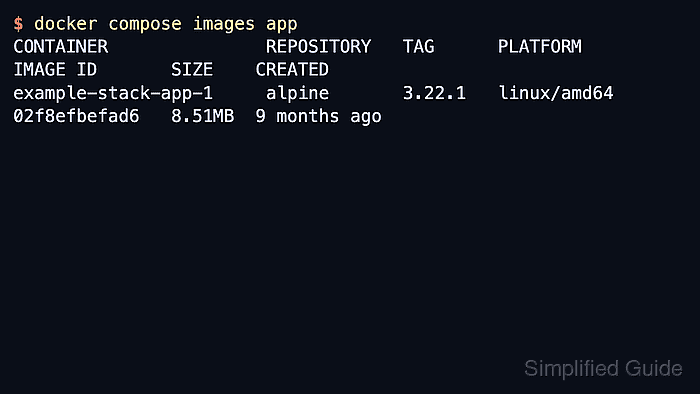
- Check that the recreated container is now using the older image tag.
$ docker compose images app
CONTAINER               REPOSITORY   TAG      PLATFORM       IMAGE ID       SIZE    CREATED
example-stack-app-1     alpine       3.22.1   linux/amd64    02f8efbefad6   8.51MB  9 months ago
docker compose images lists the image used by the created container, which makes it a fast post-rollback tag check.
- Confirm that the rolled-back service is up before reopening normal traffic.
$ docker compose ps app
NAME                  IMAGE            COMMAND                  SERVICE   CREATED        STATUS       PORTS
example-stack-app-1   alpine:3.22.1    "sh -c 'while true; …"   app       8 seconds ago  Up 6 seconds
Follow this with the application's normal smoke test, health endpoint, or login check before considering the rollback complete.