How to enable a systemd service on Debian
Enabling a systemd service on Debian adds the service unit to the correct boot target so it starts automatically after future reboots. For most maintenance tasks, enablement should be paired with a runtime check so the service is both configured for boot and active now.
The systemctl enable command creates or removes the target wants-links that systemd uses during boot. systemctl start changes only the current runtime state, so a service can be active but not enabled, enabled but not active, or both enabled and active.
The example below enables cron.service on Debian and verifies the boot and runtime states separately. Run the active-state checks on a normal Debian host or VM booted with systemd as process 1; minimal containers often have the unit files installed but cannot start services with systemctl.
Steps to enable a systemd service on Debian:
- Confirm that the host is booted with systemd.
$ ps -p 1 -o comm=
systemd
If this prints something other than systemd, use a booted Debian host or VM for service runtime checks. Unit-file enablement can be inspected in some containers, but active-state checks usually cannot.
- Confirm the service unit name.
$ systemctl list-unit-files --type=service cron.service
UNIT FILE    STATE    PRESET
cron.service disabled enabled

1 unit files listed.
Replace cron.service with the service being configured. Some packages use names that differ from the package name.
- Check the current boot enablement state.
$ systemctl is-enabled cron.service
disabled
disabled means the service will not start automatically from its normal boot target.
- Enable the service and start it now.
$ sudo systemctl enable --now cron.service
Synchronizing state of cron.service with SysV service script with /usr/lib/systemd/systemd-sysv-install.
Executing: /usr/lib/systemd/systemd-sysv-install enable cron
Created symlink '/etc/systemd/system/multi-user.target.wants/cron.service' -> '/usr/lib/systemd/system/cron.service'.
The –now option starts the service after enabling it. Omit –now when the service must wait until the next maintenance window or reboot.
- Confirm that the service is enabled for future boots.
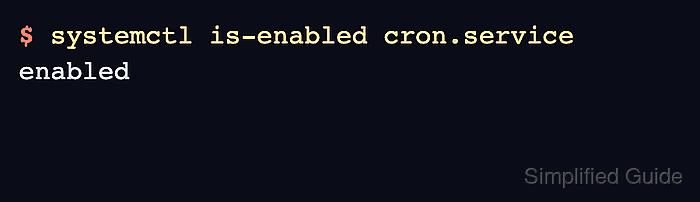
$ systemctl is-enabled cron.service
enabled
This check proves the boot configuration changed, but it does not prove the service is running now.
- Confirm that the service is currently active.
$ systemctl is-active cron.service
active
If this returns inactive, failed, or a connection error, do not assume the enablement completed the operational change. Check the unit status and logs before moving on.
- Review the service status when the active check is not enough detail.
$ systemctl status cron.service --no-pager
* cron.service - Regular background program processing daemon
     Loaded: loaded (/usr/lib/systemd/system/cron.service; enabled; preset: enabled)
     Active: active (running) since Fri 2026-06-12 10:15:31 UTC; 12s ago
##### snipped #####
The Loaded line confirms the enabled state and unit file path. The Active line confirms the current runtime state.
- Inspect recent logs if the service fails to start.
$ sudo journalctl -u cron.service -b --no-pager
Use the current-boot log to find configuration errors, missing files, permission problems, or dependency failures for the service. Related: How to view Debian system logs with journalctl