How to view Debian system logs with journalctl
Debian service failures, package hooks, and boot problems often leave the clearest clue in the systemd journal rather than in one plain log file. Reading the journal with journalctl keeps the first pass tied to the current boot, the affected unit, and the severity of the message instead of scrolling through unrelated history.
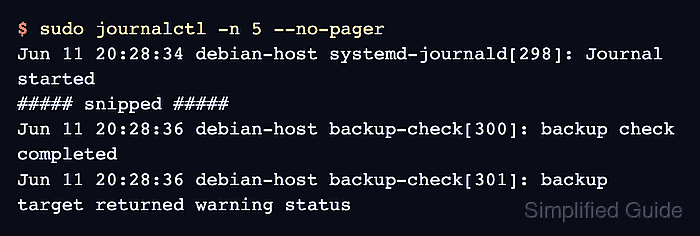
On Debian hosts booted with systemd, systemd-journald collects kernel, service, and user-space messages into indexed journal files. journalctl prints those records in a syslog-like format by default, and sudo is usually needed to read the full system journal unless the account belongs to a journal-reading group such as adm or systemd-journal.
The query commands are read-only, and each command narrows the journal before the output is copied into tickets or used for handoff. Minimal containers, chroots, rescue shells, and non-systemd systems may report no journal files even when the Debian userland is present.
Related: Enable a systemd service on Debian
Related: Clean up disk space on Debian
Steps to view Debian system logs with journalctl:
- Open a terminal on the Debian host that owns the journal.
Run journalctl on the host or VM that booted with systemd. A container or chroot commonly shows only its own journal state, or no journal files at all.
- Print the latest journal entries without opening an interactive pager.
$ sudo journalctl -n 5 --no-pager
Jun 11 20:28:34 debian-host systemd-journald[298]: Journal started
##### snipped #####
Jun 11 20:28:36 debian-host backup-check[300]: backup check completed
Jun 11 20:28:36 debian-host backup-check[301]: backup target returned warning status
Increase -n to show more recent entries. Omit –no-pager when scrolling interactively, and press q to leave the pager.
- Limit the output to the current boot when old entries could confuse the investigation.
$ sudo journalctl -b --no-pager
Jun 11 20:28:34 debian-host systemd-journald[298]: Journal started
Jun 11 20:28:34 debian-host systemd-journald[298]: Runtime Journal (/run/log/journal/00000000000000000000000000000000) is 8M, max 4G, 3.9G free.
Jun 11 20:28:36 debian-host backup-check[300]: backup check completed
Jun 11 20:28:36 debian-host backup-check[301]: backup target returned warning status
Use –list-boots first when the needed entry came from an earlier boot, then pass that boot offset or boot ID to -b.
- Show entries for one systemd service unit.
$ sudo journalctl -u ssh.service -b --no-pager
Replace ssh.service with the unit name that matches the service being checked. The -b filter keeps the service output tied to the current boot.
Related: Enable a systemd service on Debian
- Filter entries by syslog identifier when a script or daemon logs without a matching service unit.
$ sudo journalctl -t backup-check --no-pager
Jun 11 20:28:36 debian-host backup-check[300]: backup check completed
Jun 11 20:28:36 debian-host backup-check[301]: backup target returned warning status
The identifier is the name shown before the process ID in normal journal output, such as sudo, cron, sshd, or an application-specific tag.
- Show warning, error, and critical messages when the full journal is too noisy.
$ sudo journalctl -p warning..alert -b --no-pager
Jun 11 20:28:36 debian-host backup-check[301]: backup target returned warning status
warning..alert includes warning, error, critical, alert, and emergency priorities. Use err..alert when warnings are expected and only failures matter.
- Follow new journal entries while reproducing the event.
$ sudo journalctl -f
Keep journalctl -f running only while triggering the service action, package command, login attempt, or backup job being checked. Press Ctrl+C to stop following logs.