How to get Codex MCP server details
Before a Codex session depends on a Model Context Protocol (MCP) server, the saved server record shows what Codex will launch or connect to for that server name. The details view exposes the transport, target, and enabled state before tools are loaded into a session.
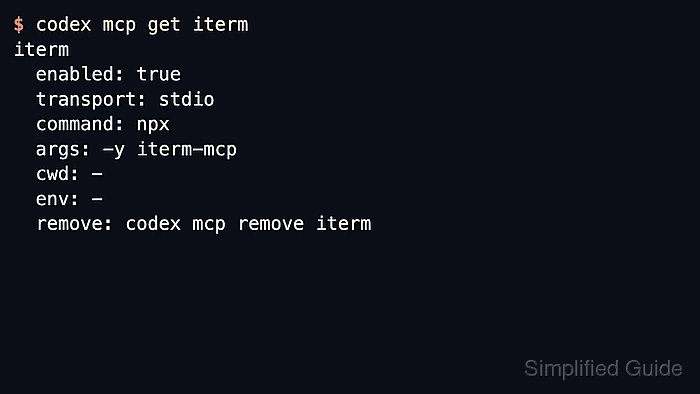
Codex stores MCP server entries in config.toml under CODEX_HOME, with project-scoped configuration available in trusted projects. The Codex app, CLI, and IDE extension share these settings, so the same server name can appear across surfaces when they resolve the same configuration.
The codex mcp get <name> command prints a short summary by default, while codex mcp get <name> --json emits the underlying record for scripts, audits, or private debug handoffs. Treat the output as configuration data when it contains internal URLs, environment variable names, static headers, or launch arguments.
Related: How to list Codex MCP servers
Related: How to add a URL-based MCP server to Codex
Related: How to remove a Codex MCP server
Steps to get Codex MCP server details:
- List the configured MCP servers and copy the exact Name value.
$ codex mcp list
Name      Command  Args                      Env  Cwd  Status   Auth
context7  npx      -y @upstash/context7-mcp  -    -    enabled  Unsupported

Name         Url                                Bearer Token Env Var  Status   Auth
openai-docs  https://developers.openai.com/mcp  -                     enabled  Unsupported
Local stdio entries show Command and Args. Remote streamable HTTP entries show Url and Bearer Token Env Var.
- Retrieve the saved details for a local server in the default view.
$ codex mcp get context7
context7
  enabled: true
  transport: stdio
  command: npx
  args: -y @upstash/context7-mcp
  cwd: -
  env: -
  remove: codex mcp remove context7
The default output is the shortest view for checking a saved launcher before a session starts.
- Print the local server details as JSON when another tool or script needs structured fields.
$ codex mcp get context7 --json
{
  "name": "context7",
  "enabled": true,
  "disabled_reason": null,
  "transport": {
    "type": "stdio",
    "command": "npx",
    "args": [
      "-y",
      "@upstash/context7-mcp"
    ],
    "env": null,
    "env_vars": [],
    "cwd": null
  },
  "enabled_tools": null,
  "disabled_tools": null,
  "startup_timeout_sec": null,
  "tool_timeout_sec": null
}
Use transport.type to distinguish stdio launchers from remote endpoints. Local launchers expose command, args, cwd, and optional environment settings.
Tool: JSON Converter - Check a remote server record when the name comes from the URL table.
$ codex mcp get openai-docs --json
{
  "name": "openai-docs",
  "enabled": true,
  "disabled_reason": null,
  "transport": {
    "type": "streamable_http",
    "url": "https://developers.openai.com/mcp",
    "bearer_token_env_var": null,
    "http_headers": null,
    "env_http_headers": null
  },
  "enabled_tools": null,
  "disabled_tools": null,
  "startup_timeout_sec": null,
  "tool_timeout_sec": null
}
Confirm transport.type is streamable_http and transport.url matches the provider endpoint. Bearer-token entries should name an environment variable, not store the secret value itself.
- Save the JSON output to a file when comparing configs or attaching a private debug artifact.
$ codex mcp get context7 --json > context7-mcp.json
Review the saved file before sharing it, because MCP records can expose internal endpoints, launch arguments, headers, or environment variable names that do not belong in public issue trackers.