How to add the Docker MCP server to Codex
Codex sessions that need Docker-managed MCP tools need a saved server entry that starts Docker's MCP gateway on demand. Adding the Docker MCP Toolkit to Codex lets prompts reach Docker's MCP catalog, enabled profile servers, and Docker's own MCP management tools through one local launcher.
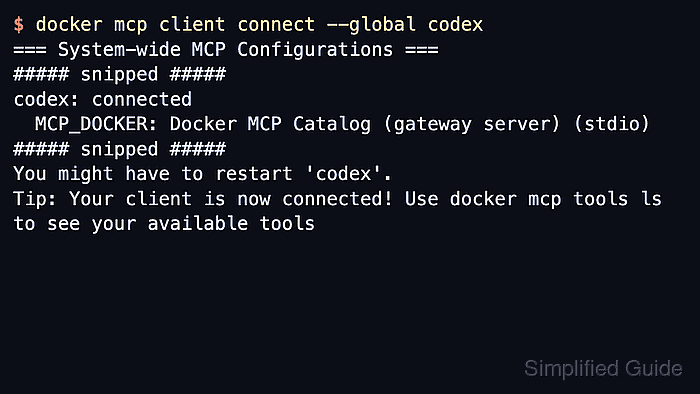
Docker's connector saves a stdio MCP server named MCP_DOCKER for the Codex client. The saved entry runs docker mcp gateway run, so Codex starts the gateway as a local process when a session first needs Docker-backed tools.
The docker mcp command comes from Docker's MCP Toolkit, not from a minimal Docker Engine CLI. Use Docker Desktop with MCP Toolkit enabled, or another Docker CLI installation that includes the MCP plugin, before running the connector. The connector writes to the shared user Codex configuration, so restart any already-open Codex CLI or IDE session after the entry is saved.
Related: How to remove a Codex MCP server
Steps to add the Docker MCP server to Codex:
- Connect Codex to Docker's MCP Toolkit.
$ docker mcp client connect --global codex
Use --profile <profile-name> when Codex should connect to a non-default Docker MCP profile. Omitting --profile uses Docker's default profile.
- Inspect the saved MCP_DOCKER entry in Codex.
$ codex mcp get MCP_DOCKER --json
{
  "name": "MCP_DOCKER",
  "enabled": true,
  "disabled_reason": null,
  "transport": {
    "type": "stdio",
    "command": "docker",
    "args": [
      "mcp",
      "gateway",
      "run"
    ],
    "env": null,
    "env_vars": [],
    "cwd": null
  },
  "enabled_tools": null,
  "disabled_tools": null,
  "startup_timeout_sec": null,
  "tool_timeout_sec": null
}
Confirm transport.type is stdio, transport.command is docker, and transport.args contains mcp gateway run.
Related: How to get Codex MCP server details - List configured MCP servers and confirm that MCP_DOCKER is enabled.
$ codex mcp list
Name        Command  Args             Env  Cwd  Status   Auth
MCP_DOCKER  docker   mcp gateway run  -    -    enabled  Unsupported
Unsupported under Auth is expected for this local stdio launcher because it does not use bearer-token or OAuth login.
Related: How to list Codex MCP servers - Start a new Codex session after saving the entry.
$ codex
Run /mcp inside the Codex terminal UI to confirm the server is visible in the active session. Restart an already-open CLI or IDE session so it reloads MCP configuration.
- Send a prompt that requires Docker's MCP catalog or profile tools.
Use Docker MCP to find the official GitHub server in the Docker catalog.
A working session starts MCP_DOCKER when the prompt needs Docker-backed tools. If the profile has no added catalog servers yet, Docker's management tools such as catalog search and server add commands are the first tools available.