How to query the Checkmk REST API
Querying the Checkmk REST API lets automation read site objects through the versioned HTTP interface exposed by the monitoring site. It fits scripts that need host records, service data, pending-change state, or another API resource without a manual browser session.
The API documentation is generated from the OpenAPI description shipped with the Checkmk site. In Checkmk 2.5, the supported API path uses v1 under the site path ending in check_mk/api; older supported sites may still show 1.0 in their local documentation.
Use an automation user and send the username plus automation secret in the Authorization header. A successful HTTP status proves that the request was accepted by the API layer, but the returned JSON still needs to contain the host, folder, service, or other object that the script expected.
Related: How to query Checkmk status data with Livestatus
Related: How to create a Checkmk user
Tool: cURL Command Generator
Steps to query the Checkmk REST API:
- Open the REST API documentation for the Checkmk site.
Use Help → Developer resources → REST API → Version 1 → Documentation in the Checkmk navigation. The local documentation shows the endpoints and parameters supported by that site.
- Find a read-only endpoint for the object to inspect.
For a first request, use Show a host when the host name is known or Show all hosts when the script needs to discover host objects. The endpoint names and parameter list come from the local API documentation.
- Set the site and API variables.
$ HOST_NAME="monitoring.example.net"
$ SITE_NAME="mysite"
$ API_VERSION="v1"
$ USERNAME="automation"
$ API_URL="https://$HOST_NAME/$SITE_NAME/check_mk/api/$API_VERSION"
Replace monitoring.example.net, mysite, and automation with values from the target site. Use the API version shown by that site's documentation.
- Read the automation secret without printing it to the terminal.
$ read -rsp "Automation secret: " AUTOMATION_SECRET
Automation secret:
Do not paste real automation secrets into shared transcripts, tickets, screenshots, shell history, or article examples.
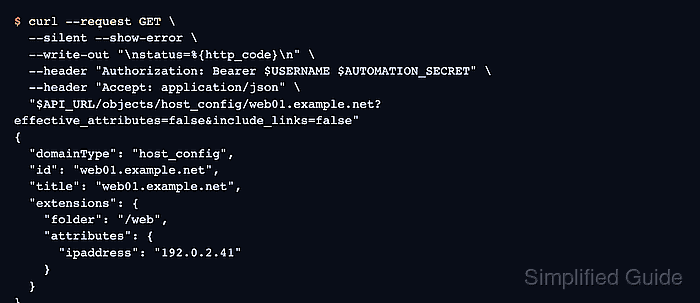
- Query one host configuration object.
$ curl --request GET \
  --silent --show-error \
  --write-out "\nstatus=%{http_code}\n" \
  --header "Authorization: Bearer $USERNAME $AUTOMATION_SECRET" \
  --header "Accept: application/json" \
  "$API_URL/objects/host_config/web01.example.net?effective_attributes=false&include_links=false"
{
  "domainType": "host_config",
  "id": "web01.example.net",
  "title": "web01.example.net",
  "extensions": {
    "folder": "/web",
    "attributes": {
      "ipaddress": "192.0.2.41"
    }
  }
}
status=200
Replace web01.example.net with an existing host object. A 200 status plus the expected id confirms that authentication, the API path, and the target object matched.
- List host objects when the exact host name is not known.
$ curl --request GET \
  --silent --show-error \
  --write-out "\nstatus=%{http_code}\n" \
  --header "Authorization: Bearer $USERNAME $AUTOMATION_SECRET" \
  --header "Accept: application/json" \
  "$API_URL/domain-types/host_config/collections/all?effective_attributes=false&include_links=false"
{
  "domainType": "host_config",
  "value": [
    {
      "id": "router01.example.net",
      "title": "router01.example.net"
    },
    {
      "id": "web01.example.net",
      "title": "web01.example.net"
    }
  ]
}
status=200
Large sites can return many objects. Start with a narrow endpoint from the API documentation when a script only needs one host, folder, rule, or service collection.
- Compare the response body with the expected Checkmk object.
A 401 or 403 status points to credentials or permissions. A 404 status usually points to the site name, API version, endpoint path, or object name. A 200 status still needs a body check because the wrong endpoint can return valid JSON for the wrong resource.
- Confirm the same host in the Checkmk interface when the API query will drive automation.
Open the host from Setup → Hosts or Monitor → All hosts and check that the displayed host name, folder, address, and labels match the JSON fields the script will use.
- Clear the automation secret from the current shell.
$ unset AUTOMATION_SECRET