How to acknowledge a problem in Checkmk
Acknowledging a problem in Checkmk marks a known DOWN, UNREACH, WARN, CRIT, or UNKNOWN state as handled while the affected host or service remains visible in monitoring. Use it when an operator has accepted ownership of an active alert and repeated notifications should stop while the issue is being worked.
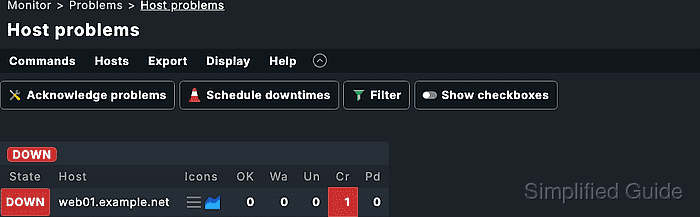
Checkmk runs acknowledgments as commands against the affected host or service objects. The action can target one object from its detail page or selected rows from a problem view, and the available commands depend on the logged-in user's role and the object type being displayed.
A clear comment matters because it becomes the audit trail for the handled problem. Add the ticket, owner, or incident note before confirming the action, and use expiration or sticky behavior only when that matches how long the alert should stay handled.
Related: How to test Checkmk notification rules
Related: How to schedule Checkmk downtime
Steps to acknowledge a Checkmk problem:
- Open Monitor → Problems → Host problems or Service problems.
- Filter the view until only the relevant problem set remains.
- Open the affected host or service when only one object should receive the acknowledgment.
The detail view keeps the command scoped to that single object.
- Click Show checkboxes when several rows in the problem list should be acknowledged together.
- Select each row that should receive the acknowledgment.
Running Acknowledge problems from a list without selected checkboxes can apply the command to every object currently shown in that view.
- Open Commands → Acknowledge problems.
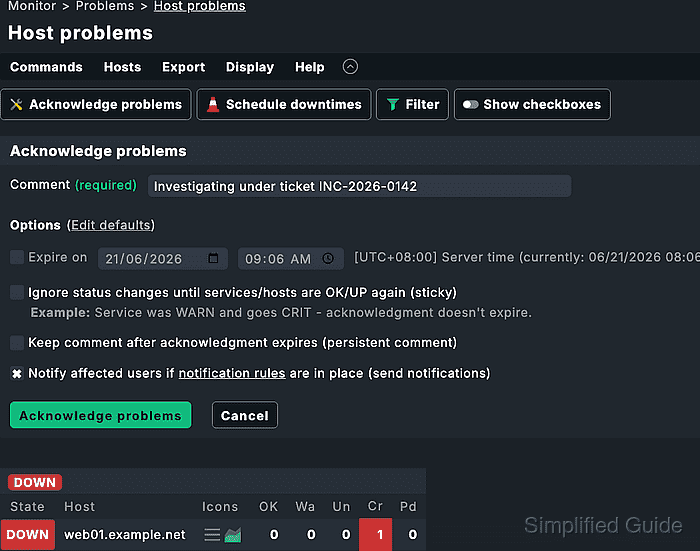
- Enter an operator comment in Comment.
Include a ticket URL when available; Checkmk converts URLs in acknowledgment comments into clickable links.
- Set Expire on when the acknowledgment should clear automatically at a specific time.
Expire on is available in the commercial editions.
- Enable Ignore status changes until services/hosts are OK/UP again when the acknowledgment should survive state changes before recovery.
Without sticky handling, Checkmk can remove an acknowledgment when a problem changes state, such as from WARN to CRIT.
- Enable Keep comment after acknowledgment expires only when the comment should remain after the acknowledgment is removed.
- Enable Notify affected users if notification rules are in place only when contacts should receive an ACKNOWLEDGEMENT notification.
- Click Acknowledge problems.
- Confirm the command in the confirmation dialog.
- Check the problem row for the acknowledgment icon.
- Check the Unhandled problem count or dashboard tile that originally showed the alert.
The acknowledged object can remain in a problem state, but it should no longer be counted as unhandled.
- Open the comment icon on the object, or open Monitor → Overview → Comments, to verify the acknowledgment comment.