How to issue a Certbot certificate in standalone mode
Standalone mode issues a certificate on a server that can temporarily answer the ACME HTTP-01 challenge without letting Certbot edit a web server configuration. It fits bare hosts, custom daemons, reverse proxies managed outside Certbot, and maintenance windows where port 80 can be handed to Certbot for a short time.
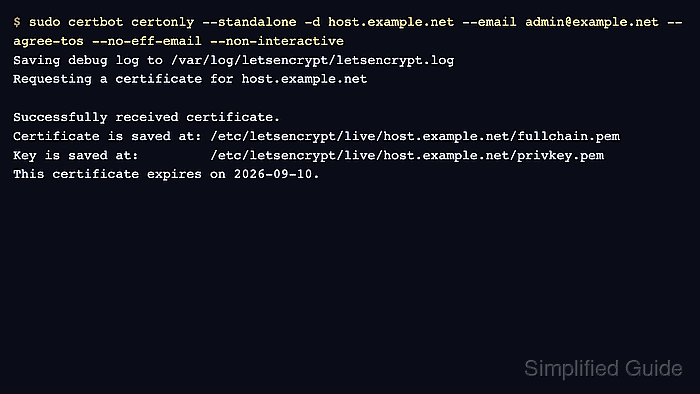
The standalone authenticator starts a temporary HTTP server on the certificate host and certonly stores the issued files under /etc/letsencrypt/live. It does not install the certificate into Nginx, Apache, Postfix, or another service, so the application that will serve TLS still needs to reference the saved fullchain.pem and privkey.pem paths after issuance.
Examples below use host.example.net, an email contact, and a single-name certificate. Replace the hostname with the public DNS name that resolves to this server, repeat -d for every additional non-wildcard name, and use a DNS challenge instead when port 80 cannot be reached from the internet or when the certificate needs a wildcard name. The dry-run step uses the staging service and does not save a certificate, so run the production request only after DNS, port 80, and any service stop window are ready.
Related: Use the Certbot staging environment
Related: Use a webroot challenge with Certbot
Related: Issue a wildcard certificate with Certbot
Steps to issue a certificate with Certbot standalone mode:
- Confirm that the standalone plugin is available.
$ sudo certbot plugins
Saving debug log to /var/log/letsencrypt/letsencrypt.log

* standalone
Description: Runs an HTTP server locally which serves the necessary validation
files under the /.well-known/acme-challenge/ request path.
Interfaces: Authenticator, Plugin
##### snipped #####
The standalone plugin is an authenticator only. It proves domain control and saves certificate files, but it does not edit the service that will serve TLS.
- Confirm that the hostname resolves to this server's public address.
$ getent ahosts host.example.net
203.0.113.10    STREAM host.example.net
203.0.113.10    DGRAM
203.0.113.10    RAW
If the name also has an .AAAA record, that IPv6 address must reach this server too. Let's Encrypt validation can use IPv6 when it is published in DNS.
- Confirm that port 80 is not already in use locally.
$ sudo ss -ltnp 'sport = :80'
State Recv-Q Send-Q Local Address:Port Peer Address:Port Process
Header-only output means no local process is listening. If a process appears in the Process column, Certbot cannot bind standalone mode to port 80 until that service is stopped or moved.
- Stop the service that owns port 80 when the previous check showed one.
$ sudo systemctl stop nginx
This interrupts HTTP traffic for that service until it is started again. Use the actual unit name from the port check, such as nginx or apache2.
- Rehearse the standalone request with the staging service.
$ sudo certbot certonly --standalone -d host.example.net --email admin@example.net --agree-tos --no-eff-email --non-interactive --dry-run
Saving debug log to /var/log/letsencrypt/letsencrypt.log
Simulating a certificate request for host.example.net
The dry run was successful.
--dry-run uses the staging service and does not save the temporary certificate. It still needs the same public DNS and port 80 reachability as the production request.
- Request the certificate with the standalone authenticator.
$ sudo certbot certonly --standalone -d host.example.net --email admin@example.net --agree-tos --no-eff-email --non-interactive
Saving debug log to /var/log/letsencrypt/letsencrypt.log
Requesting a certificate for host.example.net

Successfully received certificate.
Certificate is saved at: /etc/letsencrypt/live/host.example.net/fullchain.pem
Key is saved at:         /etc/letsencrypt/live/host.example.net/privkey.pem
This certificate expires on 2026-09-10.
This command requests a production certificate and can spend Let's Encrypt rate-limit budget. Keep --dry-run in the previous step until the staging request succeeds.
- List the saved certificate lineage.
$ sudo certbot certificates --cert-name host.example.net
Saving debug log to /var/log/letsencrypt/letsencrypt.log
Found the following certs:
  Certificate Name: host.example.net
    Domains: host.example.net
    Expiry Date: 2026-09-10 12:00:00+00:00 (VALID: 89 days)
    Certificate Path: /etc/letsencrypt/live/host.example.net/fullchain.pem
    Private Key Path: /etc/letsencrypt/live/host.example.net/privkey.pem
The lineage name defaults to the first -d value unless --cert-name is supplied.
- Inspect the certificate subject, issuer, and validity dates.
$ sudo openssl x509 -in /etc/letsencrypt/live/host.example.net/fullchain.pem -noout -subject -issuer -dates
subject=CN=host.example.net
issuer=C=US, O=Let's Encrypt, CN=E8
notBefore=Jun 12 12:00:00 2026 GMT
notAfter=Sep 10 12:00:00 2026 GMT
- Test renewal while standalone mode can still bind port 80.
$ sudo certbot renew --cert-name host.example.net --dry-run
Saving debug log to /var/log/letsencrypt/letsencrypt.log
Processing /etc/letsencrypt/renewal/host.example.net.conf

Congratulations, all simulated renewals succeeded:
  /etc/letsencrypt/live/host.example.net/fullchain.pem (success)
--dry-run uses the staging service and does not replace the active production certificate. If a web server normally owns port 80, configure pre and post renewal hooks before relying on automated renewal.
Related: Configure Certbot renewal hooks - Start the web service again when it was stopped for standalone validation.
$ sudo systemctl start nginx
Use the same service name stopped earlier. If no service was listening on port 80 before issuance, skip this step.