How to log in to AWS CLI with IAM Identity Center
Logging in to AWS CLI with IAM Identity Center gives the shell short-lived credentials tied to the intended AWS account and permission set. That is the normal path before deployments, support work, or automation that must not fall back to stale access keys or the wrong account.
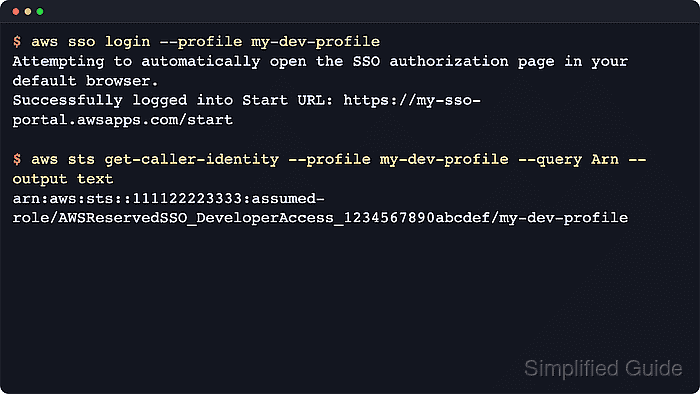
Current AWS CLI releases store IAM Identity Center settings in ~/.aws/config, usually by attaching a named profile to a shared [sso-session …] block. Running aws sso login --profile my-dev-profile caches the access token under ~/.aws/sso/cache so the CLI can exchange it for temporary role credentials when later commands need them.
Only one login session can stay active for one shared sso_session, so sibling profiles that reuse that session also reuse the same sign-in state. Current AWS CLI v2 releases use Proof Key for Code Exchange (PKCE) in a local browser by default, while --use-device-code is the fallback when approval must happen on another device or from a browserless shell.
Related: How to configure multiple AWS CLI profiles
Related: How to switch AWS CLI profiles
Steps to log in to AWS CLI with IAM Identity Center:
- Create or refresh the target IAM Identity Center profile if the machine does not already have the right named profile saved.
$ aws configure sso --profile my-dev-profile
SSO session name (Recommended): my-sso
SSO start URL [None]: https://my-sso-portal.awsapps.com/start
SSO region [None]: us-east-1
SSO registration scopes [None]: sso:account:access

There are 2 AWS accounts available to you.
Using the account ID 111122223333
The only role available to you is: DeveloperAccess

Default client Region [None]: us-west-2
CLI default output format (json if not specified) [None]: json
Profile name [my-dev-profile]: my-dev-profile
aws configure sso writes the shared sso-session block and the named profile to ~/.aws/config, and current AWS documentation accepts either the access portal start URL or the issuer URL at the prompt.
- Start the saved profile login flow and complete the browser approval on the same device when the terminal can open a local browser.
$ aws sso login --profile my-dev-profile
Attempting to automatically open the SSO authorization page in your default browser.
If the browser does not open or you wish to use a different device to authorize the request, open the following URL:

https://oidc.us-east-1.amazonaws.com/authorize?<abbreviated>

Successfully logged into Start URL: https://my-sso-portal.awsapps.com/start
Current AWS CLI v2 releases use PKCE by default for this path, so the approval URL must be opened on the same device that ran the command.
- Use the device authorization flow when the approval must happen on another machine or from a shell that has no working browser session.
$ aws sso login --profile my-dev-profile --use-device-code --no-browser
Open the following URL in another browser:
https://device.sso.us-east-1.amazonaws.com/

Then enter the code:
QCFK-N451
--use-device-code switches the login to the device-code flow, and --no-browser keeps the CLI from trying to launch a local browser first.
- Run a low-risk identity check before any other AWS CLI command uses the refreshed session.
$ aws sts get-caller-identity --profile my-dev-profile --output json
{
    "UserId": "AROAEXAMPLEID:my-dev-profile",
    "Account": "111122223333",
    "Arn": "arn:aws:sts::111122223333:assumed-role/AWSReservedSSO_DeveloperAccess_1234567890abcdef/my-dev-profile"
}
The Account and Arn fields confirm which account and permission set the cached sign-in actually resolved.
Related: How to check the current caller identity in AWS CLI - Clear the cached IAM Identity Center session before retrying the login when the CLI keeps reusing the wrong sign-in state.
$ aws sso logout
Successfully signed out of all SSO profiles.
aws sso logout removes cached IAM Identity Center access tokens and temporary credentials across all profiles, so the next aws sso login --profile my-dev-profile starts from a clean session.