How to disable the AWS CLI pager
Long AWS CLI responses can pause in less or more instead of returning straight to the prompt. Disabling the client-side pager makes command output print to stdout so it can stay visible, feed a pipeline, or redirect to a file without an interactive screen taking over.
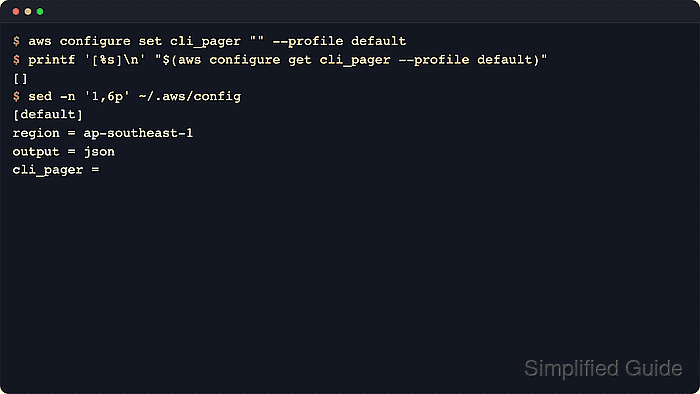
AWS CLI version 2 chooses a pager from the saved cli_pager setting, AWS_PAGER, or the lower-priority PAGER environment variable. An empty cli_pager value disables paging for the selected profile, and an empty AWS_PAGER value disables paging for the current shell or process.
Use the saved profile setting for normal workstation and automation profiles, AWS_PAGER="" for a short shell session, and --no-cli-pager for a single command. Do not confuse --no-cli-pager with --no-paginate; the pager controls the local display program, while pagination controls how the CLI follows service result pages.
Related: Find the AWS CLI config file
Related: Use AWS CLI environment variables
Related: Switch AWS CLI profiles
Related: Save AWS CLI output to a file
Steps to disable the AWS CLI pager:
- Confirm that the shell is running AWS CLI version 2.
$ aws --version
aws-cli/2.35.3 Python/3.14.5 Linux/6.8.0 exe/x86_64.amzn.2023
If the first token starts with aws-cli/1., the cli_pager setting and --no-cli-pager option from this page do not apply to that older major release.
- Disable the pager for the default profile.
$ aws configure set cli_pager "" --profile default
The command writes an empty cli_pager value to the shared config file for that profile. No output means the setting was saved.
- Apply the same setting to each named profile that should stay pager-free.
$ aws configure set cli_pager "" --profile audit
Profile settings are separate. Updating [default] does not automatically update [profile audit], [profile production], or any other named profile.
- Inspect the shared config file and confirm the blank pager value.
$ cat ~/.aws/config
[default]
region = us-east-1
output = json
cli_pager =
[profile audit]
region = us-west-2
output = yaml
cli_pager =
On Windows, inspect %USERPROFILE%\.aws\config. If AWS_CONFIG_FILE is set, inspect that override path instead of the home-directory default.
Related: How to find the AWS CLI config file location - Run a local-output command and confirm that the response prints directly.
$ aws ec2 describe-regions --generate-cli-skeleton output --region us-east-1
{
    "Regions": [
        {
            "OptInStatus": "OptInStatus",
            "Geography": [
                {
                    "Name": "Name"
                }
            ],
            "RegionName": "RegionName",
            "Endpoint": "Endpoint"
        }
    ]
}
--generate-cli-skeleton output renders sample output locally, so this check does not require live credentials or an AWS service call. Generated skeleton fields can change between AWS CLI versions.
- Disable the pager only for the current shell when the saved profile should not change.
$ export AWS_PAGER=""
AWS_PAGER overrides a profile's cli_pager setting. Use a non-empty value only when the shell should force a specific pager program.
Related: How to use AWS CLI environment variables - Add --no-cli-pager when only one command should bypass the pager.
$ aws s3api list-buckets --generate-cli-skeleton output --no-cli-pager
{
    "Buckets": [
        {
            "Name": "Name",
            "CreationDate": "1970-01-01T00:00:00",
            "BucketRegion": "BucketRegion",
            "BucketArn": "BucketArn"
        }
    ],
    "Owner": {
        "DisplayName": "DisplayName",
        "ID": "ID"
    },
    "ContinuationToken": "ContinuationToken",
    "Prefix": "Prefix"
}
--no-cli-pager affects only that invocation. It is useful for commands that redirect output, run in scripts, or need to ignore a shell-level AWS_PAGER value.
- Check AWS_PAGER if output still opens less or more.
$ printenv AWS_PAGER
less
A non-empty AWS_PAGER can override the blank profile setting. Unset it or set it to an empty string before retesting the command.