How to load AWS CLI parameters from files
Large AWS CLI parameters become fragile when JSON, certificates, user data, or binary blobs are squeezed into one shell line. Loading values from files keeps request content reviewable and reduces quoting or encoding mistakes before the CLI sends a service call.
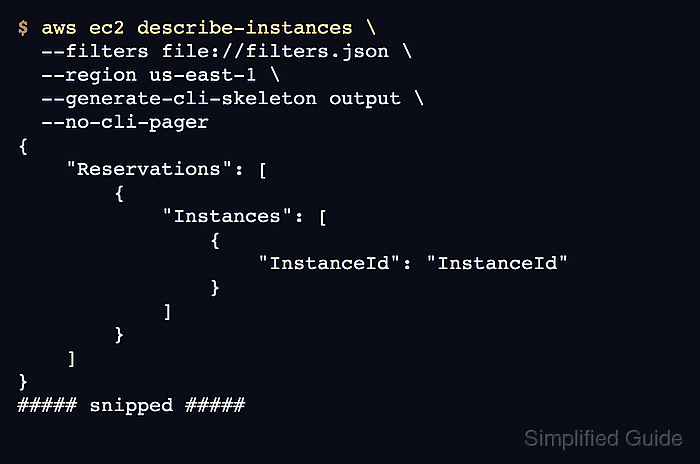
The file:// prefix tells AWS CLI to read a text parameter from a local path and pass the file contents as the option value. Relative file URLs are resolved from the current working directory, while absolute paths use three slashes when the path itself starts at the filesystem root.
The fileb:// prefix is for blob parameters that must be read as bytes, such as EC2 user data or customer-provided encryption keys. AWS CLI v2 no longer downloads HTTP or HTTPS parameter URLs automatically, so remote content must be downloaded first and passed from a local file.
Steps to load AWS CLI parameters from files:
- Create the text parameter file.
- filters.json
[
  {
    "Name": "tag:Environment",
    "Values": [
      "production"
    ]
  }
]
This example file matches the EC2 --filters shape. Use the JSON structure expected by the specific option being loaded from a file.
- Check the text file before passing it to AWS CLI.
$ cat filters.json
[
  {
    "Name": "tag:Environment",
    "Values": [
      "production"
    ]
  }
]
On Windows PowerShell, save JSON and other text inputs as ASCII or UTF-8 instead of the default UTF-16 output.
Tool: JSON Validator - Load the text parameter with file://.
$ aws ec2 describe-instances \
  --filters file://filters.json \
  --region us-east-1 \
  --generate-cli-skeleton output \
  --no-cli-pager
{
    "NextToken": "NextToken",
    "Reservations": [
        {
            "ReservationId": "ReservationId",
            "Instances": [
                {
                    "InstanceId": "InstanceId",
                    "State": {
                        "Name": "Name"
                    }
##### snipped #####
--generate-cli-skeleton output validates that the CLI can parse the option and returns sample output without sending an AWS API request. Generated skeleton output can change between AWS CLI versions.
Related: How to generate an AWS CLI input skeleton - Create a binary-backed input file for a blob parameter.
- user-data.sh
#!/bin/sh
echo "bootstrapped" > /var/tmp/user-data-check
EC2 user data is a blob parameter. Use fileb:// when the command should read the file bytes instead of treating the file as text shaped by cli_binary_format.
- Validate the binary-backed parameter with fileb://.
$ aws ec2 run-instances \
  --image-id ami-0123456789abcdef0 \
  --instance-type t3.micro \
  --count 1 \
  --user-data fileb://user-data.sh \
  --region us-east-1 \
  --generate-cli-skeleton output \
  --no-cli-pager
{
    "ReservationId": "ReservationId",
    "Instances": [
        {
            "InstanceId": "InstanceId",
            "ImageId": "ImageId",
            "InstanceType": "InstanceType"
##### snipped #####
Remove --generate-cli-skeleton output only when the command is ready to launch a real EC2 instance in the selected account and Region.
Related: How to check the current caller identity in AWS CLI - Use a full file URL when the path is absolute.
file:///tmp/aws-cli-input/filters.json
The first two slashes belong to file://. The third slash is the leading slash of the absolute Linux or macOS path. Quote the whole file URL when the path contains spaces.
- Remove the local sample files.
$ rm filters.json user-data.sh