Long AWS CLI service options can become hard to review when every structure is written as shell-escaped JSON. Shorthand syntax keeps one-off commands readable for parameters that accept flat structures, lists of strings, or lists of simple structures.
The shorthand form uses comma-separated key=value pairs for one structure and space-separated values for list parameters. The CLI still builds the same request shape as the JSON form, but the shell sees the shorthand as ordinary command arguments, so quoting and whitespace decide how the parser receives it.
Use shorthand for short parameters that stay easy to scan at the prompt. When a value becomes deeply nested, reused by automation, or easier to review in a file, switch to --cli-input-json or file:// input instead of forcing a dense shell line.
Steps to use AWS CLI shorthand syntax:
- Pass a flat structure as comma-separated key=value pairs.
$ aws ec2 run-instances \
  --image-id ami-1234567890abcdef0 \
  --instance-type t3.micro \
  --placement AvailabilityZone=us-east-1a,Tenancy=default \
  --region us-east-1 \
  --generate-cli-skeleton output \
  --query 'Instances[0].Placement' \
  --output json
{
    "AvailabilityZoneId": "AvailabilityZoneId",
    "Affinity": "Affinity",
    "GroupName": "GroupName",
    "PartitionNumber": 0,
    "HostId": "HostId",
    "Tenancy": "Tenancy",
    "SpreadDomain": "SpreadDomain",
    "HostResourceGroupArn": "HostResourceGroupArn",
    "GroupId": "GroupId",
    "AvailabilityZone": "AvailabilityZone"
}
--generate-cli-skeleton output validates the local command input and returns sample output without sending an AWS API request. The sample values are placeholders, not values from the request.
- Pass a list value inside the same shorthand structure.
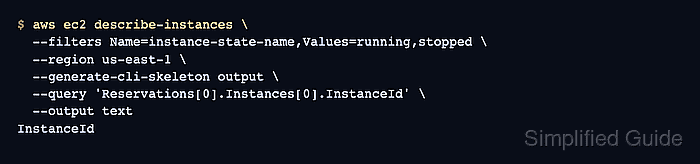
$ aws ec2 describe-instances \
  --filters Name=instance-state-name,Values=running,stopped \
  --region us-east-1 \
  --generate-cli-skeleton output \
  --query 'Reservations[0].Instances[0].InstanceId' \
  --output text
InstanceId
The Values=running,stopped segment stays inside one shell argument. Do not add a shell space after the comma.
- Verify the same parameter in JSON when a reviewer needs to see the full request shape.
$ aws ec2 describe-instances \
  --filters '[{"Name":"instance-state-name","Values":["running","stopped"]}]' \
  --region us-east-1 \
  --generate-cli-skeleton output \
  --query 'Reservations[0].Instances[0].InstanceId' \
  --output text
InstanceId
The matching output shows that both forms were accepted by the local CLI parser. Use JSON for deeply nested or reusable input.
Related: How to run AWS CLI commands from an input JSON file
Tool: JSON Validator - Add another simple structure by adding another shorthand argument.
$ aws ec2 describe-instances \
  --filters Name=instance-state-name,Values=running Name=tag:Environment,Values=production \
  --region us-east-1 \
  --generate-cli-skeleton output \
  --query 'Reservations[0].Instances[0].InstanceId' \
  --output text
InstanceId
Each Name=... group is one item in the --filters list. Use a separate space between list items, not between comma-separated fields inside one item.
- Keep whitespace out of unquoted comma-separated shorthand pairs.
$ aws ec2 describe-instances \
  --filters Name=instance-state-name, Values=running \
  --region us-east-1 \
  --generate-cli-skeleton output \
  --query 'Reservations[0].Instances[0].InstanceId' \
  --output text

aws: [ERROR]: An error occurred (ParamValidation): Error parsing parameter '--filters': Expected: '<second>', received: '<none>' for input:
 Name=instance-state-name,
                         ^
The shell splits Values=running into a separate argument in this example, so the shorthand parser receives an incomplete --filters value.
- Move large or file-backed values out of the shorthand line.
For a value that should be read from a file inside shorthand syntax, AWS CLI uses key@=file://path. For whole-parameter files, use file:// or fileb:// directly on the option instead.
Related: How to load AWS CLI parameters from files

Mohd Shakir Zakaria is a cloud architect with deep roots in software development and open-source advocacy. Certified in AWS, Red Hat, VMware, ITIL, and Linux, he specializes in designing and managing robust cloud and on-premises infrastructures.


