How to record video in an Appium test
A mobile test video preserves the exact screen movement around a failure, slow transition, or handoff to another engineer. Recording from the active Appium session ties the MP4 artifact to the same device, app state, and test command that produced the result.
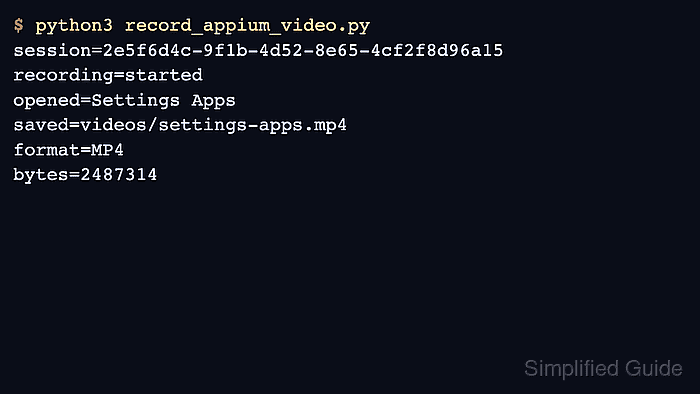
The Appium Python Client exposes screen recording through start_recording_screen() and stop_recording_screen() on the driver session. A short UiAutomator2 flow can open the Android Settings app, capture the visible action, decode the returned base64 payload, and write the video to a local artifact directory.
Keep the recording window short unless the test uploads directly to a remote path. Returned videos pass through the Appium server and client process memory, and Android recordings have a three-minute limit, so long failure captures should use smaller windows, unique filenames, or remote upload handling instead of one oversized local response.
Steps to record Appium test video:
- Check that the Appium server is ready before running the video test.
$ curl --silent http://127.0.0.1:4723/status
{"value":{"ready":true,"message":"The server is ready to accept new connections","build":{"version":"3.5.0"}}}
Start the server first if the status endpoint does not respond.
Related: How to start the Appium server - Create a directory for video artifacts.
$ mkdir -p videos
Use the same artifact root that collects screenshots, logs, and test reports in CI.
- Create the Python video test.
$ vi record_appium_video.py
- Add a session script that starts recording, performs one visible action, and saves the returned MP4 file.
- record_appium_video.py
import base64
from pathlib import Path

from appium import webdriver
from appium.options.android import UiAutomator2Options
from appium.webdriver.common.appiumby import AppiumBy

APPIUM_SERVER = "http://127.0.0.1:4723"
VIDEO = Path("videos/settings-apps.mp4")

capabilities = {
    "platformName": "Android",
    "automationName": "UiAutomator2",
    "deviceName": "Android Emulator",
    "appPackage": "com.android.settings",
    "appActivity": ".Settings",
    "language": "en",
    "locale": "US",
}

VIDEO.parent.mkdir(exist_ok=True)

driver = webdriver.Remote(
    APPIUM_SERVER,
    options=UiAutomator2Options().load_capabilities(capabilities),
)

try:
    driver.start_recording_screen(
        timeLimit=60,
        videoSize="1280x720",
        bitRate=4000000,
    )
    print(f"session={driver.session_id}")
    print("recording=started")

    driver.find_element(by=AppiumBy.XPATH, value='//*[@text="Apps"]').click()
    print("opened=Settings Apps")

    recording = driver.stop_recording_screen()
    video_bytes = base64.b64decode(recording)
    if b"ftyp" not in video_bytes[4:12]:
        raise RuntimeError("recording is not an MP4 file")

    VIDEO.write_bytes(video_bytes)
    if VIDEO.stat().st_size == 0:
        raise RuntimeError("recording is empty")

    print(f"saved={VIDEO}")
    print("format=MP4")
    print(f"bytes={VIDEO.stat().st_size}")
finally:
    driver.quit()
Replace the package, activity, device name, and test action with the app state that should appear in the video. The UiAutomator2Options object adds the appium: capability prefix when the session request is sent.
Related: How to configure Appium capabilities - Run the video test.
$ python3 record_appium_video.py
session=2e5f6d4c-9f1b-4d52-8e65-4cf2f8d96a15
recording=started
opened=Settings Apps
saved=videos/settings-apps.mp4
format=MP4
bytes=2487314
The session line should appear before the saved path. The format and bytes lines should show a non-empty MP4 artifact.
- Use unique video names when recording from test hooks or parallel workers.
from datetime import datetime, timezone
from pathlib import Path

stamp = datetime.now(timezone.utc).strftime("%Y%m%d-%H%M%S")
VIDEO = Path(f"videos/{stamp}-settings-apps.mp4")
A fixed filename such as settings-apps.mp4 is acceptable for one smoke test, but parallel jobs can overwrite it before the report uploader collects the video.
- Attach the videos directory to the test report or CI artifact upload.
For local debugging, open videos/settings-apps.mp4 after the run. For CI, publish the whole videos directory with the same job that stores screenshots and Appium logs.